Momentum AMS allows you to create and export a mailing label list using the Labels report. This report includes address information for insureds and prospects, allowing you to generate a list that can be used with mailing label software, CRM platforms, or other applications.
Once the report is generated, you can export the information to a CSV file for use outside Momentum AMS.
Step 1: Open All Reports
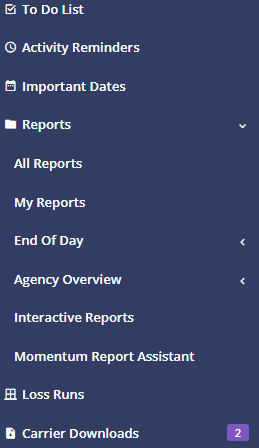
- From the left navigation menu in Momentum AMS, locate Reports.
- Select All Reports.
- This opens the standard reports section, where you can access the Labels report.
Note: The Labels report is located under All Reports, not Interactive Reports.
Step 2: Locate the Labels Report
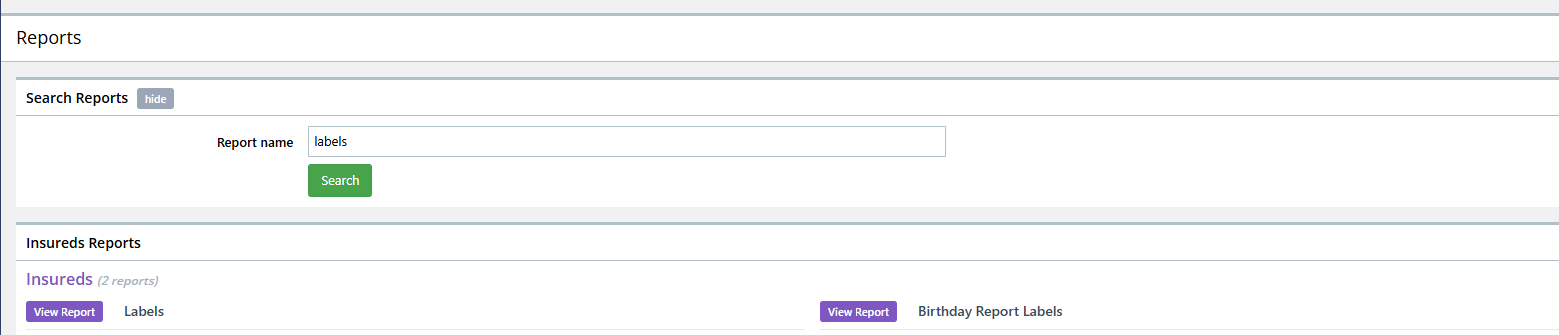
- On the All Reports page, use the search field at the top to locate the report, or scroll through the available reports.
- Find the report named Label.
- Select View Report Labels to open the report.
Step 3: Filter Your Mailing List
Once the Labels report opens, you can use the available filters at the top of the page to determine which records should be included.
By default, the report can display both Insureds and Prospects when searching across all records.
You can adjust the filters to narrow the results based on your mailing needs.
If you only need a list of insureds or a list of prospects, you can also use the corresponding Insured List or Prospect List report.
The report includes address information that can be used to prepare your mailing labels.

Step 4: Export the Mailing Label List
After reviewing the report and confirming that the appropriate records are displayed:
- Locate the Export dropdown on the report.
- Click the dropdown to view the available export formats.
- Select CSV as the recommended export format.
- Save the exported file to your computer.
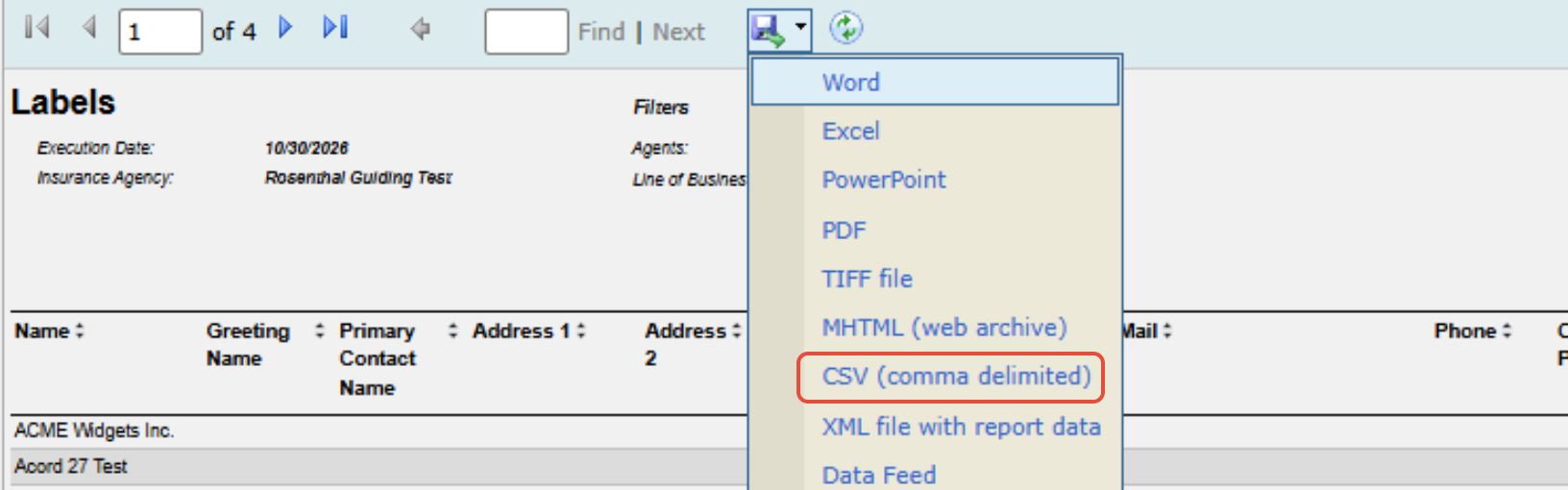
CSV is recommended because it can be imported into many mailing label applications, spreadsheet programs, and CRM platforms.
Step 5: Import the File into Your Mailing Label Software
Once the CSV file has been exported, you can use it with your preferred mailing label application or CRM platform.
- Open the application you use to create mailing labels or manage mailing lists.
- Locate the application's option to import data from a CSV file.
- Upload the CSV file exported from Momentum AMS.
- Follow the application's instructions to format or generate your mailing labels.
Note: The process for importing and printing labels will depend on the application you choose to use. Momentum AMS provides the address data through the report export.
Best Practices
- Review your filters: Make sure the report includes the insureds or prospects you intend to contact.
- Verify address information: Review the exported data for missing or outdated addresses before creating mailing labels.
- Use CSV for compatibility: CSV files can be imported into a wide variety of mailing and CRM applications.
- Use the appropriate report: If you only need insureds or prospects, consider using the corresponding list report instead of the combined Labels report.
Frequently Asked Questions
Where can I find the Labels report?
Navigate to Reports > All Reports and locate the Label report. Select View Report Labels to open it.
Does the Labels report include both insureds and prospects?
Yes. When the report is set to include all records, it can display address information for both insureds and prospects.
Can I export the mailing list to Excel or another application?
The recommended format is CSV, which can be opened or imported into many spreadsheet programs, CRM systems, and mailing label applications.
Does Momentum AMS print mailing labels directly?
This workflow exports the address information from Momentum AMS. You can then import the CSV file into your preferred mailing label application to format and print the labels.
Summary
Creating a mailing label list in Momentum AMS is a straightforward process using the Labels report.
Navigate to Reports > All Reports, open View Report Labels, apply any necessary filters, and export the results as a CSV file.
The exported file can then be used with your preferred mailing label software or CRM platform to prepare your mailing list.
Was this article helpful?
That’s Great!
Thank you for your feedback
Sorry! We couldn't be helpful
Thank you for your feedback
Feedback sent
We appreciate your effort and will try to fix the article