Momentum AMS includes built-in tools to help you understand and work with many reports in the system. When a report includes the Information (ⓘ) icon, you can open a detailed explanation of the report, including what it shows, how values are calculated, available filters, and common ways the report can be used.
Supported reports may also include an AI Assistant that allows you to ask questions about the report directly.
Accessing Report Info
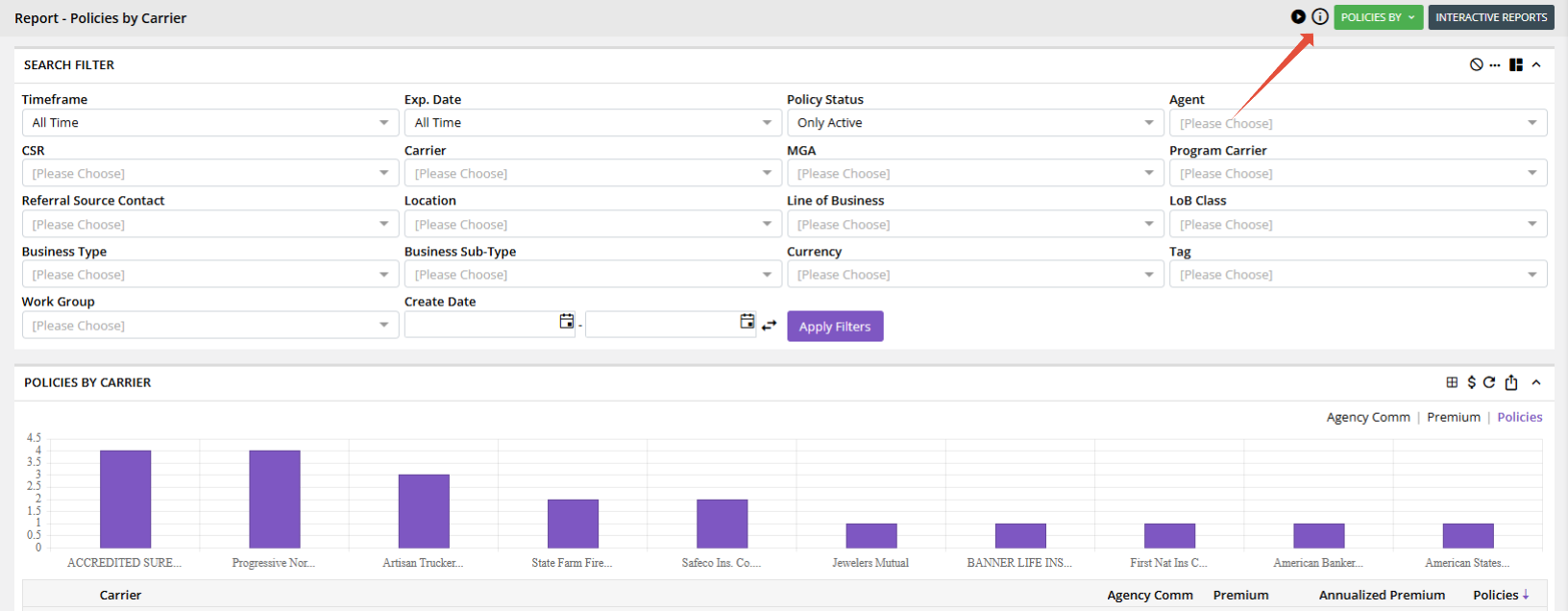
Open the report you want to review and look in the upper-right corner of the report screen. If the report supports this feature, you will see an ⓘ Information icon.
- Open the desired report in Momentum AMS.
- Locate the ⓘ icon in the upper-right corner.
- Click the icon to open the report information panel.
- Use the Report Info tab to review the detailed explanation of the report.
What Information Is Available?
The amount of information provided varies by report. Some reports include detailed documentation explaining not only what the report displays, but also how Momentum AMS calculates the information.
The Report Info panel may include:
- What Is This Report? – Explains the purpose of the report and what records are included or excluded.
- Totals and Summary Fields – Defines totals displayed in the report.
- Visualizations – Explains charts and other visual representations of the data.
- Columns – Defines the business meaning of each report column.
- Calculations – Explains how report values are calculated.
- Nested Grid Options – Explains additional grouping or breakdown options when available.
- Filters – Describes the available filters and how they affect the results.
- Examples – Demonstrates how individual report rows or calculations work.
- Typical Business Use Cases – Provides examples of how an agency can use the report.
Example: Policies by Carrier
The Policies by Carrier report is an example of the level of detail that may be available through Report Info.
This report groups policies by insurance carrier and provides consolidated financial and policy information for each carrier. The built-in explanation defines values such as:
- Agency Comm – Calculated agency commission across the matching policies.
- Premium – Combined amount of Premium-type endorsements on policies in the group.
- Annualized Premium – Written premium normalized to a full-year basis.
- Policies – Count of unique policies in the group.
The Report Info also explains important details about the report. For example, Policies by Carrier includes only policies with an assigned carrier. Policies without a carrier and quotes are excluded.
Understanding Advanced Report Features
Report Info may also explain features that are specific to an individual report.
For example, Policies by Carrier includes a Nested Grid that allows each carrier to be broken down further by dimensions such as Line of Business, Agent, Location, MGA, Referral Source, CSR, State, Business Type, and other available options.
Understanding Report Filters
Report Info can also help explain the filters available for a particular report and what each filter controls.
For example, Policies by Carrier includes filters such as Timeframe, Expiration Date, Policy Status, Agent, CSR, Carrier, MGA, Referral Source, Location, Line of Business, Line of Business Class, Business Type, Business Sub-Type, Tag, Work Group, and Create Date.
Using the AI Assistant
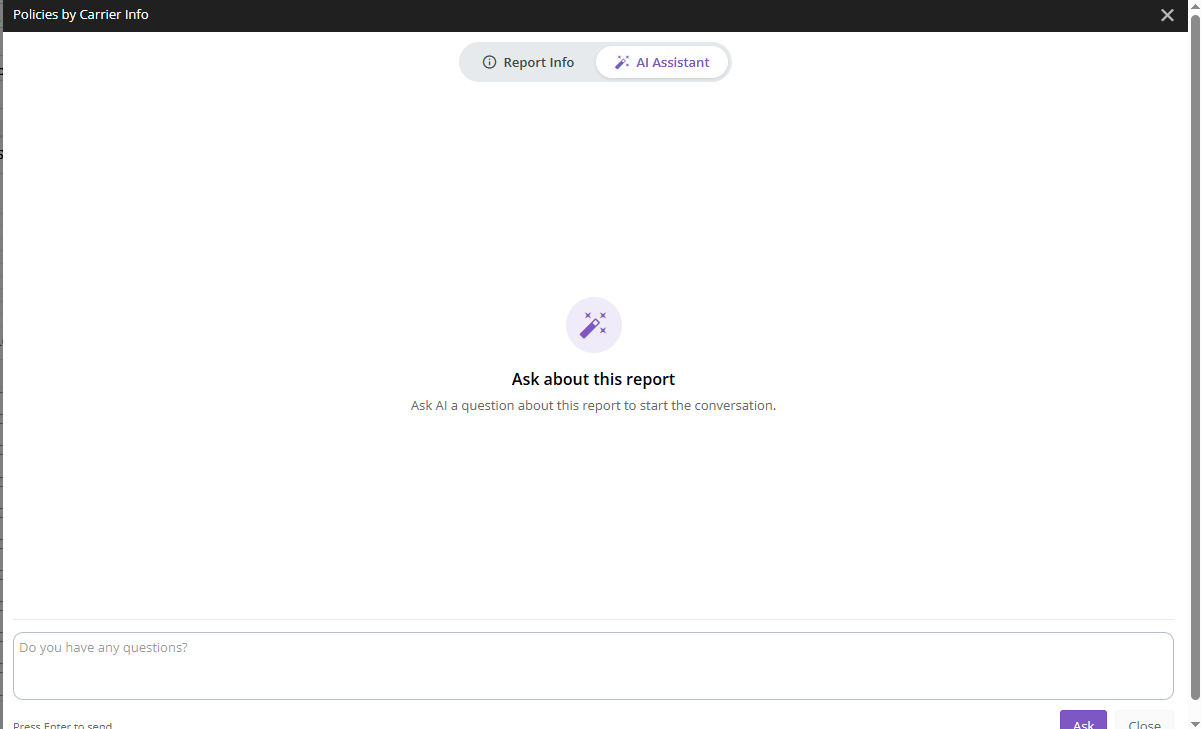
Supported reports may also include an AI Assistant tab within the Report Info window.
Instead of searching through the complete report explanation, you can use the AI Assistant to ask questions about the report in a conversational format.
For example, you might ask:
- What does Annualized Premium mean?
- Why can my nested Line of Business totals be higher than the carrier total?
- What filters should I use to see my current active book of business?
- Does this report include quotes?
Report Info vs. AI Assistant
| Tool | Best Used For |
|---|---|
| Report Info | Reviewing the complete explanation of the report, including fields, calculations, filters, report behavior, and business use cases. |
| AI Assistant | Asking a specific question about the report and receiving a more direct explanation. |
When working with a Momentum AMS report, look for the ⓘ Information icon. The Report Info and AI Assistant can often answer questions about report totals, calculations, filters, and functionality directly from the report screen.
Was this article helpful?
That’s Great!
Thank you for your feedback
Sorry! We couldn't be helpful
Thank you for your feedback
Feedback sent
We appreciate your effort and will try to fix the article