Agency Configuration in Momentum AMS
Proper agency configuration is an important first step when onboarding to Momentum AMS. Completing these settings helps establish consistent agency branding, reliable email communications, and organized workflows.
This guide covers the recommended agency configuration settings to review during initial onboarding.
Complete your agency configuration before entering live insureds and policies whenever possible. Establishing these settings early can reduce rework and help prevent communication and workflow issues later.
1. Agency Setup
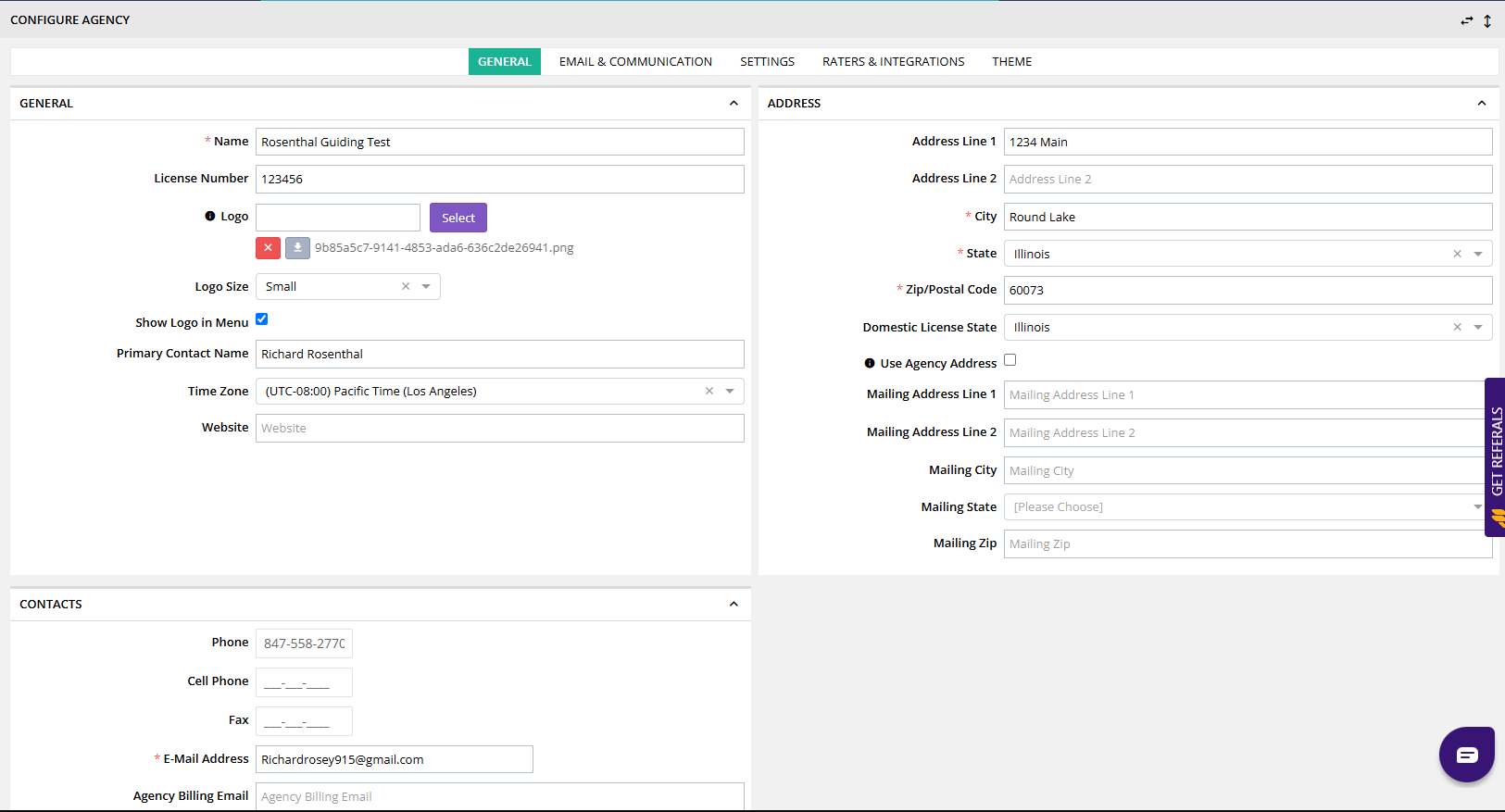
Navigate to your Agency Profile and click Configure.
Review and complete the following information.
Basic Agency Information
- Agency Name: Verify the agency's name is entered correctly.
- Agency Logo: Upload your agency logo, if available.
- Primary Contact Name: Enter the primary agency contact, typically the agency owner.
- Mailing Address: Verify the agency's mailing address.
- Physical Address: Enter the agency's physical location. If it matches the mailing address, use the available checkbox to copy the agency address.
Email Configuration
Several email fields are available in Agency Configuration. Understanding their different purposes helps ensure communications are directed to the appropriate recipients.
Primary Email Address
The Primary Email Address is used for important agency communications, including sensitive information such as export passwords.
Use a monitored administrative email address for the Primary Email field. Avoid using a general shared inbox, particularly in larger agencies, because sensitive agency communications may be delivered to this address.
Send Emails From
Use the Send Emails From section to enter email addresses used for agency communications, such as:
- Notifications
- Invoices
- Certificates of Insurance
General agency inboxes used for sending communications should be entered in the Send Emails From section rather than using them as the Primary Email Address.
Agency Billing Email
If agency billing statements should be delivered to a different email address, enter that address in the Agency Billing Email field.
2. Email Signature Templates
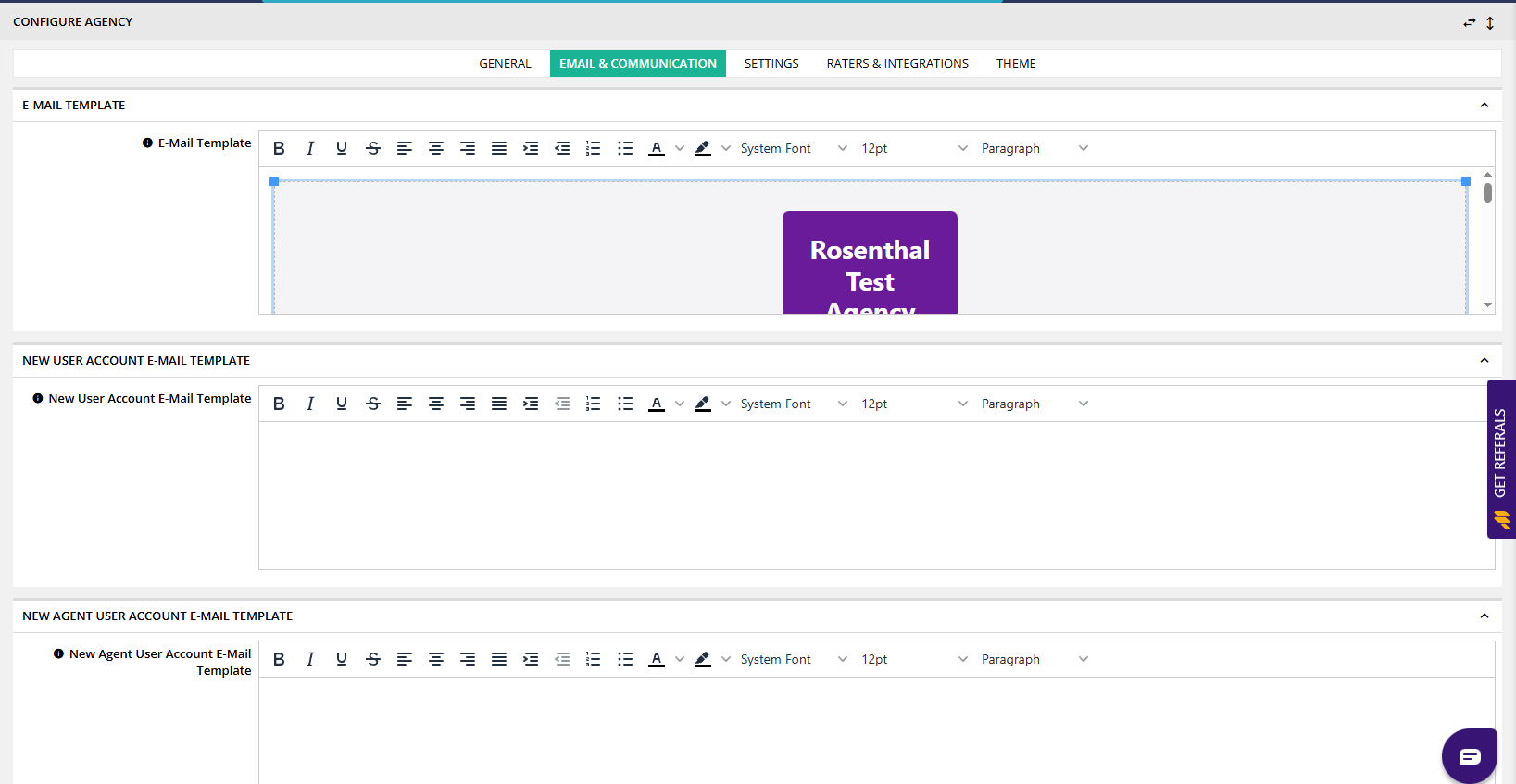
Agency email templates should be reviewed to ensure consistent branding across system-generated communications.
Navigate to Email Templates and review the following:
- Email Template
- New User Account Email Template
Add your agency's email signature to both templates, as appropriate.
Review both templates during onboarding. This helps ensure that outgoing system-generated emails maintain a consistent and professional appearance.
3. Additional Configuration Settings
After reviewing the agency's basic information and email settings, review the additional configuration options.
Certificates of Insurance (COIs)
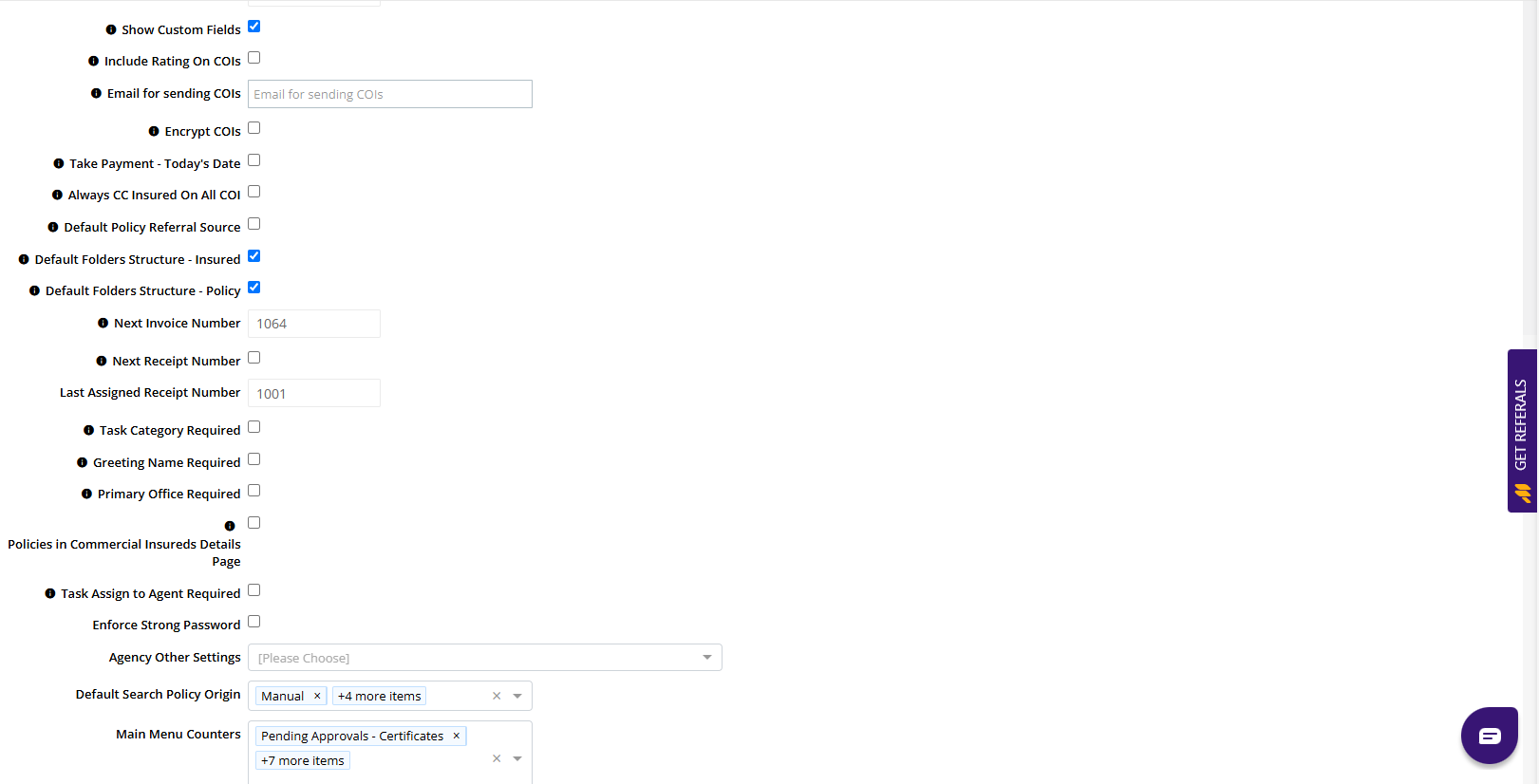
Review the certificate-related settings, including:
- COI Email Address: Enter an email address for sending Certificates of Insurance, if applicable.
- Always CC Insured On All COIs: Review whether your agency wants the insured copied on all certificate communications.
The Always CC Insured On All COIs option should be reviewed based on your agency's preferred certificate communication workflow.
Consider whether your agency wants insureds automatically included when certificates are sent.
Session Timeout
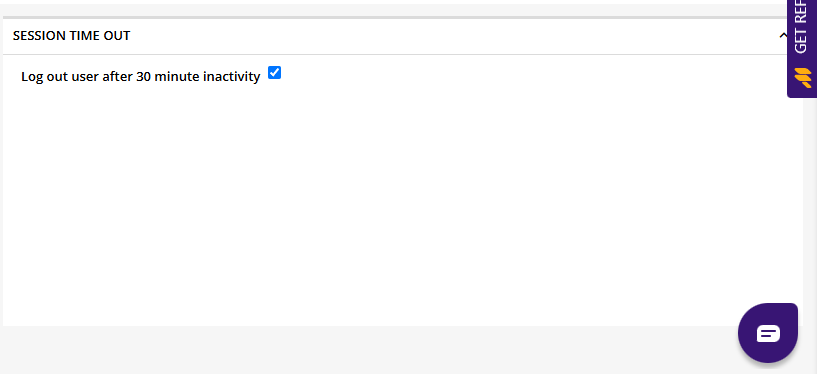
Momentum AMS automatically logs users out after 30 minutes of inactivity.
Users are automatically logged out after 30 minutes of inactivity. Any unsaved information may be lost when the session expires.
Recommendation: Save your work regularly, especially when entering detailed insured, policy, or other agency records.
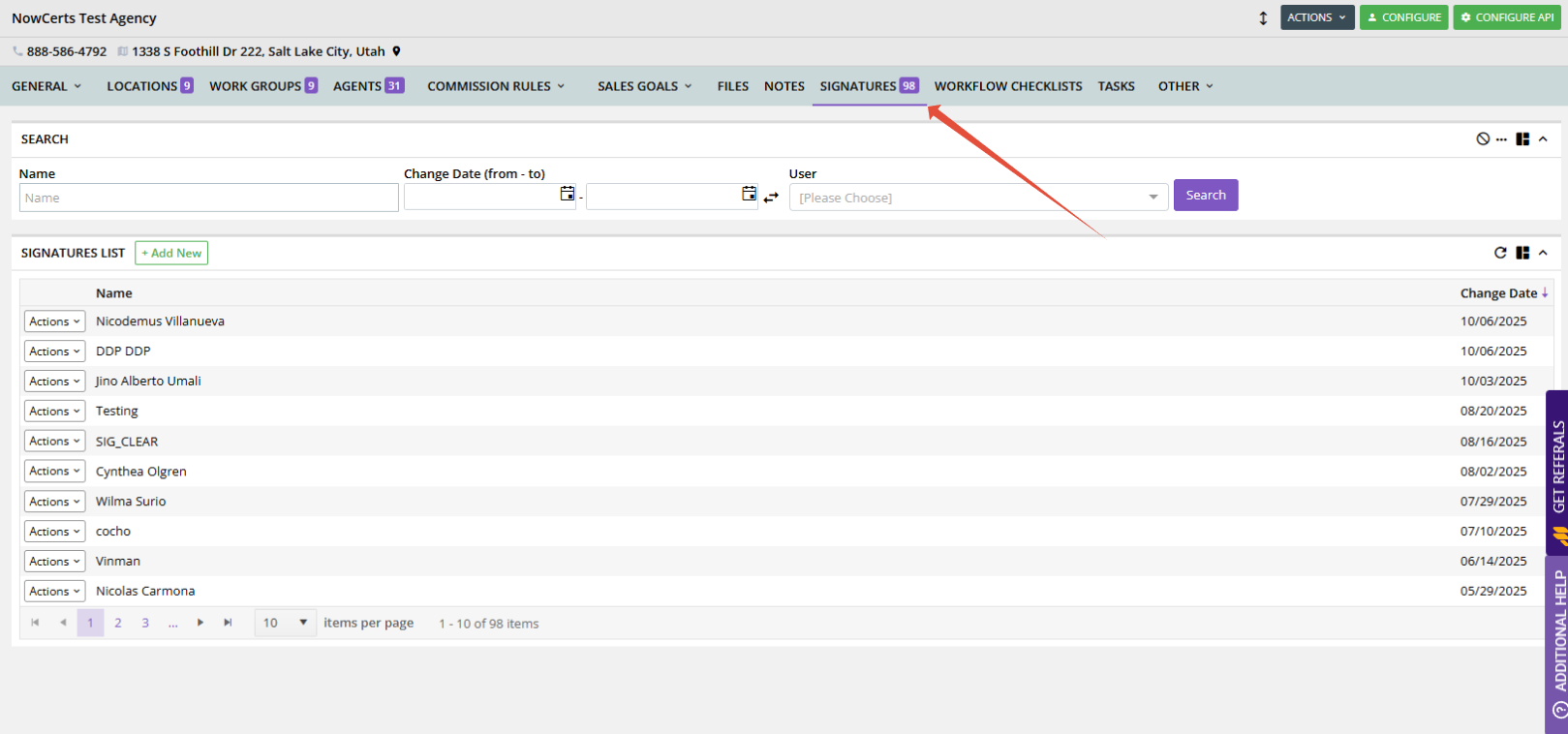
4. Add an Authorized Signature
Navigate to the Signature section of Agency Configuration.
Add at least one authorized agency signature for use with applicable documents and forms.
Signatures are used for:
- Documents
- Certificates of Insurance
- Certain forms
Make sure at least one authorized signature has been added during agency setup. This helps ensure that documents, certificates, and forms requiring a signature can be issued properly.
5. Accessing Help and Training Resources
Momentum AMS provides several resources to help your agency with onboarding, system configuration, and ongoing training.
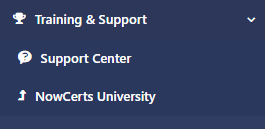
These resources are available through the left navigation and the Training & Support menu.
- Momentum University: Access structured courses and training materials.
- Support Center: Find Knowledge Base articles and answers to common questions.
- Submit a Support Ticket: Request assistance with system-related questions or issues.
- Training & Support: Access additional training and support resources through the primary navigation.
6. Agency Configuration Checklist
Before completing the initial onboarding process, review the following checklist to confirm the essential agency settings have been addressed.
- ☐ Agency name and contact information verified.
- ☐ Agency logo uploaded, if available.
- ☐ Mailing and physical addresses reviewed.
- ☐ Primary Email Address configured.
- ☐ Send Emails From addresses entered.
- ☐ Agency Billing Email reviewed.
- ☐ Email templates and signatures reviewed.
- ☐ Certificate of Insurance email settings reviewed.
- ☐ Session timeout expectations communicated to agency users.
- ☐ At least one authorized signature added.
- ☐ Training and support resources identified.
Once these settings have been reviewed and completed, your agency will have established the foundational configuration needed to begin working in Momentum AMS.
Additional settings and workflows can be configured as your agency continues through onboarding and begins using more features of the system.
Was this article helpful?
That’s Great!
Thank you for your feedback
Sorry! We couldn't be helpful
Thank you for your feedback
Feedback sent
We appreciate your effort and will try to fix the article