Momentum Commercial Lines RATE (CL RATE) is integrated with Momentum AMS, allowing you to access the commercial rating platform from the main AMS navigation or directly from existing records. Starting from an existing policy, client, insured, or prospect allows available information from Momentum AMS to flow into the RATE application and helps reduce duplicate data entry.
Access CL RATE from the Main Navigation
You can access Momentum RATE directly from the Momentum AMS navigation menu.
- Log in to Momentum AMS.
- Locate Momentum AMP in the left navigation menu.
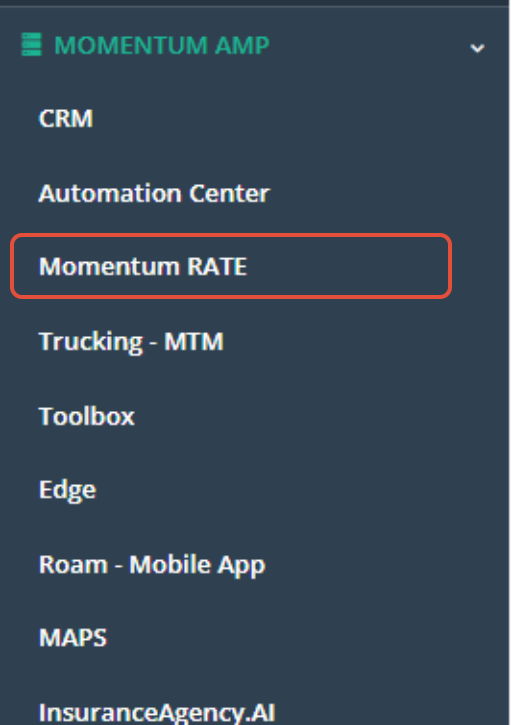
- Click to expand the Momentum AMP menu.
- Select Momentum Rate or CL Rating.
Momentum RATE will open so you can begin working with commercial submissions.
Access CL RATE from a Policy
You can also access Momentum RATE directly from an existing policy in Momentum AMS.
When you bridge to RATE from a policy, available information associated with that policy can be pulled into the RATE workflow, including:
- Insured information
- Policy details
- Location information
- Other related fields

This is useful when you are working with an existing policy and want to begin a new commercial submission without manually recreating information already stored in Momentum AMS.
Access CL RATE from a Client
CL RATE can also be opened from an existing client record.
When you bridge from the client, available client information from Momentum AMS is pulled into the application workflow.
This can be useful when quoting additional coverage for an existing client or starting a new submission based on an existing relationship.
Access CL RATE from an Insured
When accessing RATE from an insured record, CL RATE uses available information from that insured's AMS record to help prefill the application.
Starting from the insured can reduce the need to manually search for or recreate the insured once you enter the rating workflow.
Access CL RATE from a Prospect
You can also bridge to CL RATE from an existing prospect in Momentum AMS.
This option is useful when quoting new business that your agency is already tracking as a prospect. Available prospect information can be brought into RATE so you can move from the prospect record into the commercial submission workflow.
Which Access Method Should I Use?
The access method you choose will generally depend on where you are starting your workflow:
- Main Navigation – Use when you want to open RATE independently and begin working in the rating platform.
- Policy – Use when your commercial submission is related to an existing policy.
- Client or Insured – Use when quoting an existing customer.
- Prospect – Use when quoting a new business opportunity already entered in Momentum AMS.
Regardless of where you begin, using an existing AMS record when appropriate helps CL RATE take advantage of information your agency has already entered.
Best Practices
- Start from an existing AMS record when possible. This helps reduce duplicate data entry.
- Choose the record that best represents the submission. For example, use the prospect record when working with a new business opportunity already being tracked in Momentum AMS.
- Review the information brought into RATE. Prefilled information should still be reviewed as you complete the commercial application.
- Keep AMS records current. Accurate information in Momentum AMS provides a better starting point when bridging into RATE.
Summary
Momentum CL RATE can be accessed from the main Momentum AMS navigation or directly from an existing Policy, Client, Insured, or Prospect.
Bridging from an existing record allows available AMS information to move into the commercial rating workflow, helping your agency reduce duplicate entry and move more efficiently from account management to commercial quoting.
Was this article helpful?
That’s Great!
Thank you for your feedback
Sorry! We couldn't be helpful
Thank you for your feedback
Feedback sent
We appreciate your effort and will try to fix the article