The AI Commission Scan allows you to extract commission data directly from a carrier PDF and import it into Momentum AMS using the Import XML method.
This method should be used when policies or insureds do not already exist in AMS, since the XML merge process can create missing records during reconciliation.
When to Use This Method
Use Import XML when:
- Policies on the commission statement do not already exist in Momentum AMS
- Insureds are missing from AMS
- You are working with recently onboarded business
- CSV import fails because policy numbers cannot be matched exactly
Step 1: Access the Commission Scan
Log in to Momentum AMS.
From the left navigation, click Momentum AMP.
Select Momentum AI (opens in a new tab).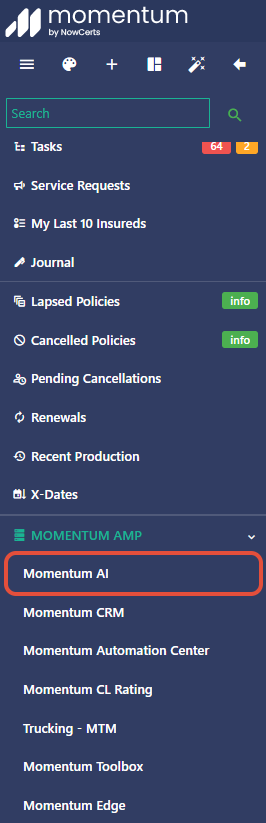
In the AI Center, click AI Scans.
Choose Commission Scan.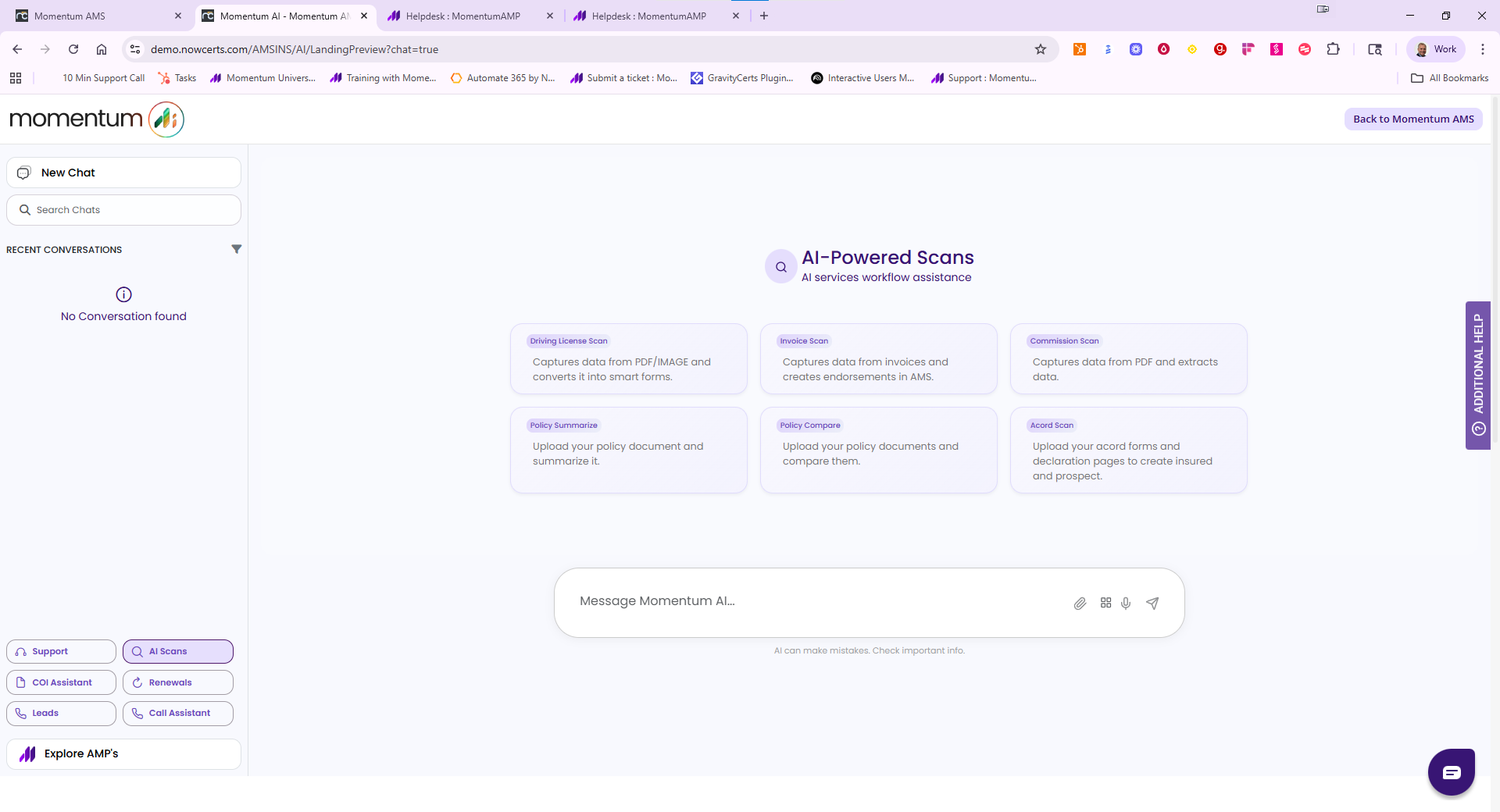
Step 2: Upload the Commission Statement
Upload the statement as a PDF file.
Momentum AI will extract key details such as:
- Policy Numbers
- Effective Dates of Endorsements
- Commission Amounts
- Payment Dates
Once uploaded, wait for the confirmation message:
"Commission Statement Extracted from PDF."
Step 3: After Statement is Extracted
AI will prompt with:
Would you like to import these commission transactions into AMS?
To complete this action, please click the Advanced Options below.
Let me know if you want to proceed!!
Click Advanced Options.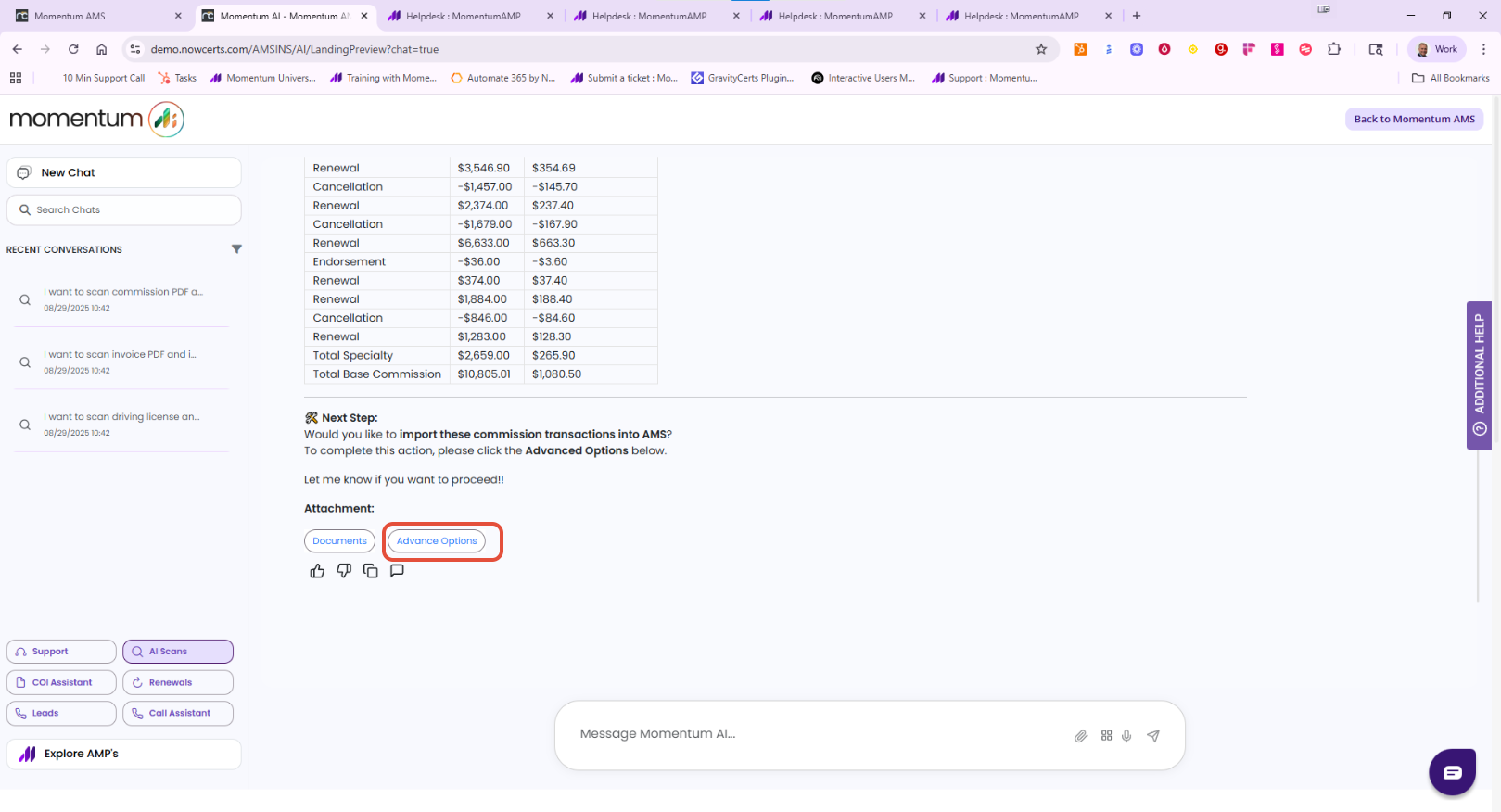
Step 4: Select Import XML
Choose Import XML to begin the merge process.
This option is best when the policies do not yet exist in AMS because the system can create missing insureds and policies during the merge.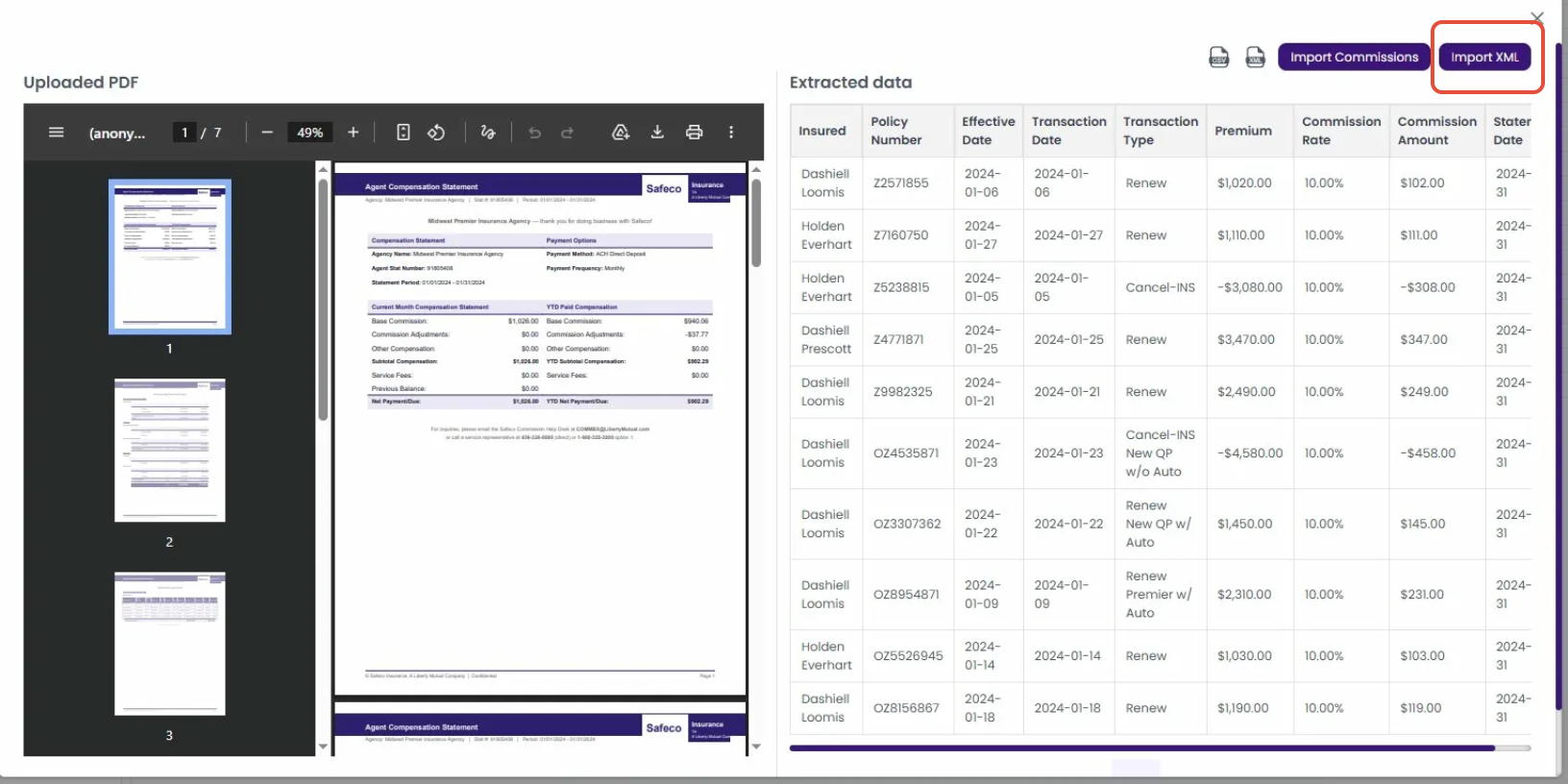
Step 5: Review the Merge Screen
The XML merge screen displays every transaction along with a summary bar at the top.
Before proceeding, verify that:
- Total Items matches the transaction count on the carrier statement
- Total Gross Amount matches the statement
- Total Commission Amount matches the statement
The training assignment specifically notes that these totals should be reviewed and confirmed before merging.
Step 6: Understand the Merge Indicators
During the XML merge, you may see the following:
| What You See | What It Means |
|---|---|
| ADD button — insured | The insured does not exist in AMS and will be created automatically |
| ADD button — policy | The policy does not exist in AMS and will be created automatically |
| Match to Insured dropdown | The insured exists in AMS, but the name is slightly different and should be matched manually |
⚠️ Important:
There is no equivalent manual match for policy numbers in this step. If the policy does not exist, it will need to be created through the XML merge.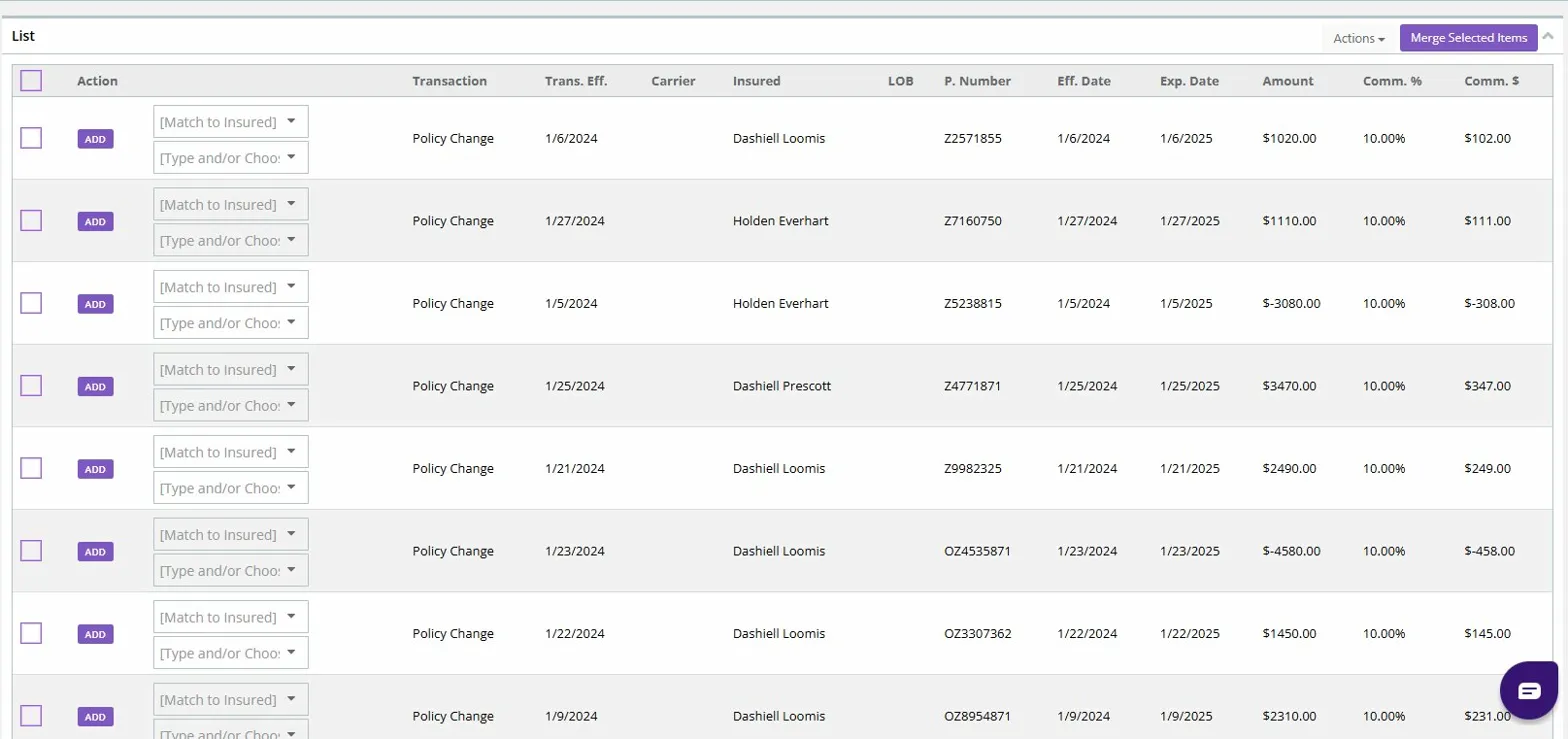
Step 7: Match Existing Insureds
If an insured already exists in AMS but the name is spelled differently:
- Use the Match to Insured dropdown
- Select the correct insured record
This helps prevent duplicate insured creation during the merge.
Step 8: Merge the Transactions
After reviewing the items:
- Select all rows
- Click Actions
- Choose Merge and Create DB Statement
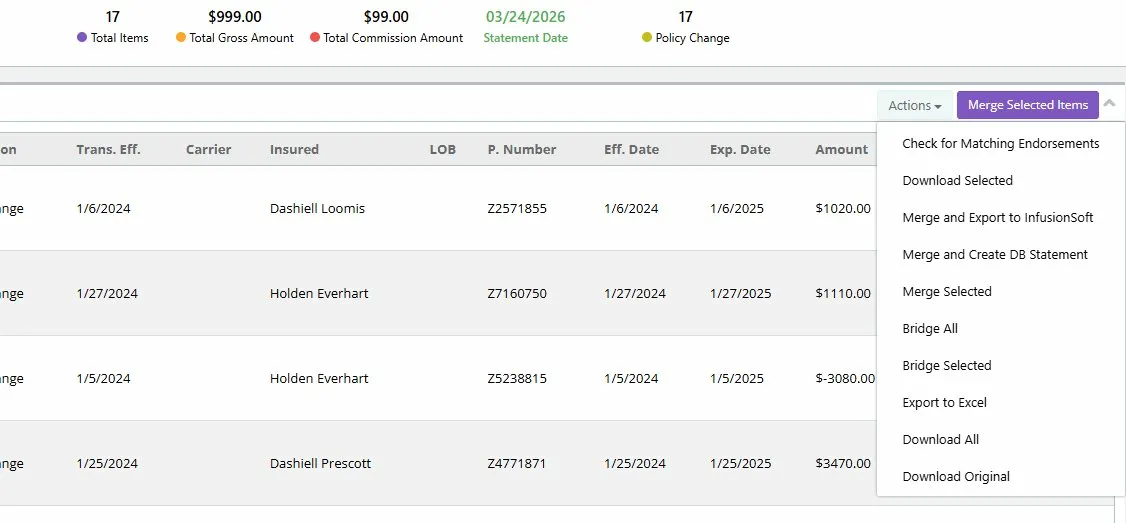
The system will then:
- Create missing insured records
- Create missing policy records
- Link commission transactions
- Generate the reconciliation statement for the period
Best Practices for Import XML
- Review the summary totals before merging
- Use Match to Insured whenever a record already exists with a slight name difference
- Confirm all expected transactions are included
- Use XML only when policies or insureds are missing from AMS
- Save a copy of the original PDF before import for audit purposes
Common Issues
Duplicate Insureds Created
Cause: An existing insured was not matched before merging.
Fix: Use the Match to Insured dropdown when a similar insured already exists.
Totals Do Not Match the Carrier Statement
Cause: Not all transactions were selected, or extracted data was not fully reviewed.
Fix: Recheck the summary bar totals before completing the merge.
Policy Was Not Manually Matchable
Cause: XML does not provide a manual policy match option.
Fix: If the policy does not exist, allow the XML process to create it automatically.
Key Takeaway
- Import XML should be used when policies or insureds do not yet exist in Momentum AMS
- It allows the system to create missing records during reconciliation
- This is the best fallback when CSV import cannot be completed because the data is not already in AMS
Was this article helpful?
That’s Great!
Thank you for your feedback
Sorry! We couldn't be helpful
Thank you for your feedback
Feedback sent
We appreciate your effort and will try to fix the article