What Is It?
A Routine is an automation you create by describing it in plain language, not by building it piece by piece. You tell the AI what kind of report or recurring task you want, it writes the full set of instructions, and assigns it to one of your digital agents from the Digital Workforce.
Once created, a routine runs on its own, on whatever schedule you set, compiling data and sending out a finished report (by email) without anyone having to build it fresh each time.
How This Saves You Time
You don't write the automation logic yourself. A one-sentence description of the report you want is enough; the AI expands it into a full, detailed set of instructions on its own.
Once scheduled, the report goes out automatically. Nobody has to remember to pull the numbers and compile them every week, month, or whatever the cadence is.
Changing something later is a conversation, not a rebuild. Asking the AI to CC someone or narrow down which agents are included updates the routine directly, instead of starting over.
You can test it immediately with Run Now, instead of waiting for the schedule to confirm it works the way you expect.
Why This Matters
The instructions behind a routine, the actual prompt the AI follows every time it runs, are not something you write yourself. In the walkthrough, describing the idea in a single sentence, a routine that compiles a weekly production report for all active agents on the agency, was enough for the AI to generate the entire routine: name, description, and a complete set of execution instructions, down to an entire HTML email template with every value computed. Building that by hand, and getting it right, is normally a task for whoever on the team is comfortable writing detailed technical specs, not something every agency has the time or staff for.
What that routine actually produced matters just as much. The sample output wasn't just a table of numbers; it was a Weekly Agent Production Report that already did the work of flagging who needs attention. Agents marked No Activity came with a suggested Next Step (Coach agent on pipeline), right alongside a named Top Producer and a Rewrite Specialist. That's the difference between a report that states totals and one that tells management where to look first. Normally, noticing that a specific agent has gone quiet takes someone actively watching for it, which means it can go unnoticed for weeks at a time.
And because Run Now exists separately from the schedule, this isn't something an agency has to trust blindly until the following Monday. The routine can be tested immediately, with its real Tool Executions visible afterward, before anyone relies on it running unattended on its actual schedule.
How It Works, Step by Step
Step 1: Open Routines
In InsuranceAgency.ai, go to Workspaces, then Management Center, then Routines.
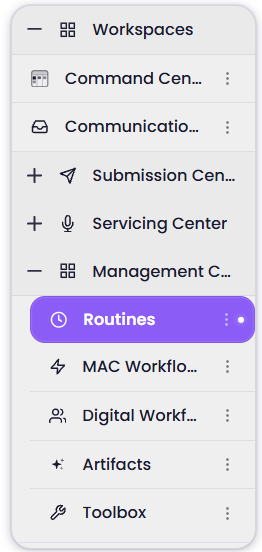
Workspaces > Management Center > Routines, in the left sidebar.
Step 2: Describe the routine you want
At the top of the Routines page, there's a field to name or describe your new routine. Type a plain-language description of what you want, for example a routine that compiles a weekly production report for all active agents in the agency. The more specific you are, the better the AI can identify exactly the right information to pull.
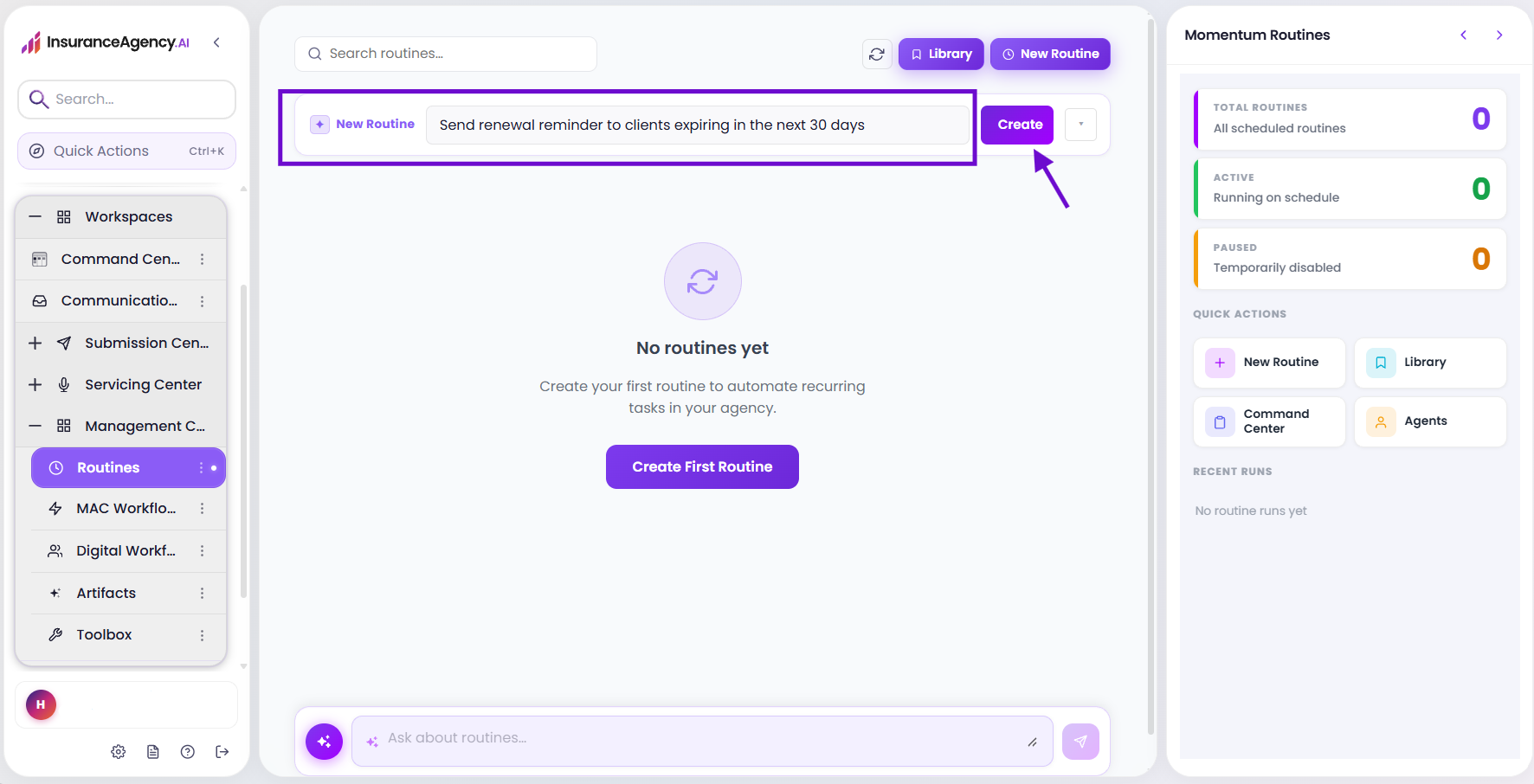
The Routines page: describe your new routine here, then click Create.
Hit Create. The AI goes to work behind the scenes, building out the routine from just that description; this takes a little time, so you'll briefly see a Creating state before anything appears.
Step 3: Review what the AI generated
Once it's done, you'll see a Routine Name and a Description (both informational, to help you recognize this routine later), an Agent Name showing which digital agent it's assigned to, and, most importantly, the full Prompt: the actual instructions the AI will follow to build the report every time this routine runs.
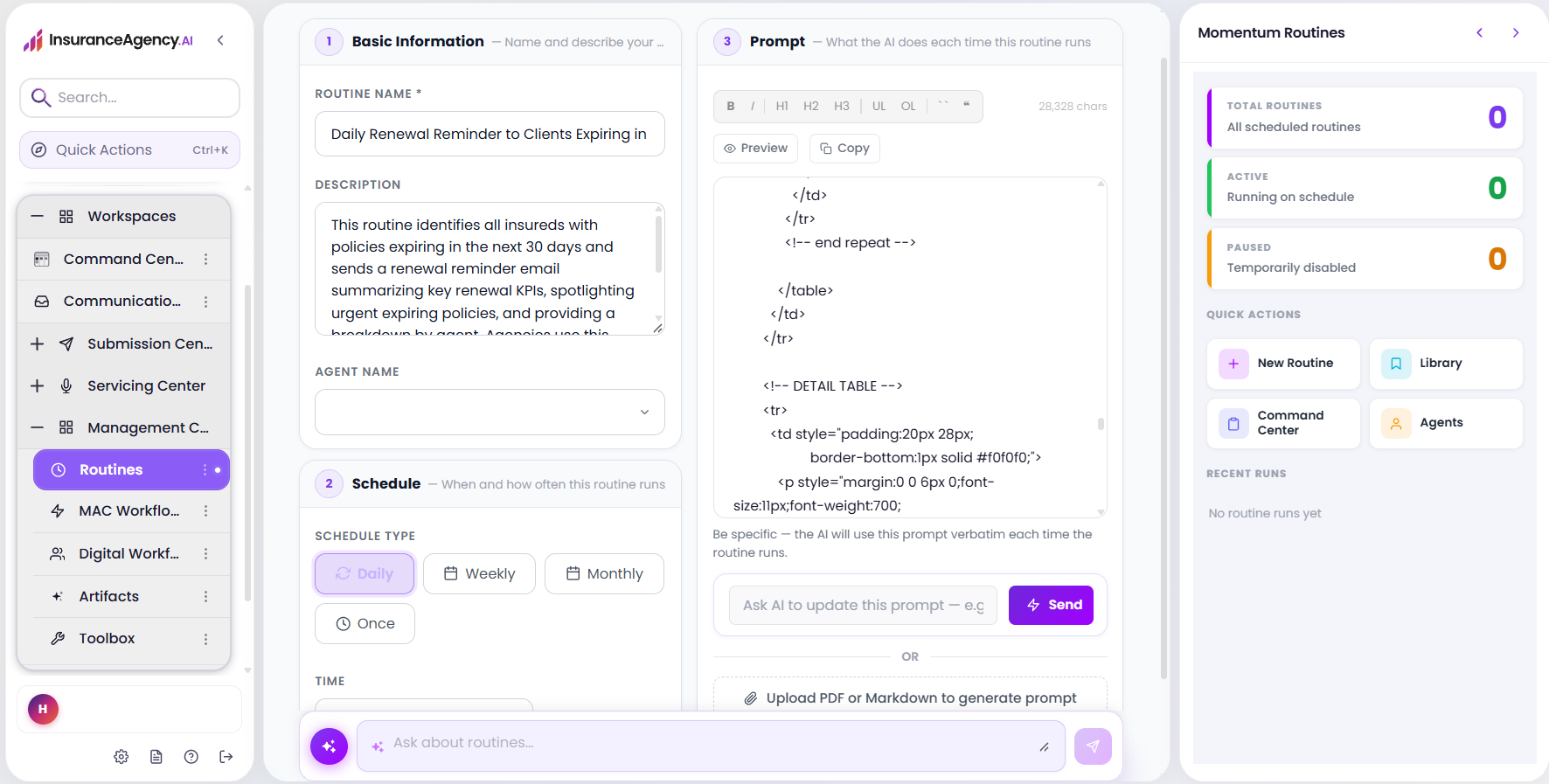
Basic Information: the AI-generated name, description, and assigned agent.
Step 4: Preview the routine
Click Preview to see the Workflow Diagram (the steps the AI will follow) alongside a Sample Email (what the output will actually look like). This can take a minute to generate, since it's working through the routine behind the scenes. Remember the content here uses placeholder information; it isn't pulling your agency's real numbers until the routine is actually executed.
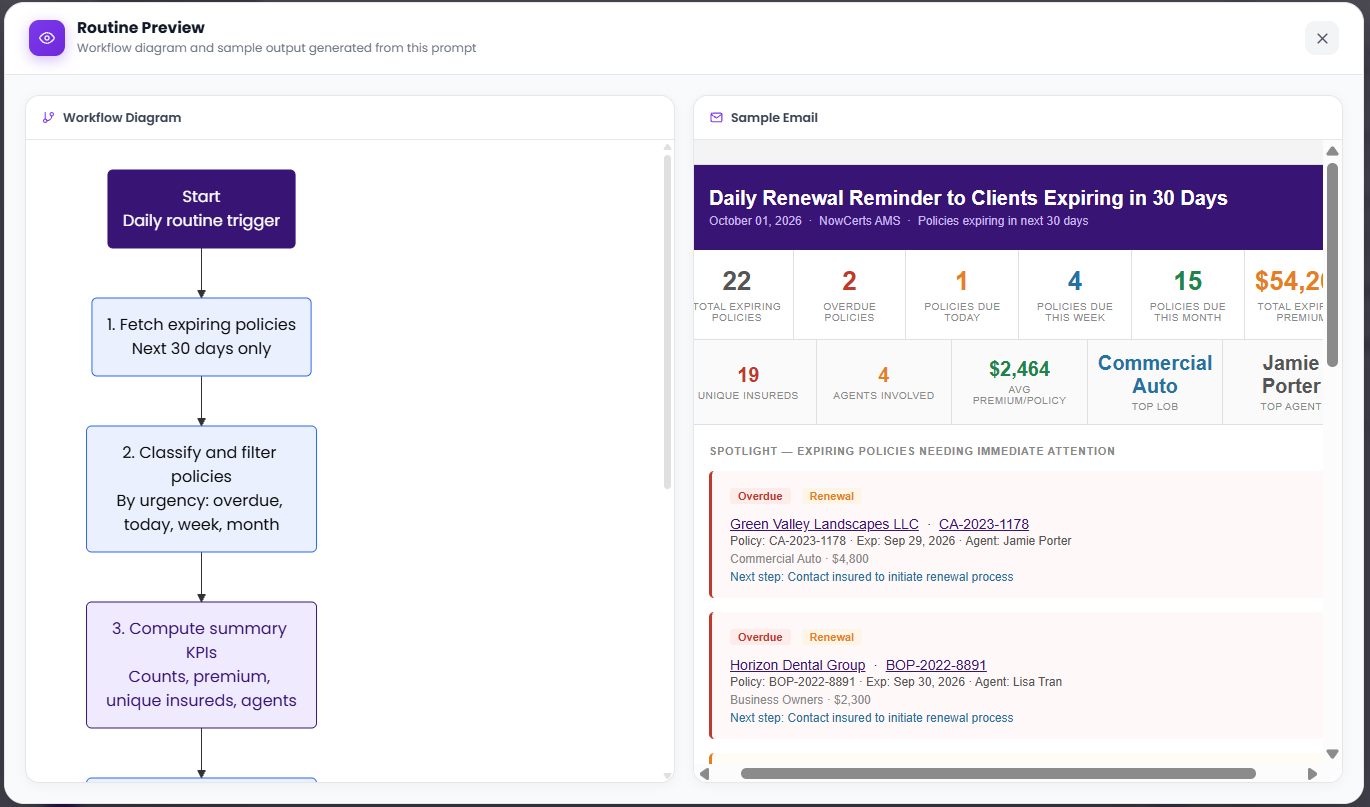
Routine Preview: the workflow diagram and a sample of the email this routine would send.
Step 5: Refine it if needed
If anything needs adjusting, whether that's who gets CC'd, which agents are included, or anything else about how the report is built, describe the change in the Ask AI chat bar under the prompt and hit Send. The AI updates the prompt to reflect just that change, rather than regenerating everything from scratch.
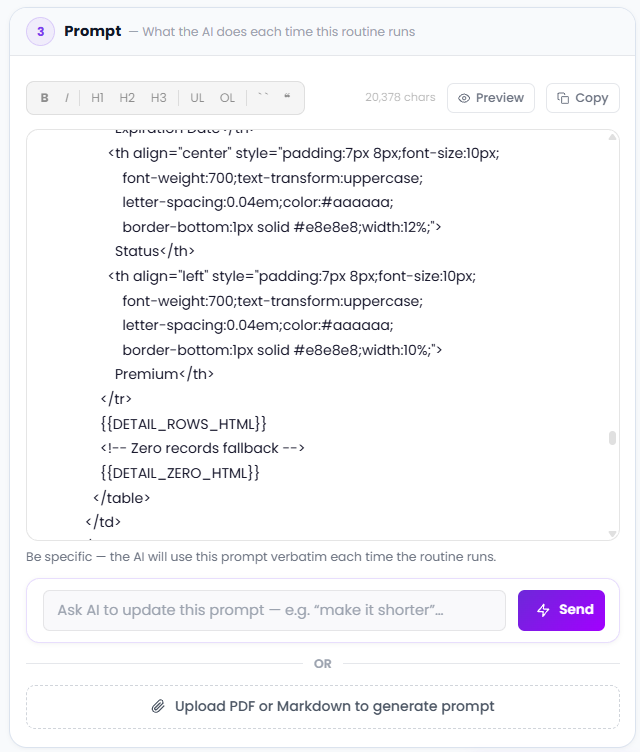
The full generated Prompt, with the Ask AI chat bar for requesting changes.
Step 6: Set the schedule and create the routine
Choose how often this routine should run: Daily, Weekly, Monthly, or Once, along with a time. Once everything looks right, click Create Routine to finish.
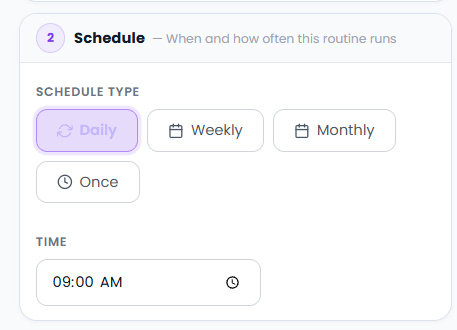
Schedule Type options: Daily, Weekly, Monthly, or Once.

Create Routine, the final step to save it.
Step 7: Manage it from the Routines list
Your new routine now appears in the Routines list, showing its schedule and assigned agent at a glance. From here, a toggle turns it on or off, the pencil icon opens it for editing, and clicking into it opens the full detail view.
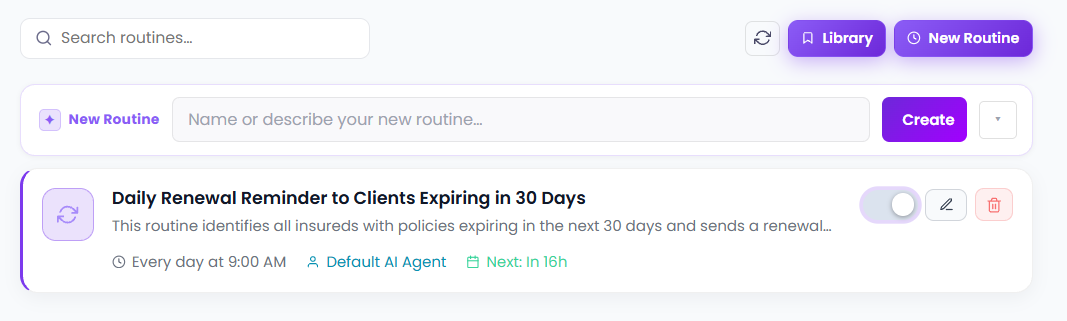
The routine listed: toggle, edit (pencil), and delete controls.
Step 8: Run it and check the results
Opening a routine shows its Last Run, Next Run, Success Rate, and Total Runs, along with a Run History of every time it's executed. Run Now runs the routine immediately, without waiting for its schedule, which is useful for confirming it works before relying on the scheduled time.
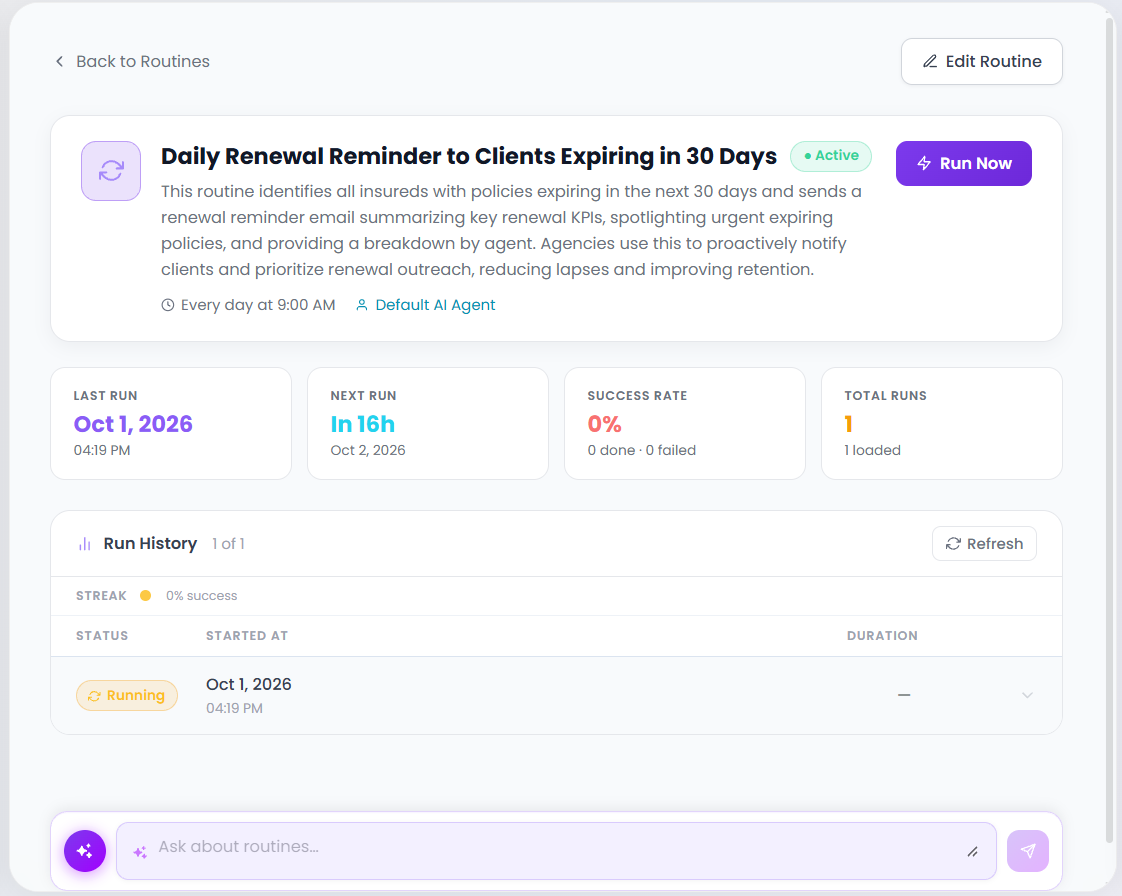
A routine's detail view: Run Now, run stats, and Run History.
After running, Tool Executions shows the individual steps the AI actually carried out, for example resolving who the routine is assigned to, then pulling the report data itself. This is more technical detail than most people will need day to day, but it's there if you want to see exactly what happened behind the scenes.
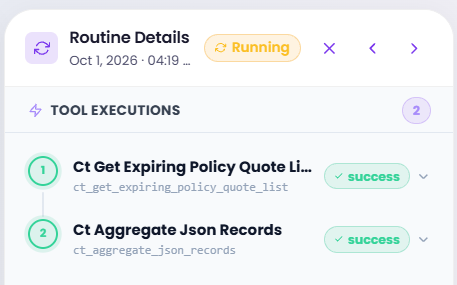
Tool Executions: the individual steps the AI ran during this execution.
Conclusion
A routine turns a sentence describing a report into a real, scheduled automation: the AI writes the instructions, shows you a preview before anything is real, and then runs on its own from then on, emailing out a finished report on whatever schedule fits.
Because setup is a description rather than a build, and changes are a conversation rather than a rewrite, keeping a routine accurate over time takes a fraction of the effort building one from scratch traditionally would. Run History and Run Now mean you're never just trusting that it worked; you can see exactly when it ran, whether it succeeded, and test it on demand whenever you want.
Questions? Reach out to your Momentum AMP product contact with anything about InsuranceAgency.ai.
This article reflects the Routines workflow as of this writing.
Was this article helpful?
That’s Great!
Thank you for your feedback
Sorry! We couldn't be helpful
Thank you for your feedback
Feedback sent
We appreciate your effort and will try to fix the article