How to Correct the Wrong Billing Type in Momentum AMS
If you selected the wrong billing type in Momentum AMS, the correction depends on how far the transaction has progressed. If accounting has already been generated, do not simply change the billing type. Start with the most recent activity and work backward to properly unwind the existing accounting before rebuilding the transaction.
Before You Begin
First, determine whether accounting transactions have already been generated.
If the transaction has not been generated, correcting the billing type may be relatively simple. Confirm the correct billing type before generating the accounting.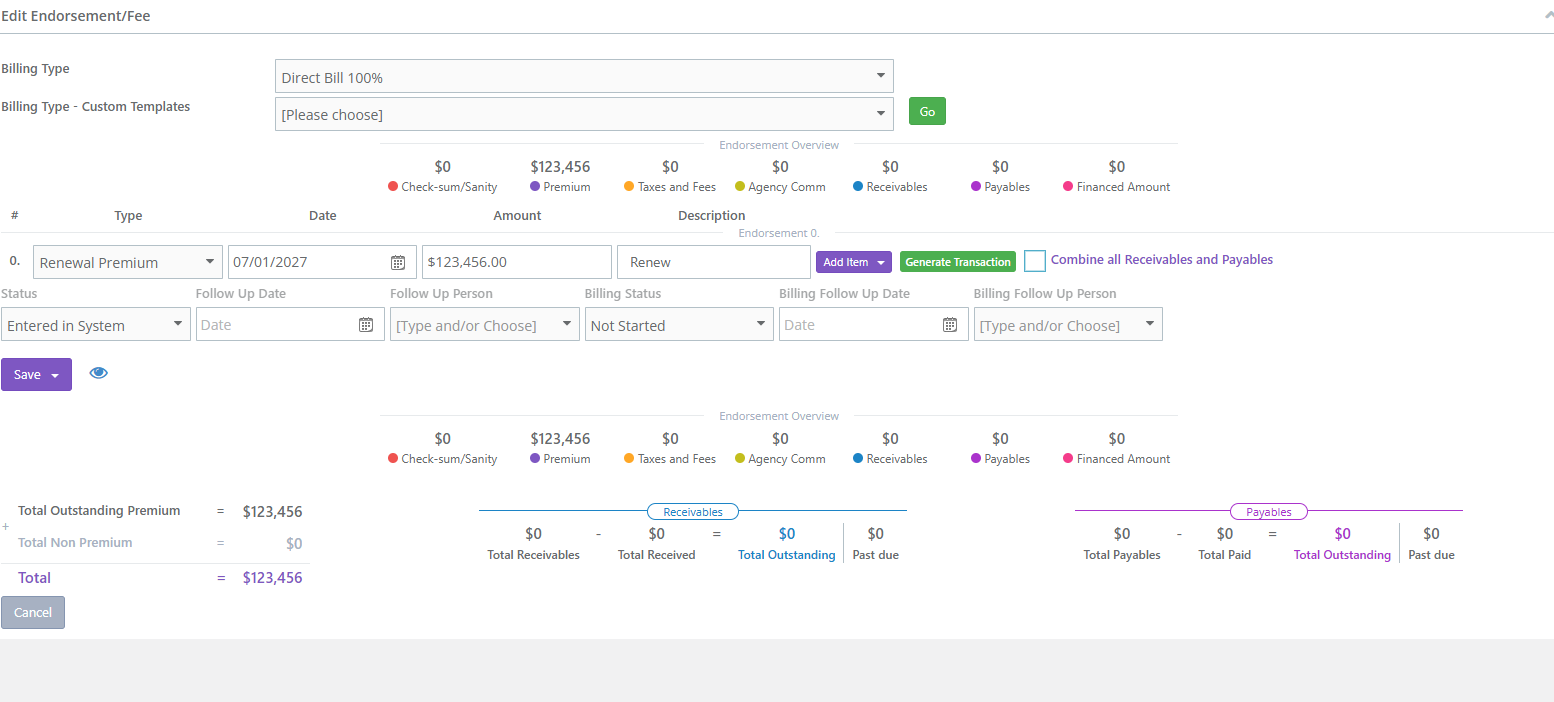
If the transaction has already been generated, the existing accounting activity must be removed in the proper order.
The most important rule is: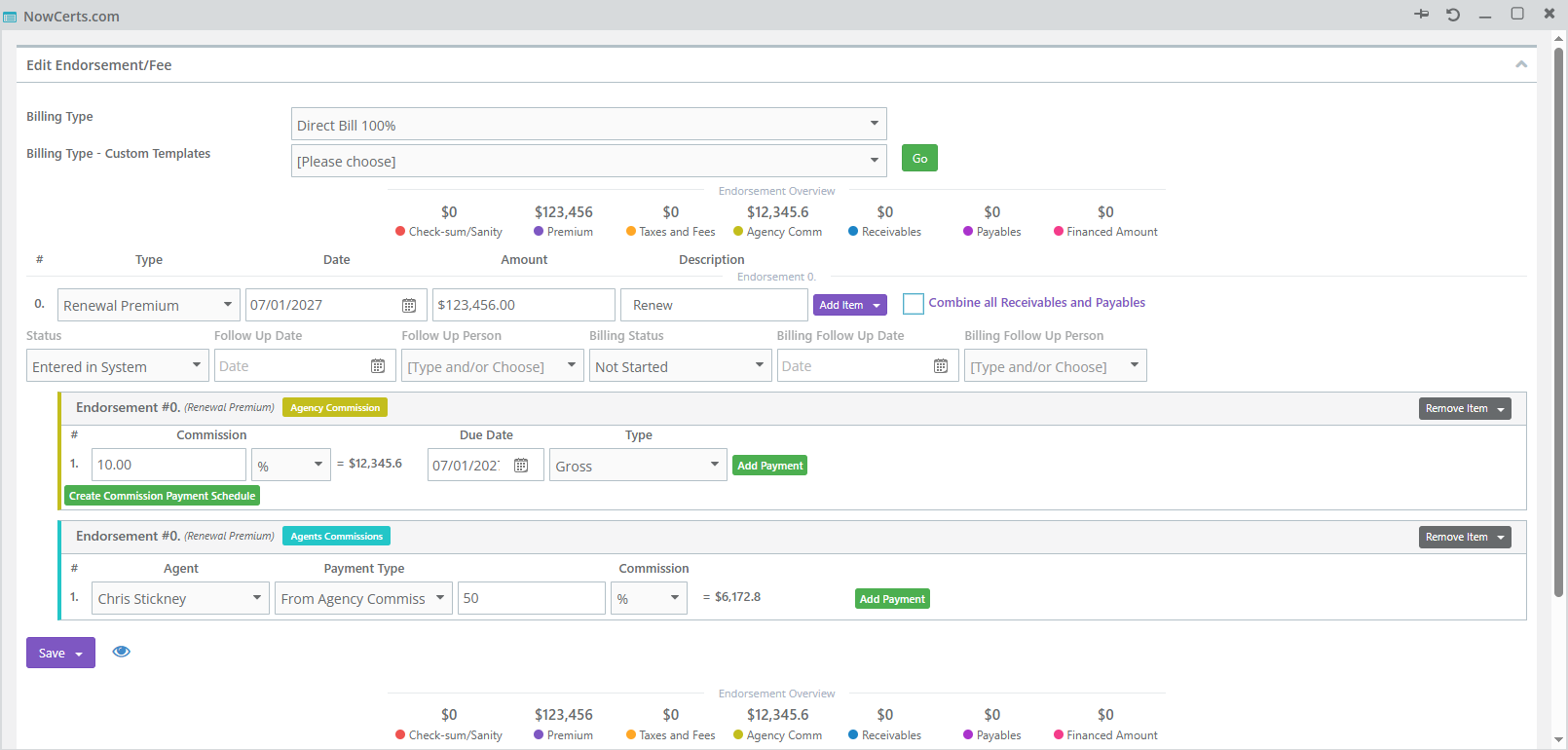
Start with the last activity and work backward. Once you are inside the transaction, work from the bottom upward.
Depending on how far the transaction has progressed, you may need to address:
- Payments
- Insured invoices
- Premium financing
- Payables
- Receivables
Not every transaction will contain all of these items. Only reverse or remove the accounting activity that actually exists.
Step 1: Check for an Invoice
Determine whether an invoice has already been created from the receivable.
If an invoice exists, check whether a payment has been received and applied to it.
If a Payment Has Been Applied
Reverse the payment before attempting to void the invoice.
The sequence begins:
Payment → Invoice
Void the Invoice
Once any associated payment activity has been reversed, void the invoice.
An existing invoice should be voided rather than deleted.
After the payment and invoice activity have been cleared, return to the original policy transaction.
Step 2: Work from the Bottom of the Transaction Upward
When removing generated accounting components from the original transaction, begin with the item at the bottom and work upward.
Agency Bill – Paid In Full
The accounting would generally be removed in this order:
Payable → Receivable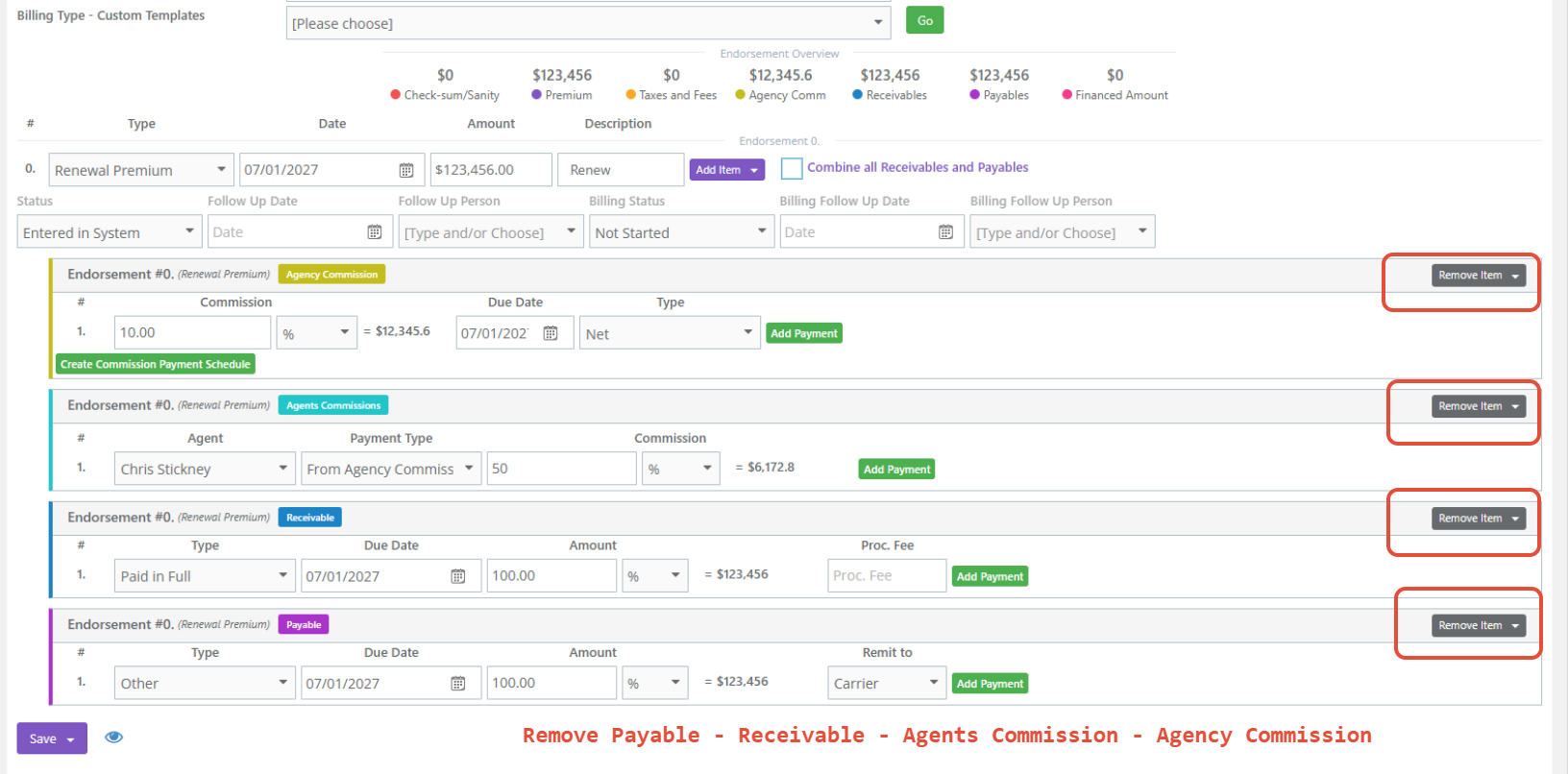
If an invoice and payment had already been created, the complete sequence would generally be:
Payment → Invoice → Payable → Receivable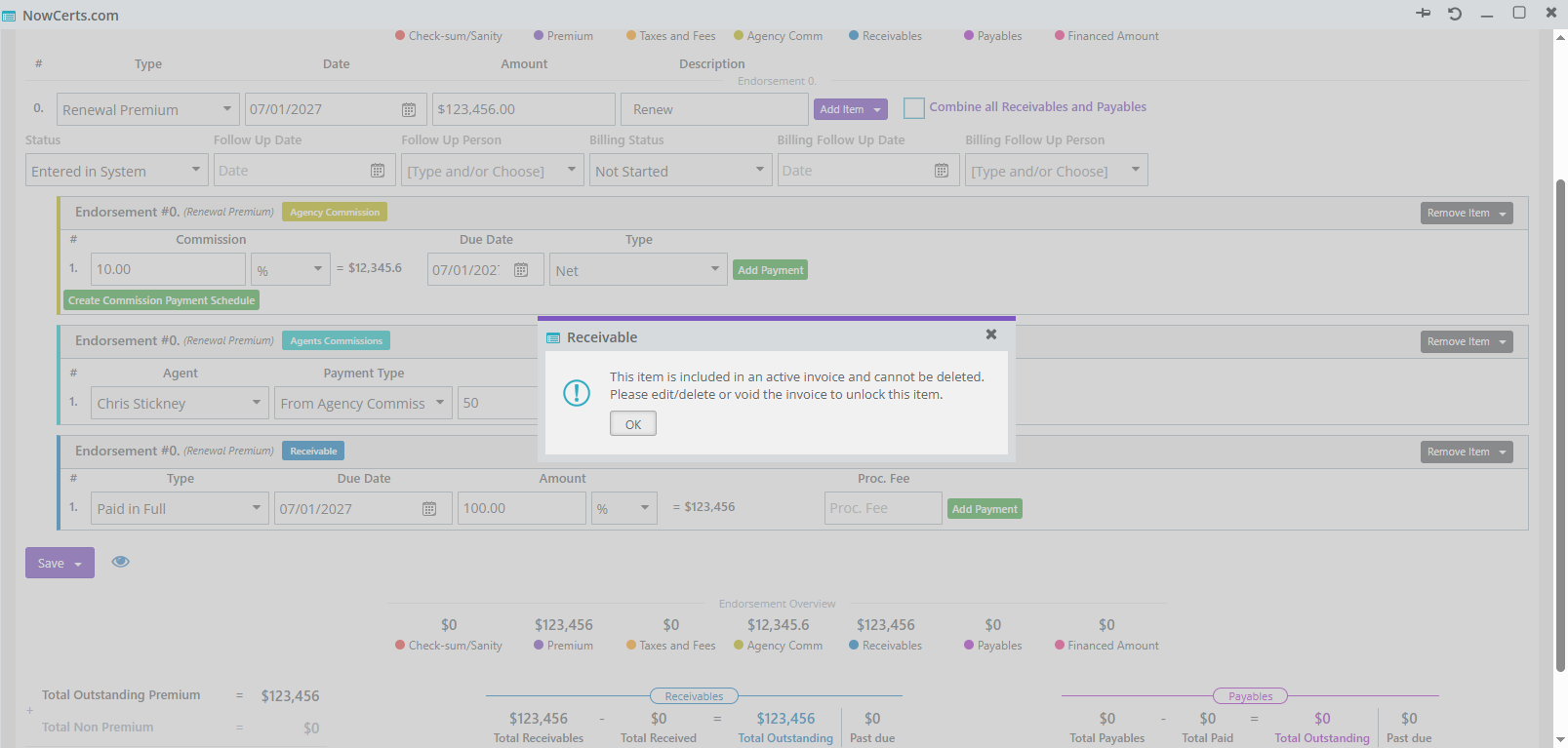
Agency Bill with Outside Financing
The accounting would generally be removed in this order:
Premium Financing → Payable → Receivable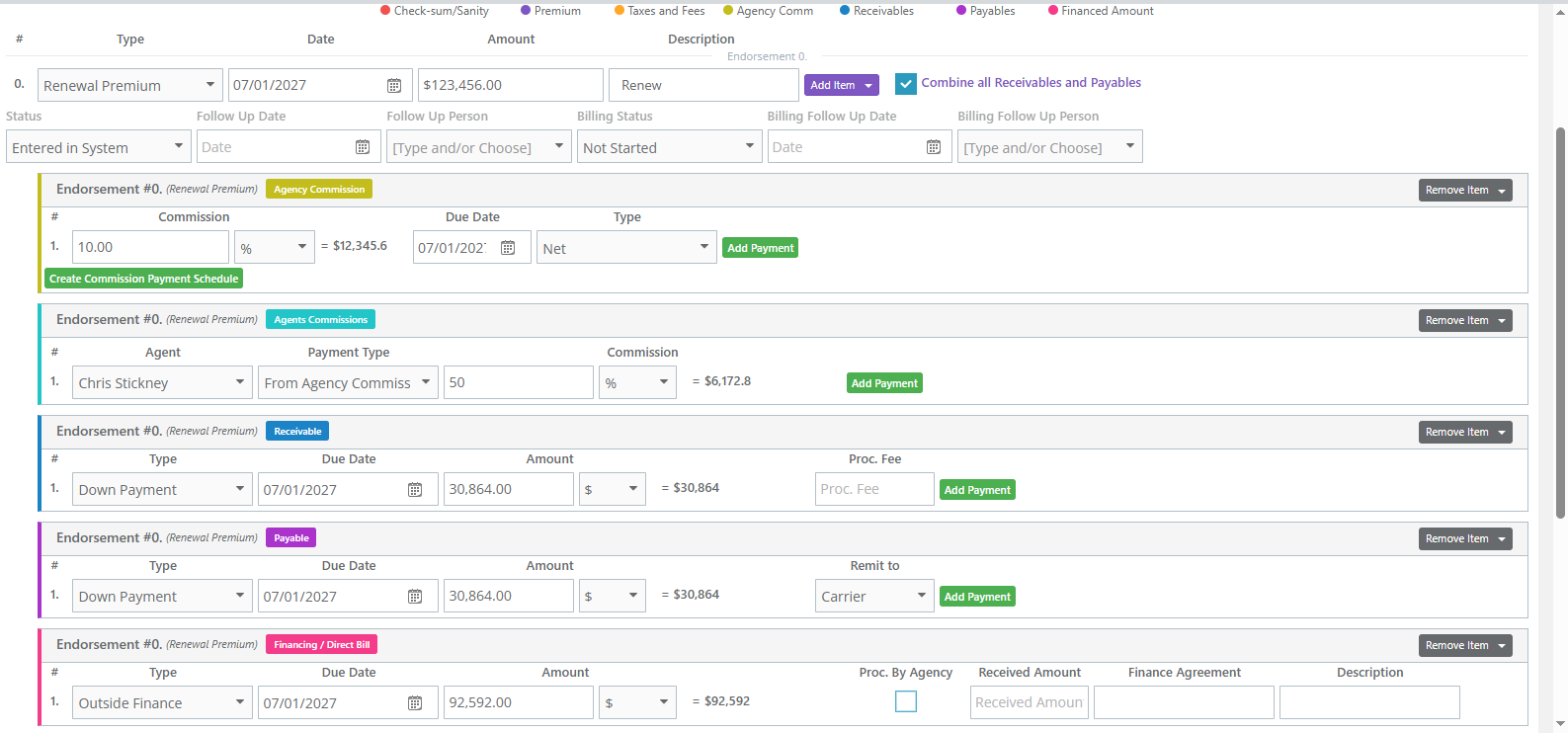
If the transaction had already progressed through invoicing and payment, the complete sequence would generally be:
Payment → Invoice → Premium Financing → Payable → Receivable
If You Receive an Error
Momentum may not always allow multiple generated accounting items to be removed during the same save.
An error does not necessarily mean the underlying accounting is incorrect.
If Momentum will not save after removing several components, remove them individually.
For example, with Agency Bill with Outside Financing:
- Remove Premium Financing and save.
- Reopen the transaction.
- Remove the Payable and save.
- Reopen the transaction.
- Remove the Receivable and save.
Continue working from the bottom upward until the generated accounting has been removed.
Do not repeatedly attempt to remove everything at once if Momentum is not allowing the transaction to save.
Step 3: Verify the Transaction Is Clean
After removing the existing accounting:
- Save the transaction.
- Reopen it if necessary.
- Verify that the accounting generated by the incorrect billing type has been removed.
- Confirm that you are ready to rebuild the transaction.
Only then should you correct the billing type.
Step 4: Confirm the Correct Billing Type
Before regenerating anything, make sure the replacement billing type reflects how the money is actually being transacted.
A helpful question is:
Is the premium flowing through the agency's Premium Fund Account?
If the premium is flowing through the agency's Premium Fund Account, the transaction generally belongs to the Agency Bill family.
If the premium is being handled outside the agency's Premium Fund Account, it generally belongs to the Direct Bill family.
Outside Financing Does Not Automatically Mean Agency Bill
Do not assume that using a premium finance company automatically means the transaction should be Agency Bill with Outside Financing.
Some financing arrangements can function more like Direct Bill when the premium does not flow through the agency's Premium Fund Account.
The billing type should reflect the actual movement of money, not simply the fact that financing is involved.
Step 5: Correct and Regenerate
Once the original accounting is clean:
- Select the correct billing type.
- Save the transaction.
- Generate the appropriate accounting.
- Review the newly generated receivable, payable, financing, or other accounting components.
- Continue with the appropriate billing workflow.
Best Practice
Changing the billing type after accounting has been generated is not simply changing a field on the policy.
The original billing type may already have created accounting activity representing how Momentum expects money to move. That activity should be properly unwound before the transaction is rebuilt.
Remember this sequence:
Reverse Payment, if applicable → Void Invoice, if applicable → Work from the bottom of the transaction upward → Save and verify → Correct Billing Type → Regenerate
Common Scenarios
This process applies to situations such as:
- "I entered this as Direct Bill instead of Agency Bill."
- "This should have been Direct Bill, but I entered it as Agency Bill."
- "I selected Agency Bill Paid In Full, but the insured is using outside financing."
- "I selected Outside Financing, but this should be Direct Bill."
- "I already generated the transaction. How do I change the billing type?"
- "There's already an invoice attached to the transaction."
- "The insured already paid the invoice."
- "I can't remove the payable or receivable."
- "Momentum gives me an error when I try to remove everything."
When to Use a Different Workflow
This article is specifically for correcting a transaction that was created using the wrong billing type.
If you have not entered the transaction yet and are trying to determine which billing type to use, follow the billing-type selection workflow instead.
If the billing type is already correct but the resulting accounting amounts are incorrect, troubleshoot the accounting transaction rather than changing the billing type.
Likewise, corrections involving premium-finance amounts, endorsements, Issue Payments, or Momentum subscription billing should follow their applicable workflows.
Summary
When correcting a billing type after accounting has already been generated, the goal is not simply to change the billing type. The existing accounting must first be cleanly unwound.
Remember:
Start with the last activity and work backward.
Then, within the original transaction:
Work from the bottom upward.
Reverse payments when applicable, void existing invoices, remove generated accounting components in the proper order, and save between steps when necessary.
Once the transaction is clean, confirm how the premium is actually moving, select the correct billing type, and regenerate the accounting.
Was this article helpful?
That’s Great!
Thank you for your feedback
Sorry! We couldn't be helpful
Thank you for your feedback
Feedback sent
We appreciate your effort and will try to fix the article