Momentum AMS integrates with Vonix for text messaging. To begin using Vonix within Momentum AMS, connect your Vonix account and select the phone number you want to use for SMS messaging.
Connect Your Vonix Account
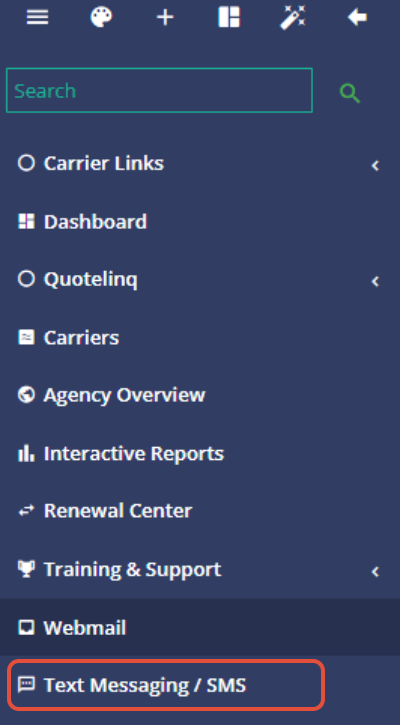
From the left navigation menu, select Text Messaging / SMS.
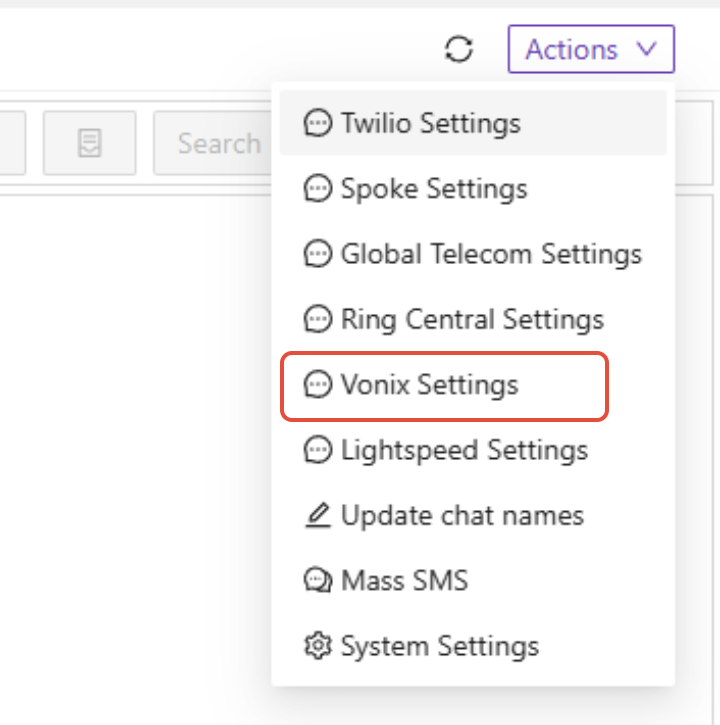
In the upper-right corner of the Text Messaging page, select Actions, then select Vonix Settings.
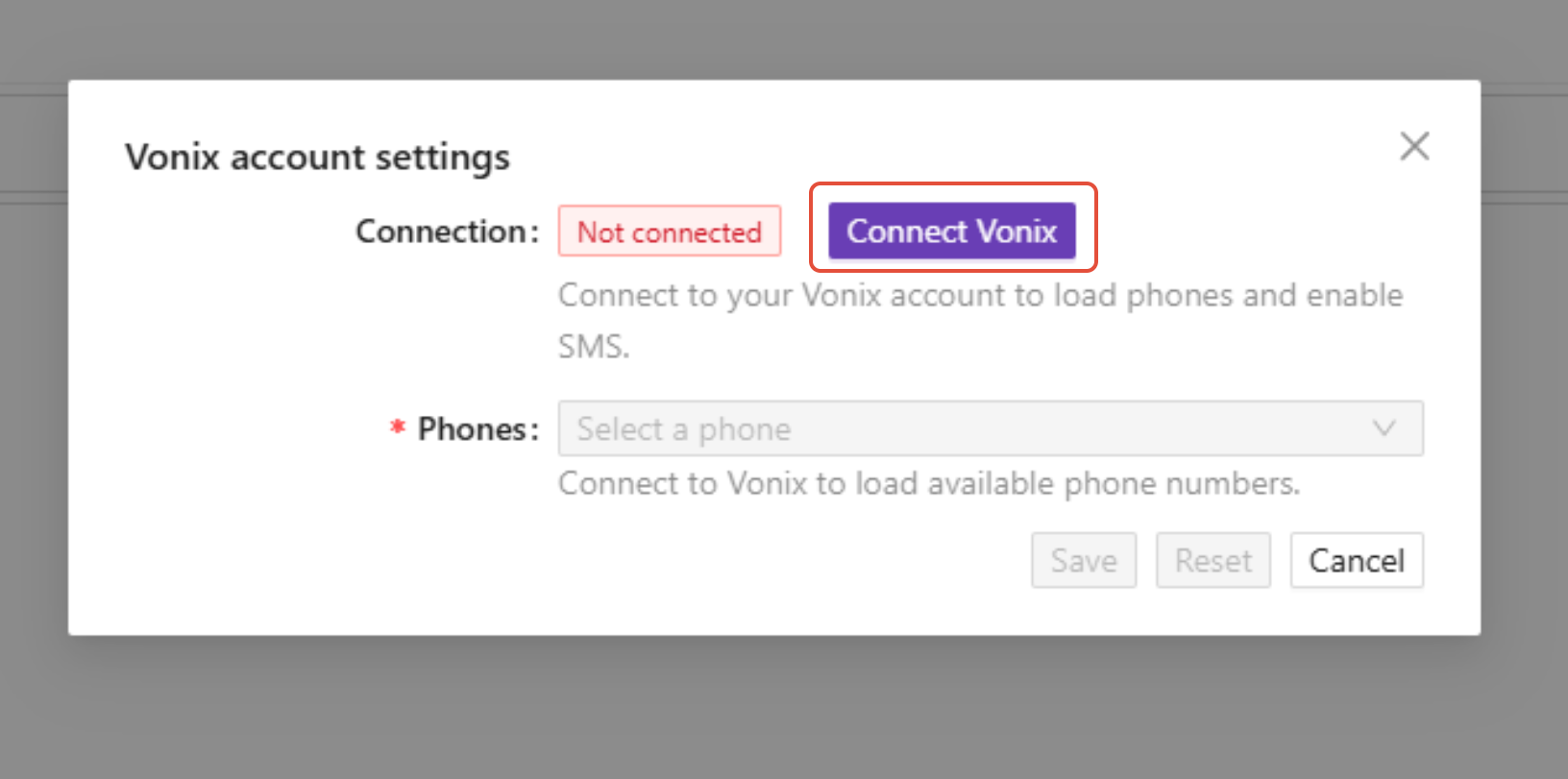
The Vonix account settings window will open.
Select Connect Vonix.
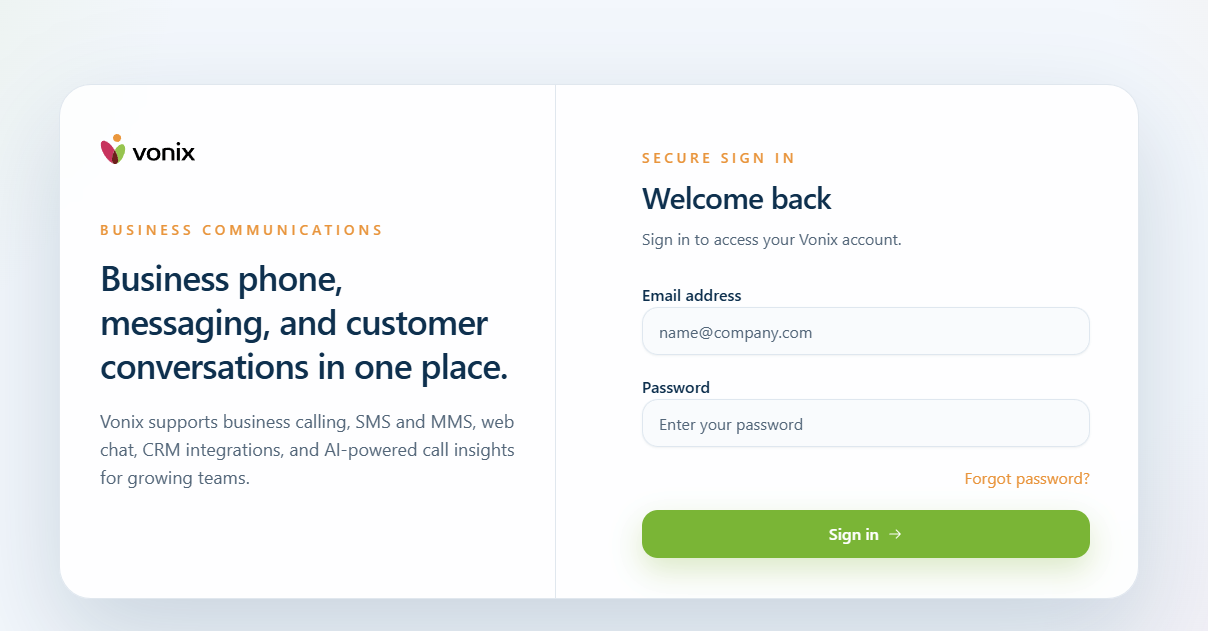
You will be taken to the Vonix login page. Enter the email address and password associated with your Vonix account and sign in.
After successfully connecting your account, return to the Vonix account settings in Momentum AMS.
Your available Vonix phone numbers will populate in the Phones field.
Select the phone number you want to use for text messaging and click Save.
After Connecting
Once your Vonix account and phone number have been connected, Momentum AMS can use the selected Vonix number for SMS messaging.
If you need to review or change the connection later, return to:
Text Messaging / SMS > Actions > Vonix Settings
Summary
To connect Vonix to Momentum AMS:
- Select Text Messaging / SMS from the left navigation.
- Select Actions > Vonix Settings.
- Click Connect Vonix.
- Sign in to your Vonix account.
- Select the Vonix phone number you want to use.
- Click Save.
Was this article helpful?
That’s Great!
Thank you for your feedback
Sorry! We couldn't be helpful
Thank you for your feedback
Feedback sent
We appreciate your effort and will try to fix the article