Overview
Momentum AMS subscriptions include a specific number of user seats based on your plan. If all seats are in use, you can increase your subscription directly from the Subscription and Payments page without contacting support.
Momentum AMS subscriptions include a specific number of user seats based on your plan. If all seats are in use, you can increase your subscription directly from the Subscription and Payments page without contacting support.
Before You Begin
Before purchasing an additional seat:
- Verify how many users are currently active.
- Archive inactive users if they no longer require access.
- Only purchase additional seats if all existing seats are being used.
Add Additional User Seats
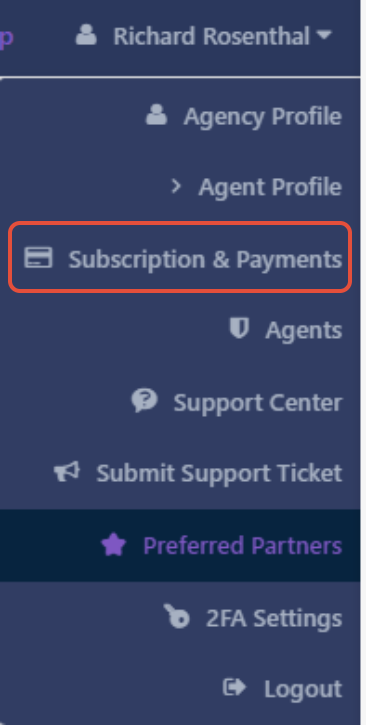
- Hover over your name in the upper-right corner.
- Select Subscription and Payments.
- Locate the User Seats or Additional Users section.
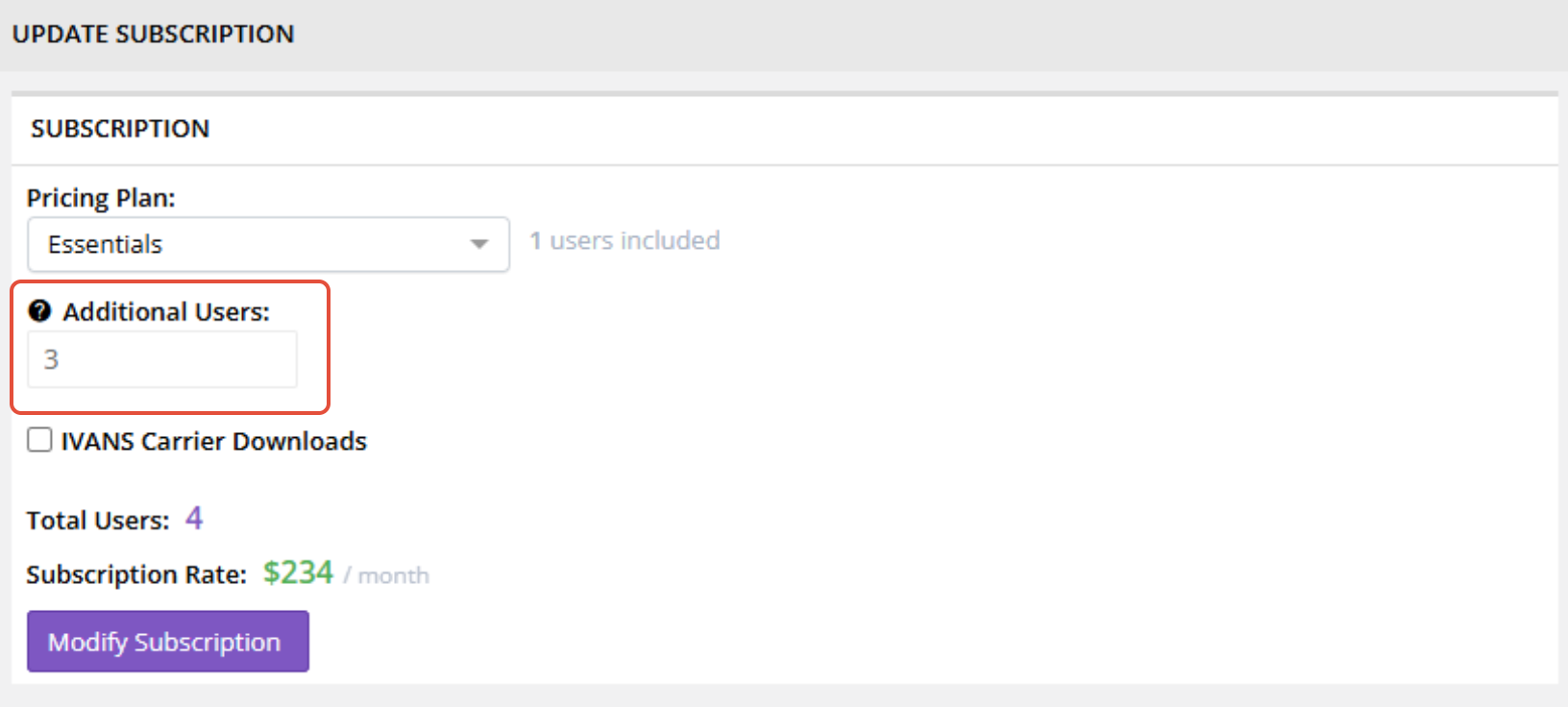
- Increase the number of seats needed.
- Click Modify Subscription.
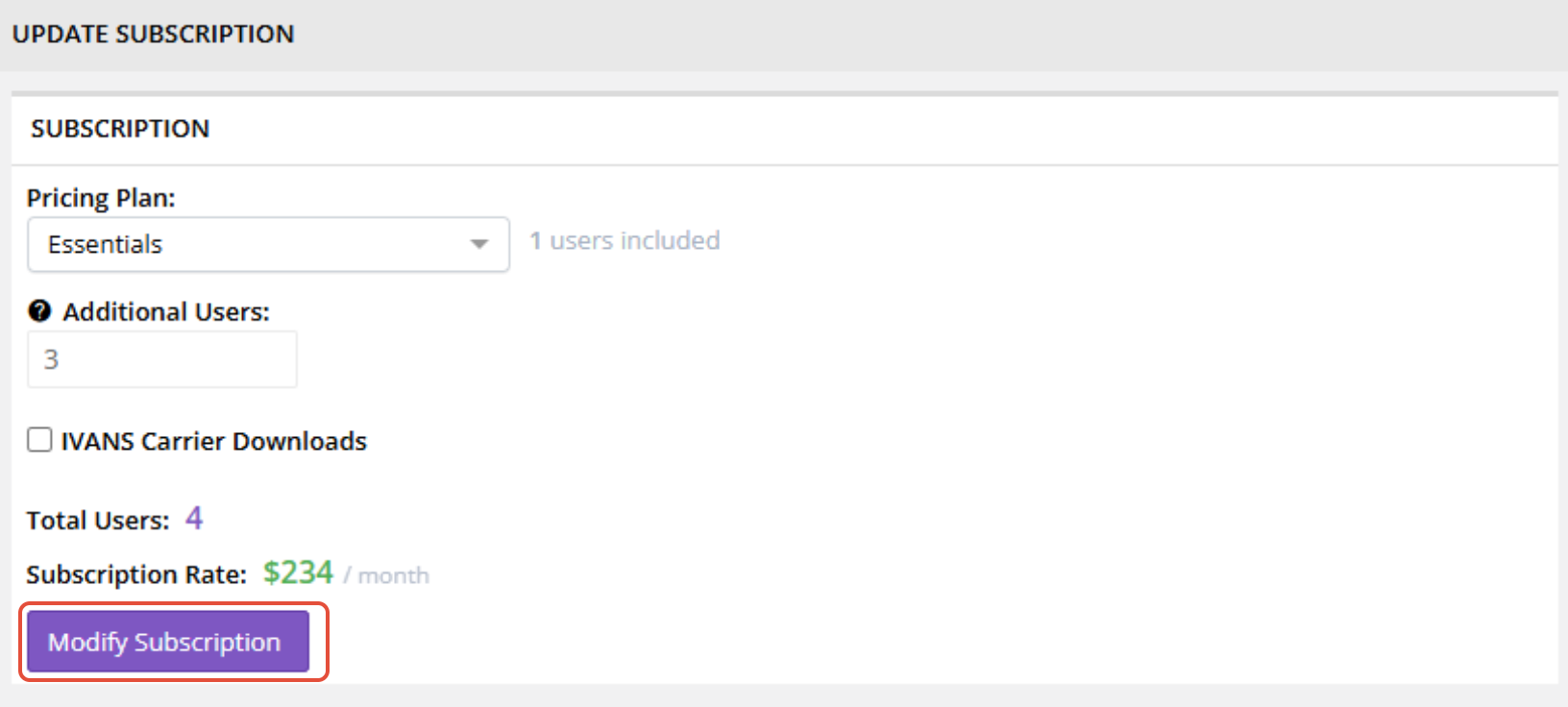
- Confirm your subscription changes.
Once your subscription is updated, you can immediately begin adding additional users.
Next Step
After adding a seat, follow the article:
How to Add and Manage Agency Users
to create the new user account.
Summary
If you've reached your user limit, simply increase the number of seats in Subscription and Payments before creating another user.
Was this article helpful?
That’s Great!
Thank you for your feedback
Sorry! We couldn't be helpful
Thank you for your feedback
Feedback sent
We appreciate your effort and will try to fix the article