Users provide login access to Momentum AMS, while Agents are used for commissions, assignments, and reporting. Before creating a new User, verify that your subscription includes an available user seat. If needed, additional seats can be purchased through Subscription and Payments.
In Momentum AMS, Users and Agents serve different purposes.
- Users are people (or system integrations) who can log into Momentum AMS.
- Agents are records used for commission tracking, assigning producers or CSRs, and reporting purposes.
You can create unlimited Agent records, but the number of Users is limited by your subscription.
If you attempt to add a User after reaching your subscription limit, Momentum AMS will prevent the creation of the login account. You can still create an Agent record, but it will not have access to log into the system.
Agents vs. Users
| Agents | Users |
|---|---|
| Unlimited | Limited by your subscription |
| Used for commissions, assignments, and reporting | Required for login access |
| No login credentials | Has login credentials |
| Can exist independently | May also be assigned as an Agent |
Important: If you need to create another User but have reached your subscription limit, first add another user seat under Subscription and Payments before continuing.
Access the Agents & Users List
- Hover over your name in the upper-right corner.
- Select Agents.
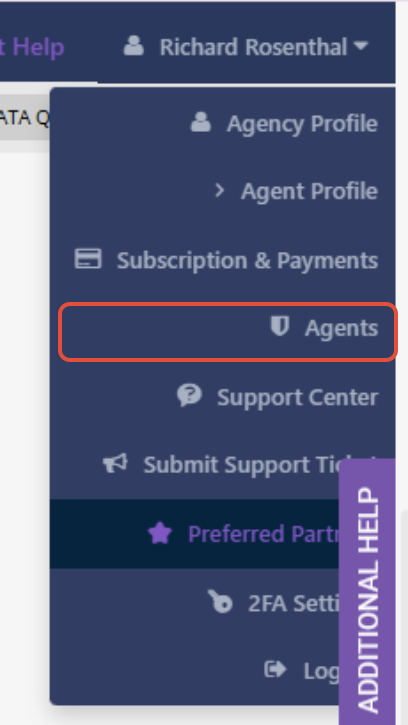
From this screen you can:
- View all Agents
- Add new Users
- Edit existing Users
- Manage permissions
- Archive Users
Users are identified by the Access checkbox.
Add a New User
Click Add New.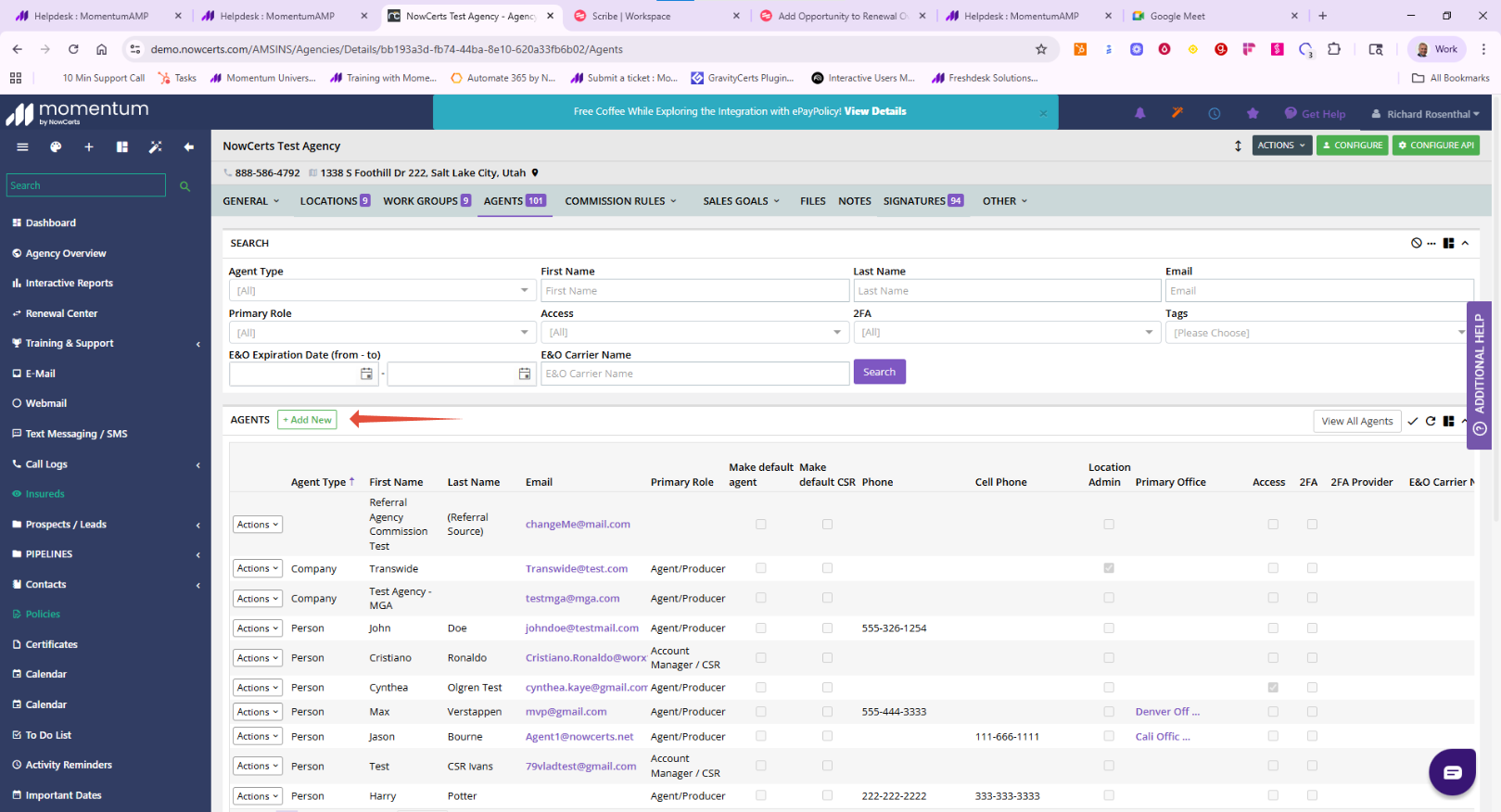
Complete the required information:
- First Name
- Last Name
- Email Address (used as the login)
- Phone Number (optional)
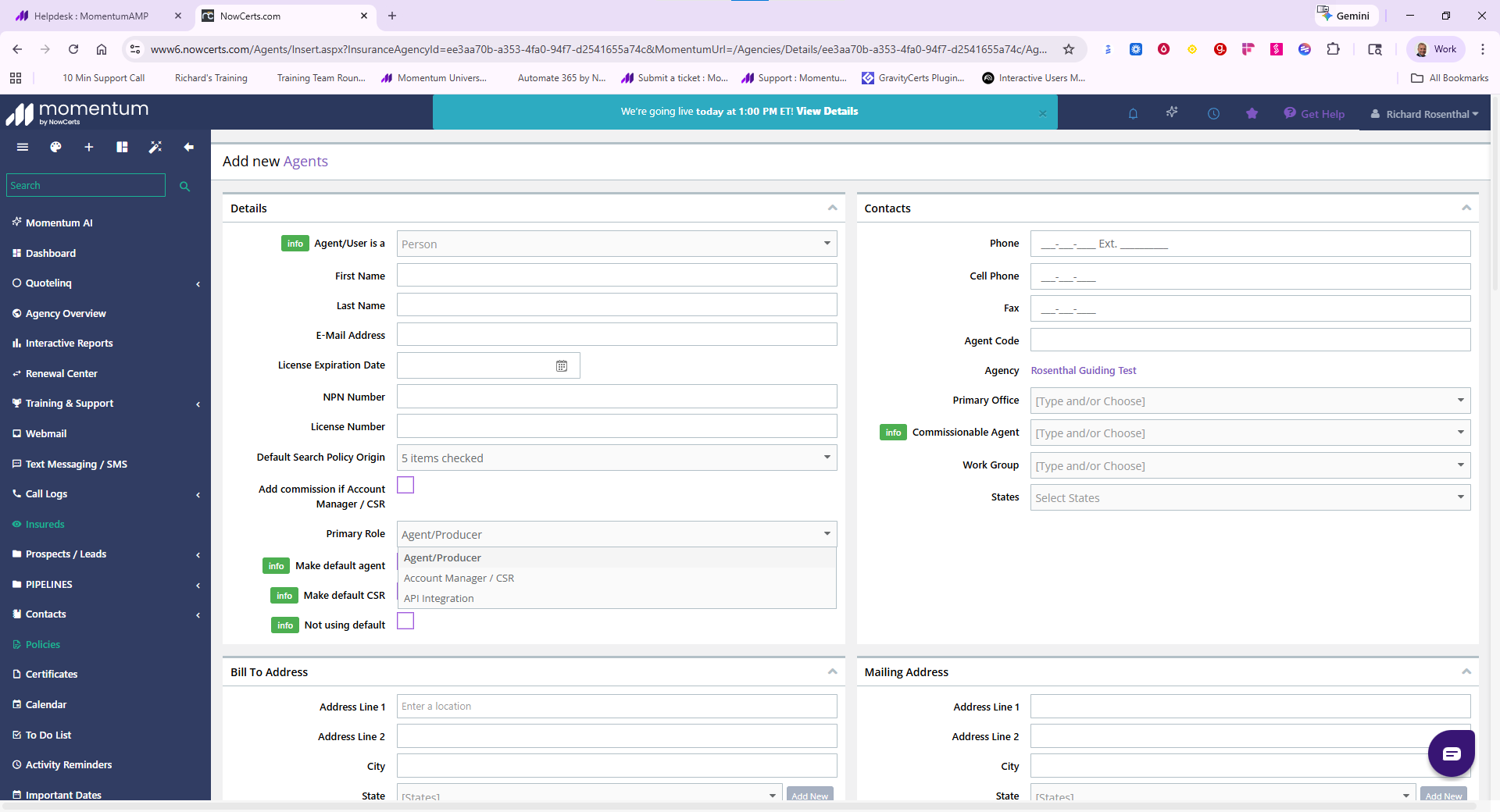
Next:
- Select User
- Choose the user's Primary Role
- Decide whether they should be an Administrator
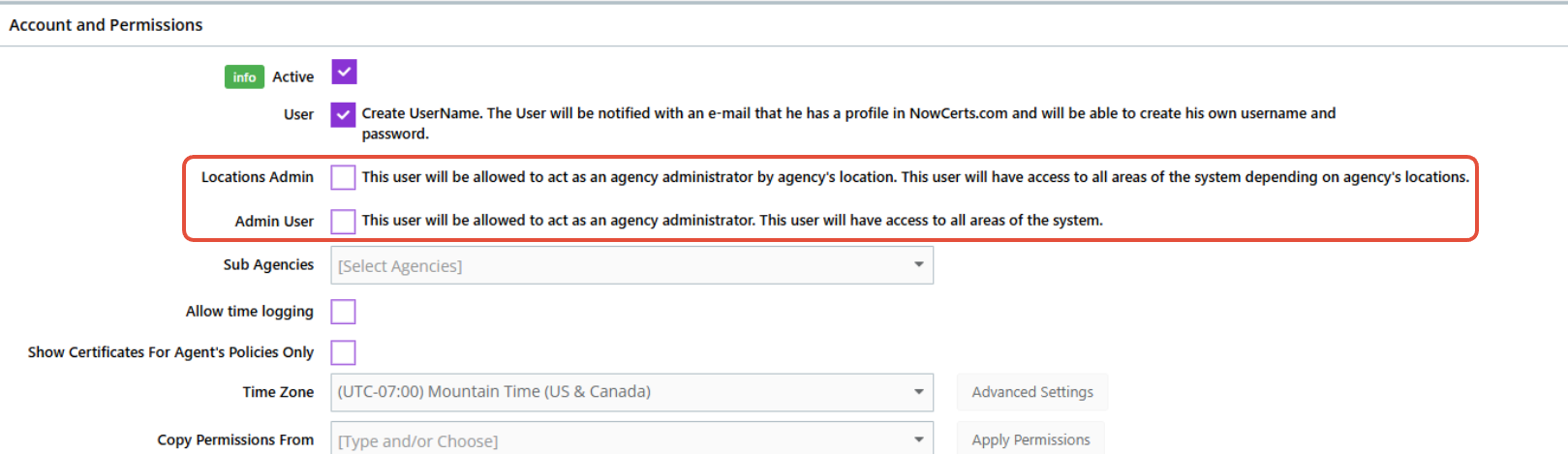
- Configure their permissions
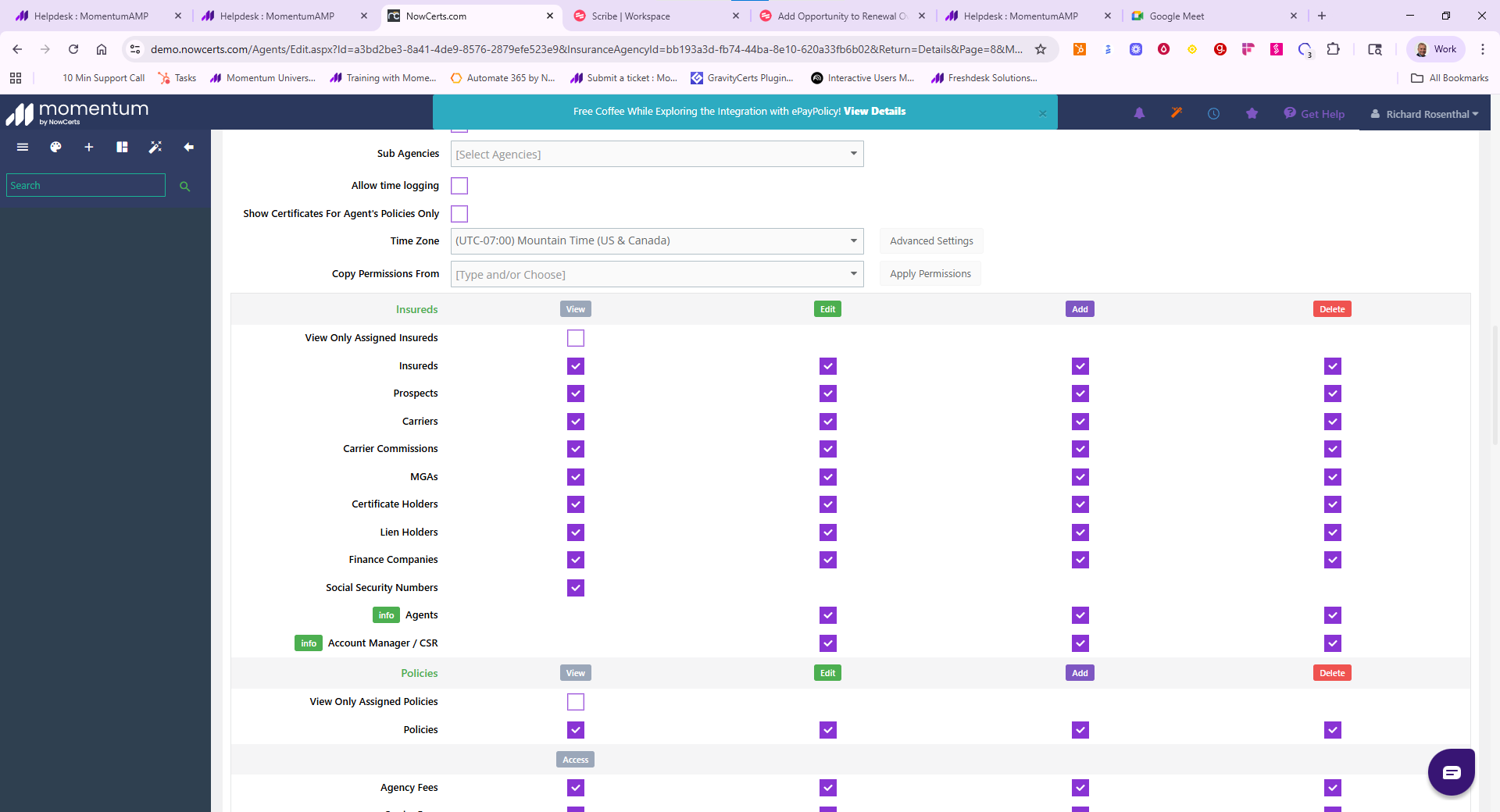
Click Update to save the user.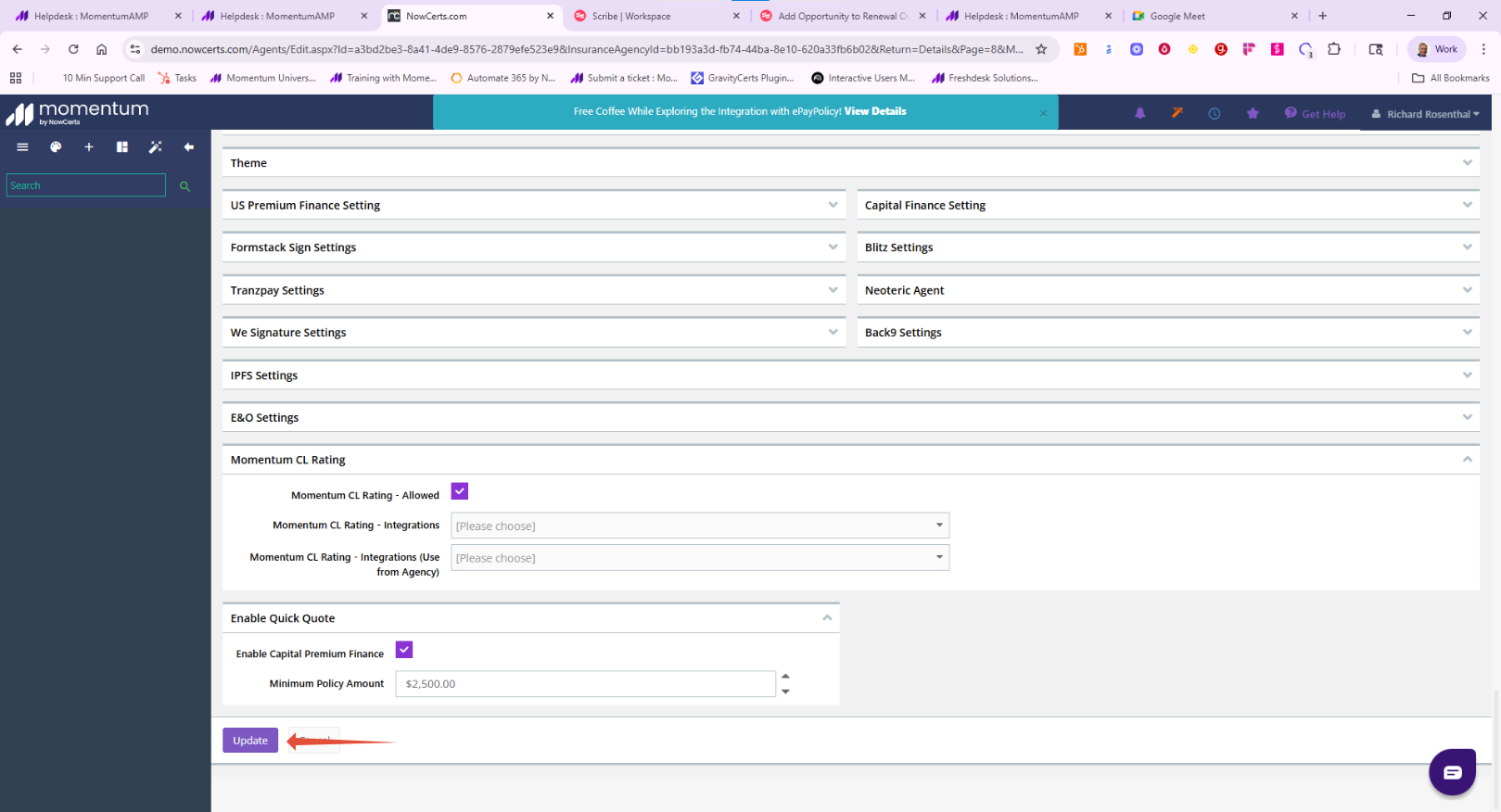
Momentum AMS will automatically send the new user an email allowing them to create their password and complete the login setup.
Choosing the Right User Type
When creating a User, you'll need to determine the appropriate access level.
Administrator
Administrators have unrestricted access to every area of Momentum AMS.
Choose Administrator only for trusted agency administrators or owners who require full system access.
Standard User
Most employees should be created as Standard Users.
Standard Users can be granted access to only the features required for their job responsibilities through the permission settings.
Best Practice: Start with the minimum permissions necessary and expand access as needed.
API Integration User
API Users are intended only for system integrations.
Use this option when connecting:
- Third-party applications
- API integrations
- Automation platforms
API Users should:
- Use a dedicated email address (such as api@youragency.com)
- Not be tied to an individual employee
- Only receive the permissions required for the integration
Important: API Integration Users are designed for system access and should not be used for employees who need to log into Momentum AMS.
Understanding User Permissions
Momentum AMS provides granular permissions so you can control exactly what each user can access.
Most permissions grant access to features.
However, permissions beginning with View Only work differently.
These settings are actually restrictions, limiting users to records assigned specifically to them.
Examples include:
- View Only Insureds
- View Only Policies
- View Only Prospects
- View Only Tasks
If these options are selected, users may believe they cannot see agency records because only their assigned records will appear.
Tip: Be especially careful when enabling View Only permissions. They restrict visibility rather than expanding access.
Managing Existing Users
From the Agents screen you can:
- Edit user information
- Change roles
- Modify permissions
- Send password reset emails
- Archive users to remove login access while preserving historical records
Assigning Users
Users can be assigned as the:
- Producer
- CSR
- Account Manager
Assignments can be made on:
- Insureds
- Policies
- Opportunities
- Tasks
Best Practices
- Review active users regularly and archive accounts no longer in use.
- Verify available user seats before creating a new User.
- Never share login credentials.
- Use dedicated accounts for API integrations.
- Carefully review View Only permissions before saving.
- Test a new user's access after setup to confirm they can see the appropriate records.
Was this article helpful?
That’s Great!
Thank you for your feedback
Sorry! We couldn't be helpful
Thank you for your feedback
Feedback sent
We appreciate your effort and will try to fix the article