Most insurance policies use a standard 12-month policy term. However, some carriers issue policies with a shortened initial term to align the policy with a future renewal date. In these situations, selecting a Variable policy term allows you to manually define the policy expiration date rather than using the default annual term. This article explains how to create a new Variable policy and how to correct an existing policy that was originally entered as an Annual policy.
Creating and Editing Variable Term Policies
Most insurance policies are written with a standard one-year policy term. Occasionally, a carrier may issue a policy with a shorter or custom policy period so that future renewals align with a common renewal date.
Instead of using the default Annual policy term, Momentum AMS allows you to designate these policies as Variable. This ensures the policy dates accurately match the carrier documentation while maintaining an accurate policy history.
When Should I Use a Variable Policy?
Use a Variable policy whenever the carrier issues a policy with an effective and expiration date that does not follow a standard annual term.
Common examples include:
- Short-term or bridge policies
- Prorated initial policy periods
- Policies written to align with the carrier's annual renewal cycle
- Any policy with a custom expiration date
Creating a New Variable Policy
Step 1 – Create a New Policy
- Navigate to the insured's Policies list.
- Click Add New.
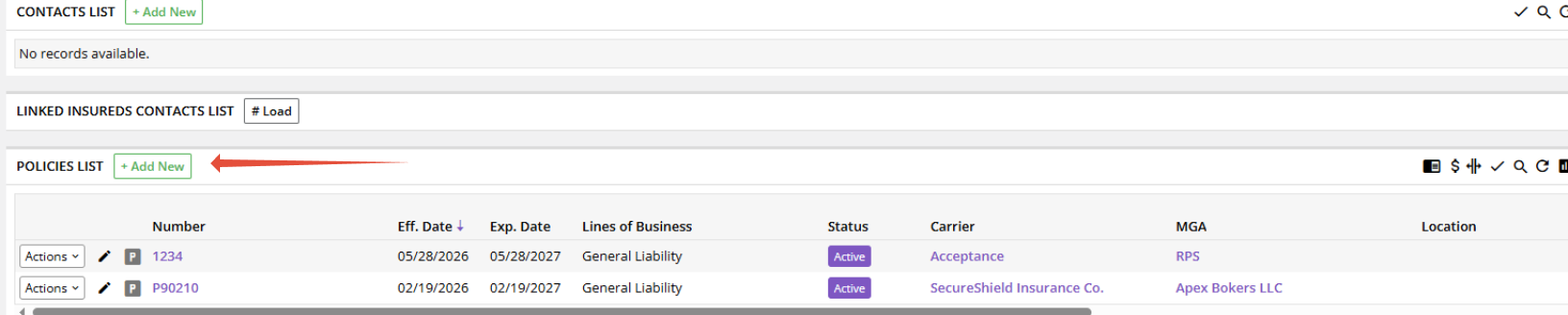
- Begin creating the policy as you normally would.
Step 2 – Enter the Policy Number and Effective Date
Enter the:
- Policy Number
- Effective Date
Momentum AMS will automatically calculate an annual expiration date.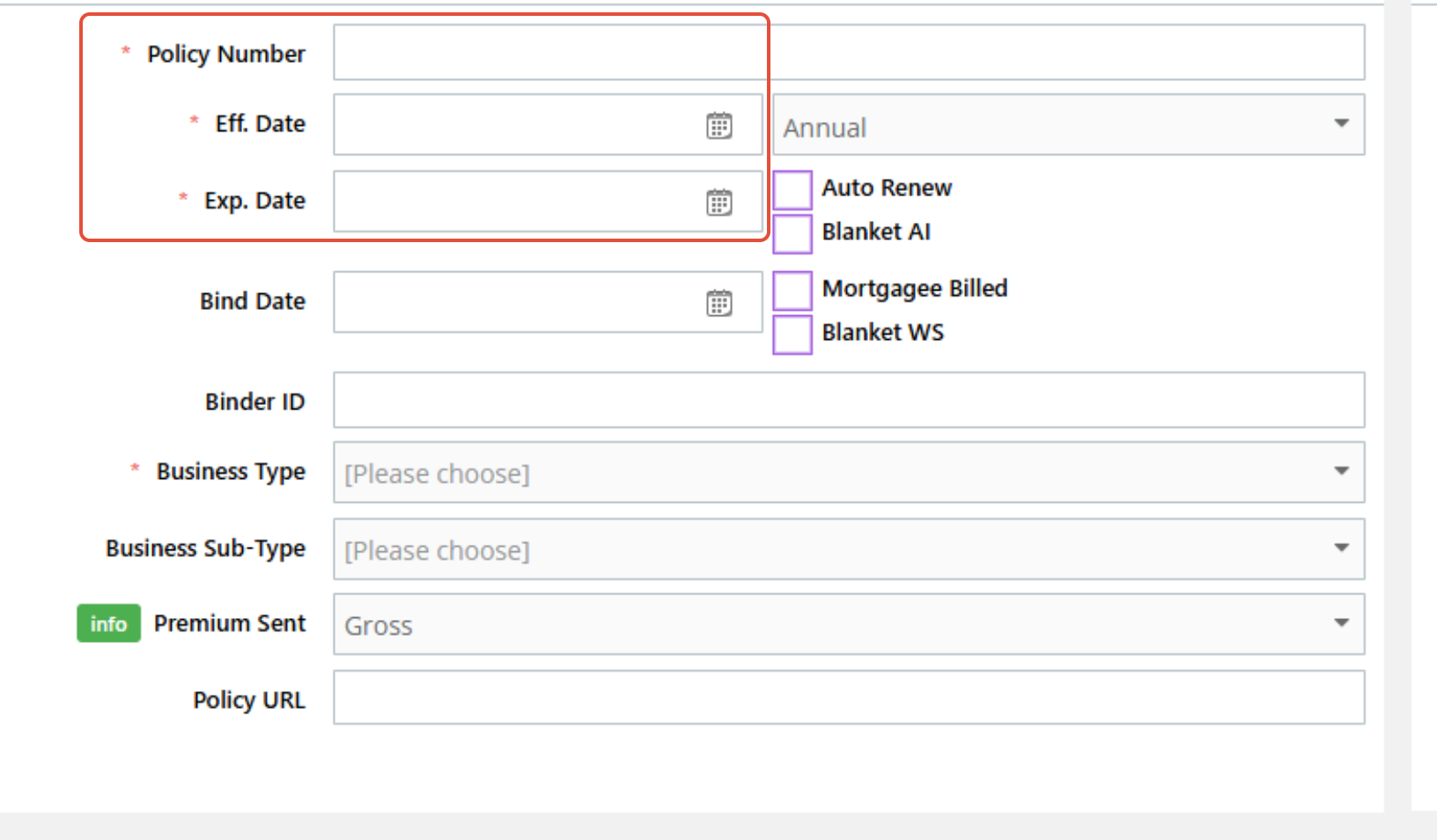
Step 3 – Change the Policy Term
Locate the Policy Term field.
Change the default value from:
Annual
to
Variable
Once selected, the expiration date becomes editable.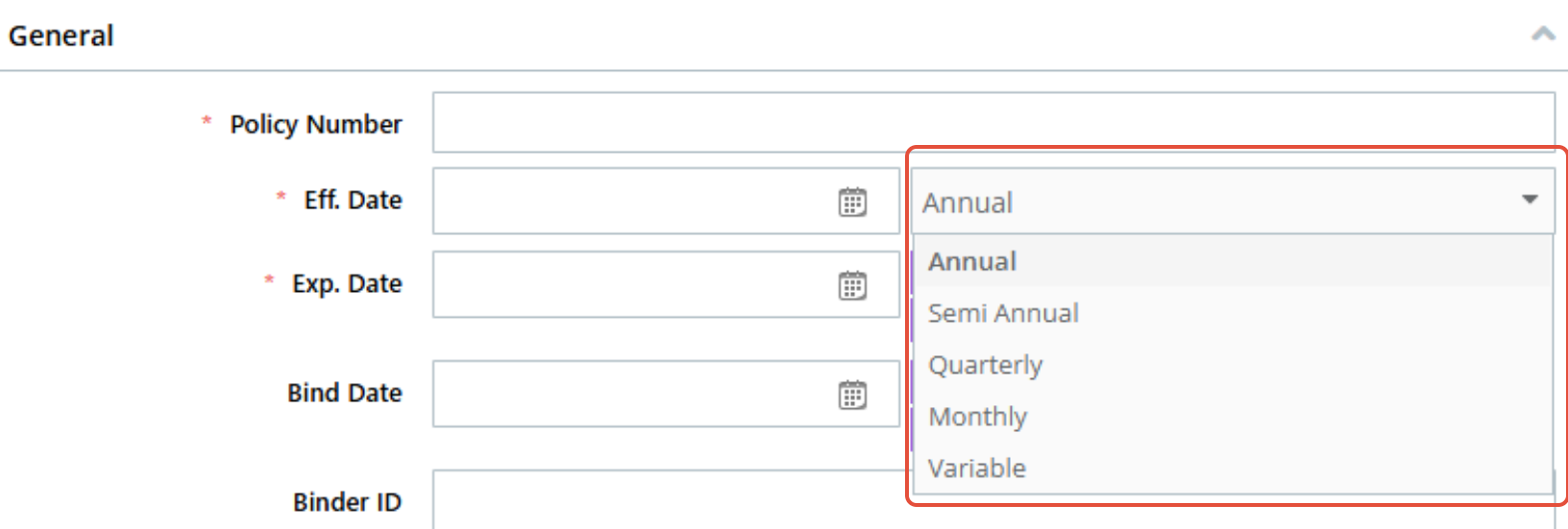
Step 4 – Enter the Correct Expiration Date
Replace the automatically generated expiration date with the expiration date shown on the carrier's policy documents.
Example:
| Effective Date | Expiration Date |
|---|---|
| 06/29/2026 | 08/01/2026 |
Always use the dates provided by the carrier.
Step 5 – Complete the Remaining Policy Information
Complete the remaining required fields including any applicable:
- Carrier
- Writing Company
- Line of Business
- Premium
- Billing Information
- Producer
- Additional policy details
Review the policy for accuracy.
Step 6 – Save the Policy
Click Save (or Update, depending on your workflow).
Verify that the policy displays:
- Variable Policy Term
- Correct Effective Date
- Correct Expiration Date
Editing an Existing Policy
If a policy was accidentally created using an Annual term, it does not need to be deleted and recreated.
Simply edit the existing policy.
Step 1 – Open the Policy
Navigate to the insured and open the existing policy.
Step 2 – Edit the Policy
Select:
Actions > Edit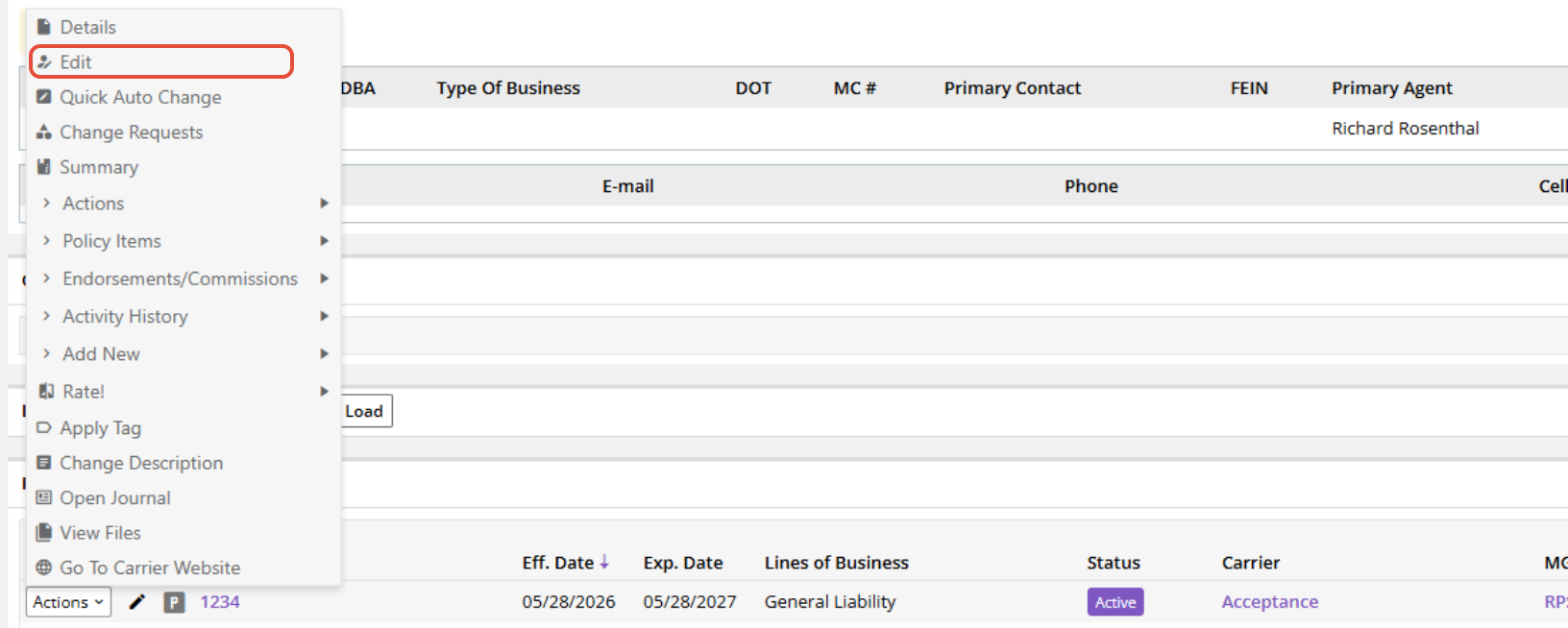
Step 3 – Change the Policy Term
Locate the Policy Term field.
Change the policy from:
Annual
to
Variable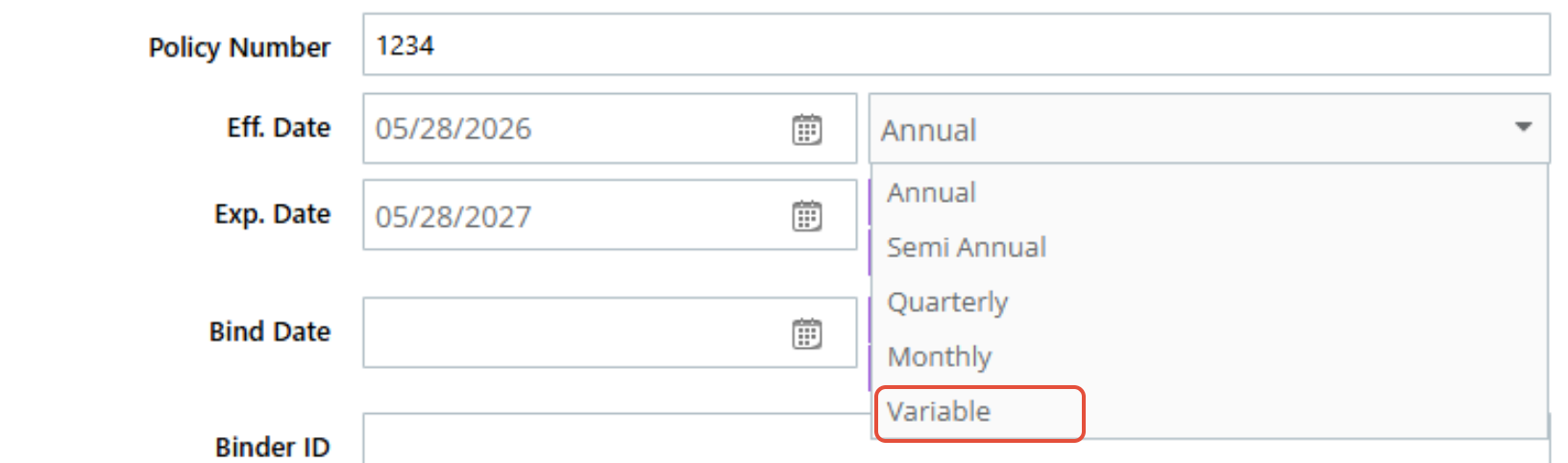
Step 4 – Update the Expiration Date
Enter the correct expiration date shown on the carrier documentation.
Verify both the:
- Effective Date
- Expiration Date
before saving.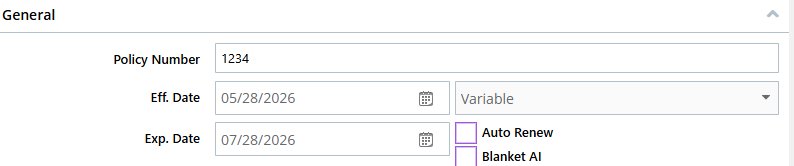
Step 5 – Save Your Changes
Select Update.
Confirm the policy now reflects:
- Variable Policy Term
- Correct Effective Date
- Correct Expiration Date
Renewing a Variable Policy
When renewing a Variable policy:
- Open the existing policy.
- Select Actions > Renew Policy.
- Verify the Effective Date.
- Verify the Expiration Date.
- Complete the renewal.
Important: Always verify the expiration date during renewal. Variable policies may require a different expiration date than a standard annual policy.
Best Practices
- Use the Variable policy term only when the carrier issues a non-standard policy period.
- Always enter the effective and expiration dates exactly as shown on the carrier documents.
- If a policy was entered incorrectly, edit the existing policy instead of creating a new one.
- Review the policy dates before saving to prevent renewal issues later.
Frequently Asked Questions
Why should I use a Variable policy instead of Annual?
Variable policies allow you to manually define the expiration date whenever the carrier's policy period is different from a standard one-year term.
Will changing the policy term affect billing or commissions?
No. The Variable policy term only controls the policy dates. Premiums, billing, commissions, and accounting transactions are processed separately.
Do I need to recreate the policy if I entered it incorrectly?
No. Open the existing policy, change the policy term from Annual to Variable, update the expiration date, and save your changes.
Can Variable policies be renewed?
Yes. During the renewal process, verify that the new expiration date matches the carrier's intended policy period before completing the renewal.
Summary
Variable policy terms are designed for policies that do not follow a standard annual effective and expiration date. Whether you're creating a new policy or correcting an existing one, using the Variable policy term ensures your policy records accurately reflect the carrier's documentation while maintaining a clean and accurate renewal history.
Was this article helpful?
That’s Great!
Thank you for your feedback
Sorry! We couldn't be helpful
Thank you for your feedback
Feedback sent
We appreciate your effort and will try to fix the article