There are two parts to setting up API access: creating the API user and generating your API keys. Here is how to do both.
Option 1: Create the API User
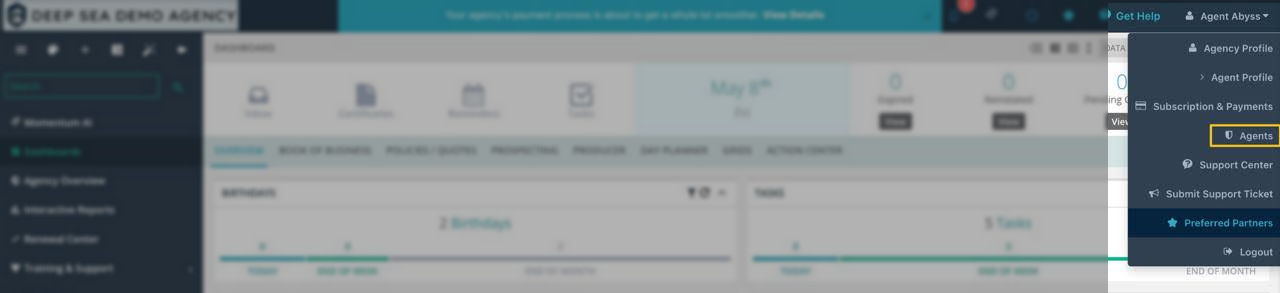
- Click on your agency/agent name in the top right corner, then select Agents from the dropdown menu.
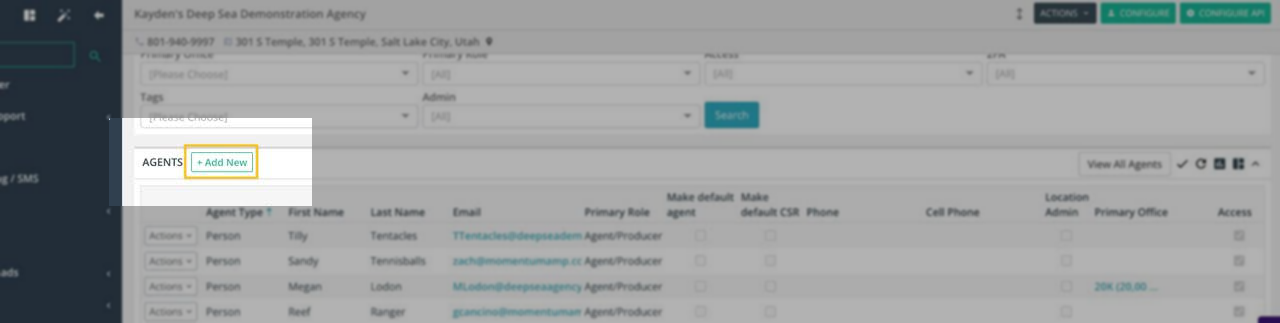
- On the Agents page, click + Add New next to "Agents."
- Fill in the details: Set the agent type to "Person", use your agency name for the First Name, enter "API" for the Last Name, use a dedicated email address (e.g., API@youragency.com), and select "API Integration" as the Primary Role.
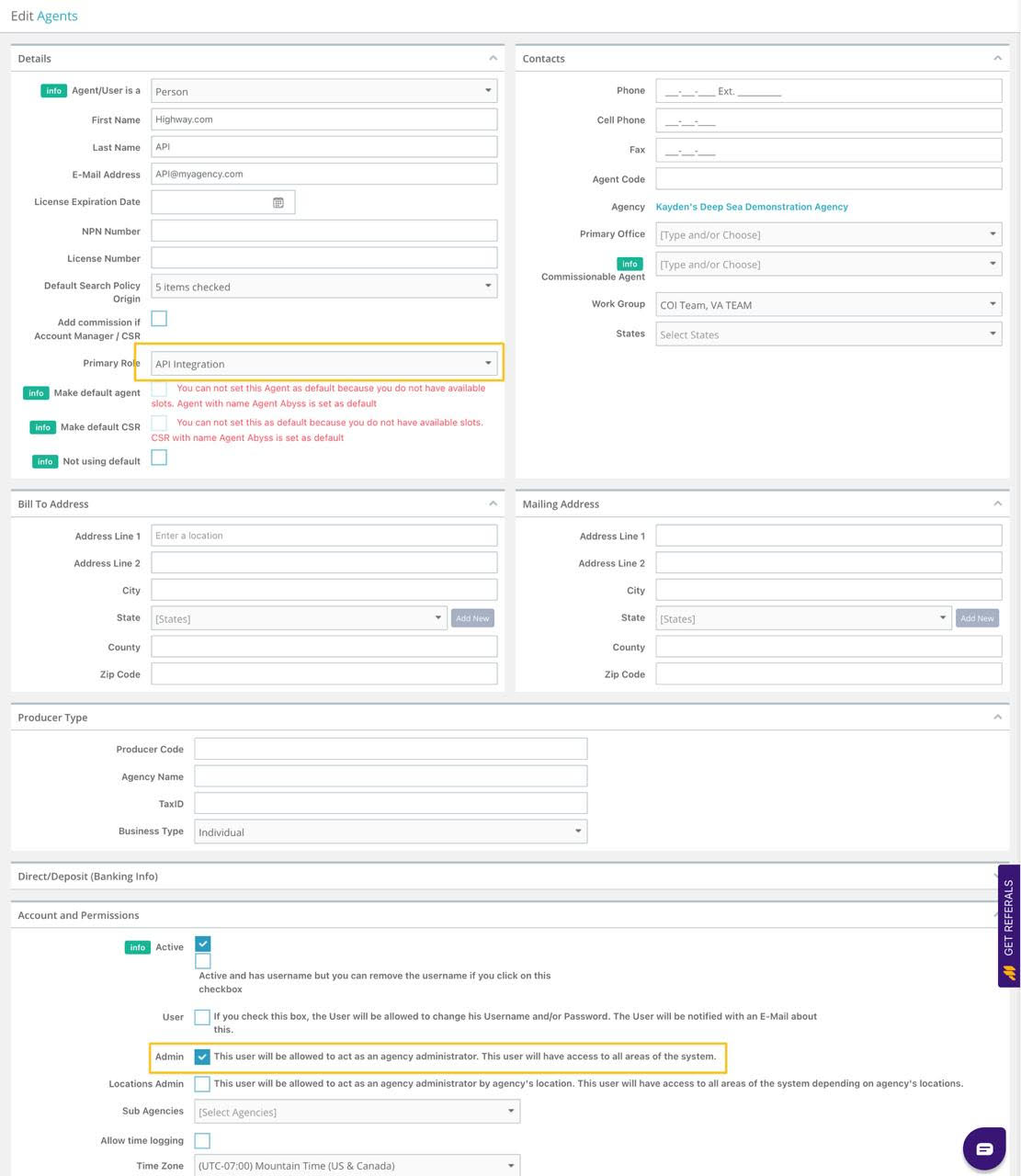
- Scroll down to Account and Permissions:
- ✅ Active — checked
- User — leave unchecked (the API user doesn't need to log in directly)
- ✅ Admin — checked (grants the API user full system access needed for integrations)
- Time Zone — set to your agency's time zone
- Click Save Changes.
- After saving, set a password for the API user by editing the agent, clicking Change Password, and saving the new credentials.

Option 2: Generate API Keys
There are two ways to generate your API keys in the system. We recommend using Method B.
Method A: From the Agents Page (Original)
Go to the Agents list page and click the Configure API button at the top right. This will display your API credentials.
Method B: From Agency Profile (Newer, Recommended)
- Click your agency name dropdown in the top right and select Agency Profile.
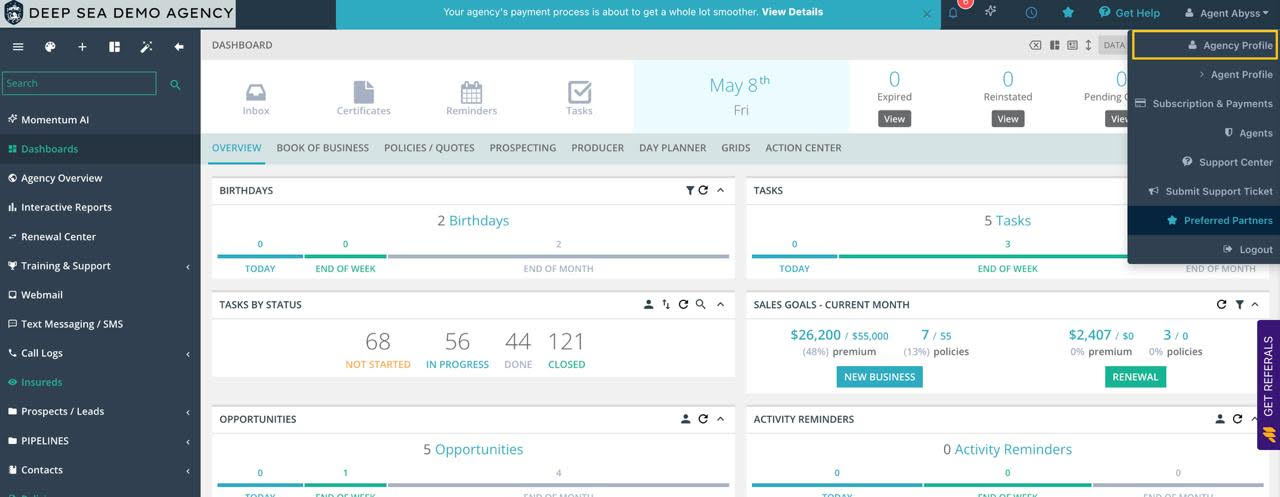
- On the Agency Profile page, click the dropdown arrow on the right side of the tab bar, select API Keys, and click Generate API Keys.
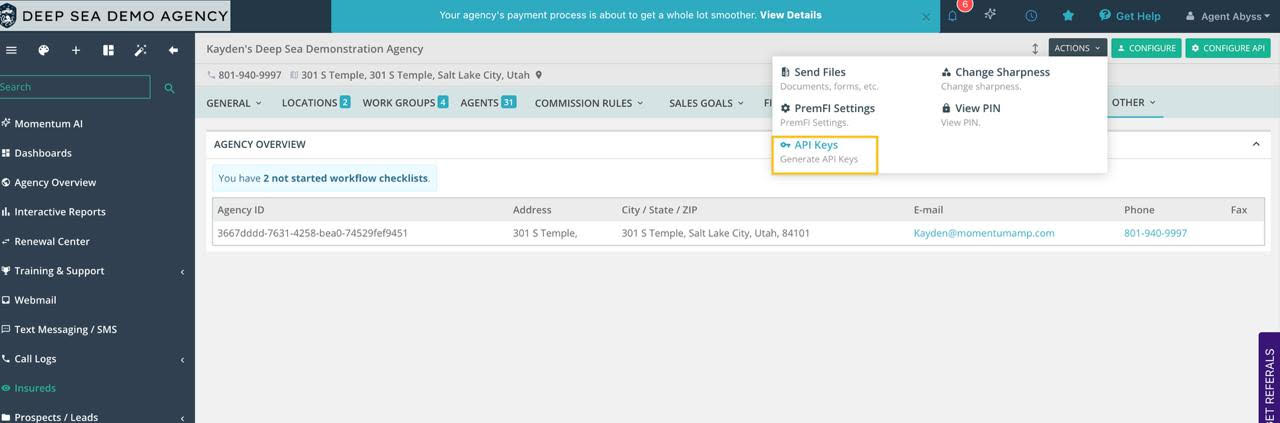
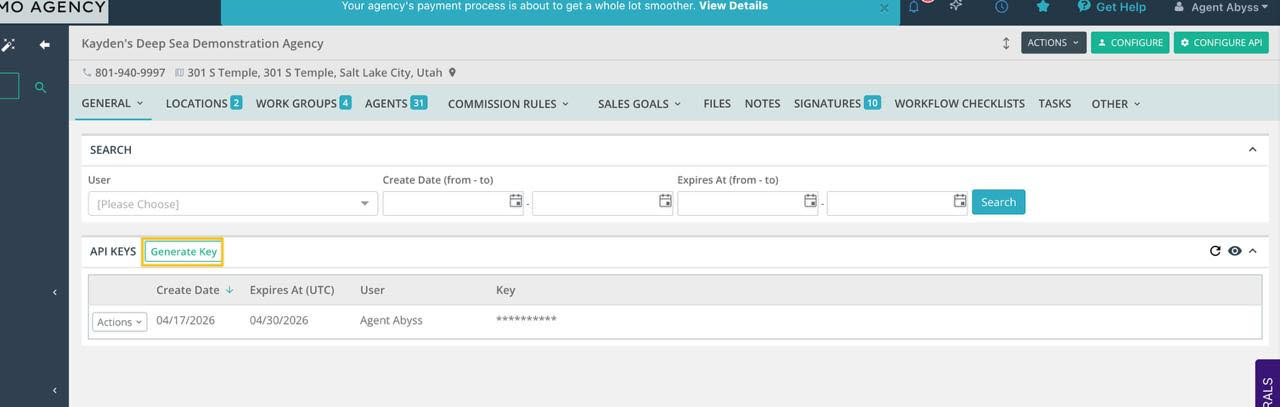
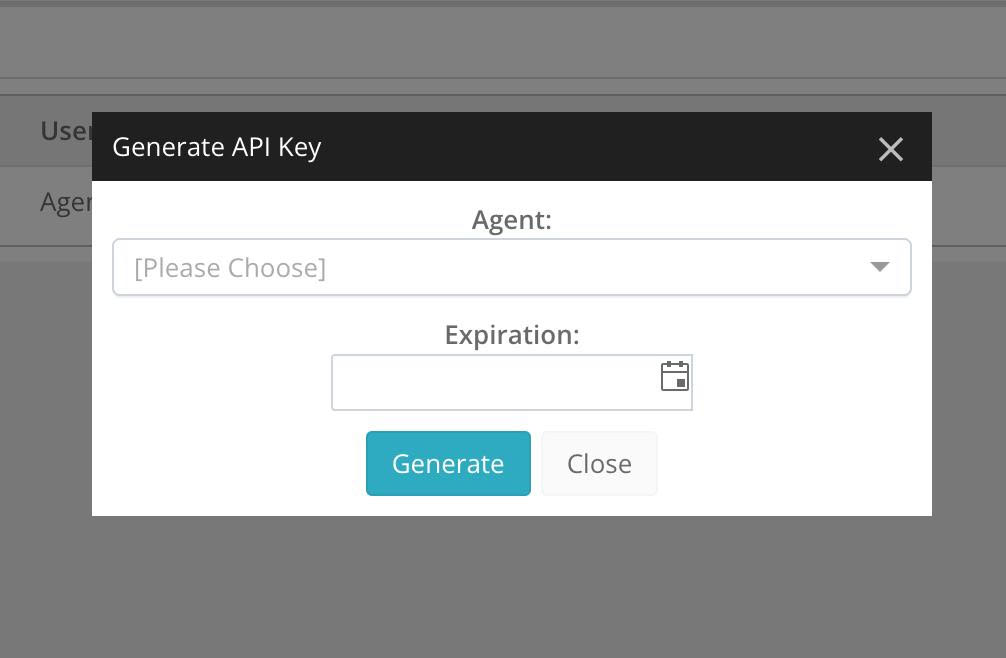
- A modal will appear. Select the Agent (choose the API user you created in Part 1), set an Expiration date, then click Generate.
Your new API key will appear in the keys table. Copy and securely store it, as the key value will be masked in the table for security.
Important Notes
- The API user counts as a seat on your subscription.
- Keep your API key and password secure—treat them like any other standard credential.
- API keys expire. Make note of the expiration date you set and regenerate the key before it lapses.
- You can manage existing keys using the Actions dropdown next to each key in the table.
Need help? Contact support@momentumamp.com or call (801) 999-0550.
Was this article helpful?
That’s Great!
Thank you for your feedback
Sorry! We couldn't be helpful
Thank you for your feedback
Feedback sent
We appreciate your effort and will try to fix the article