Follow these steps to connect your Momentum AMS account directly to Claude Desktop using the MCPB extension file. This integration allows you to leverage Momentum AI directly within your Claude chat interface.
Part 1: Generate Your API Key
- Download the Momentum
.mcpbextension file from this link.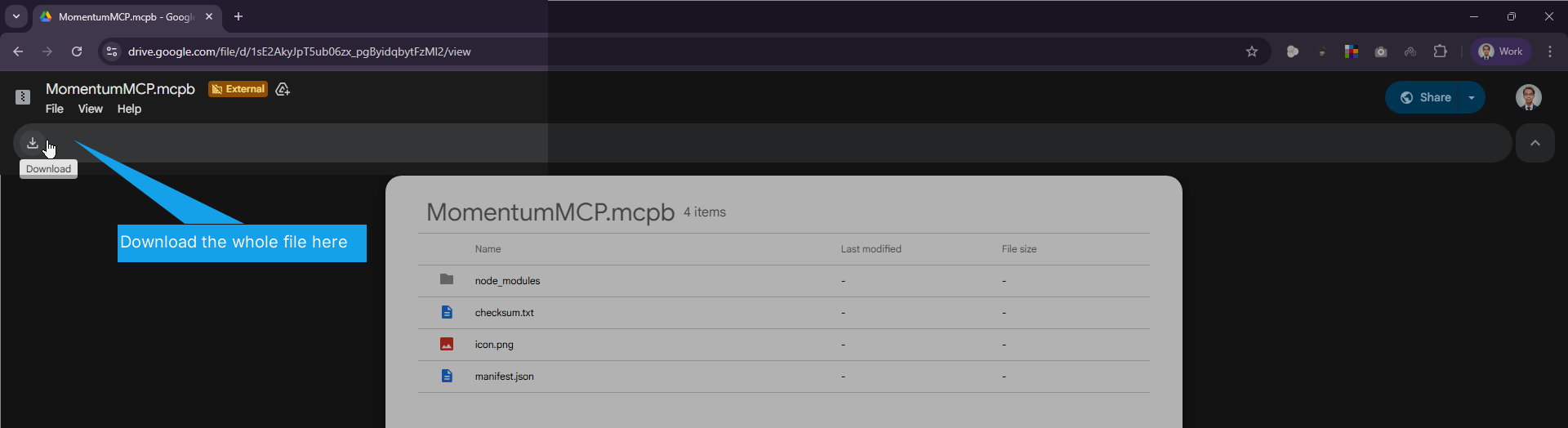
- Log in to your Momentum AMS account.
- Open the Momentum AI found in the left navigation bar.
- Inside the Momentum AI page, add &support=true at the end of the link (this step enables the Settings button to be visible), then hit enter.
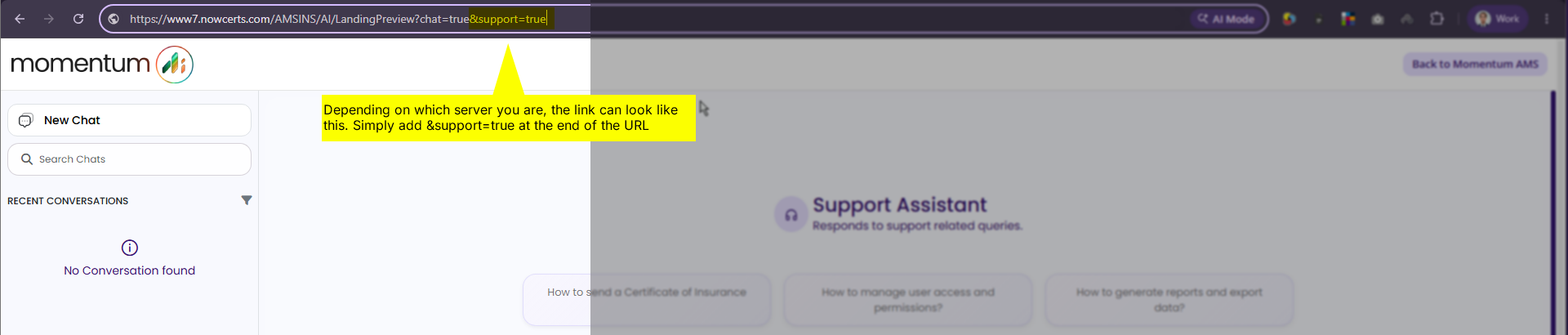
- Once the page reloads in the new URL, click on Settings found at the bottom.
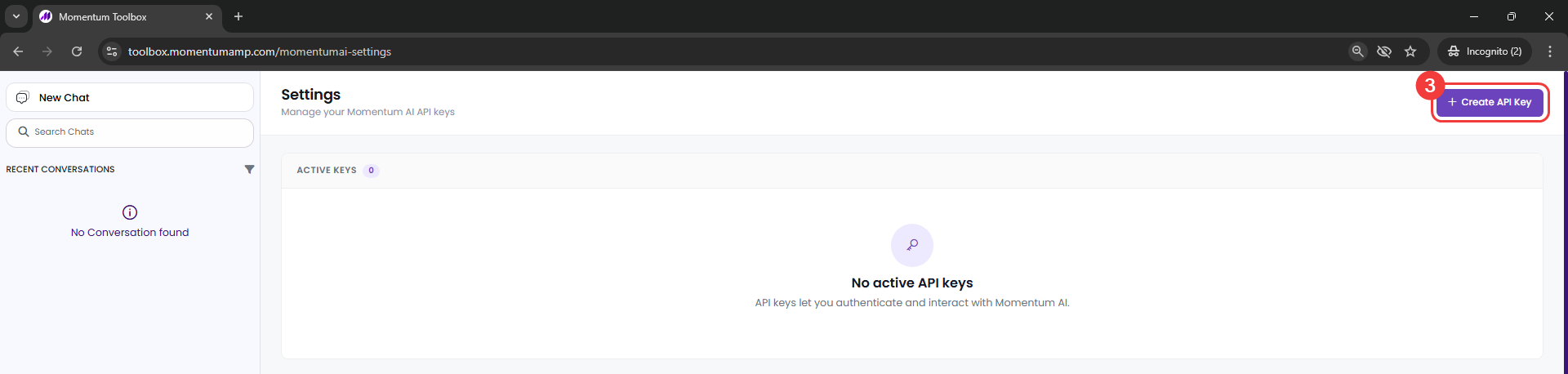
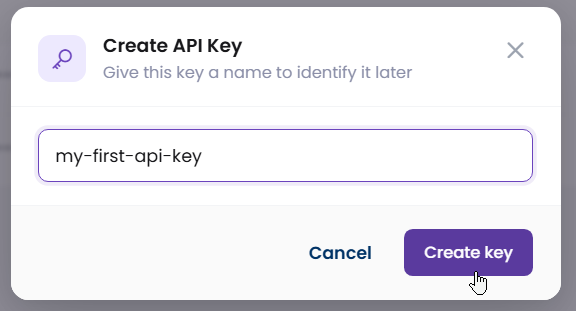
- In the settings page, click on Create API Key at the top right and assign a name for identification. Keep a copy of your API key somewhere safe as it will no longer be visible once you close the popup.
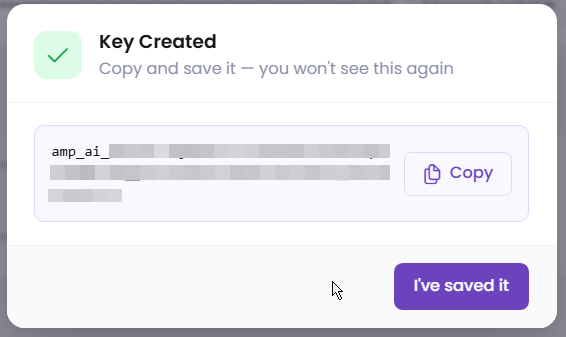
⚠️ Important: Backup Your API Key
Copy and save your API key immediately. For security reasons, this key can no longer be viewed once you close the window.
Part 2: Install in Claude Desktop
- In the Claude Desktop app, go to Settings > Extensions > Advanced Settings.
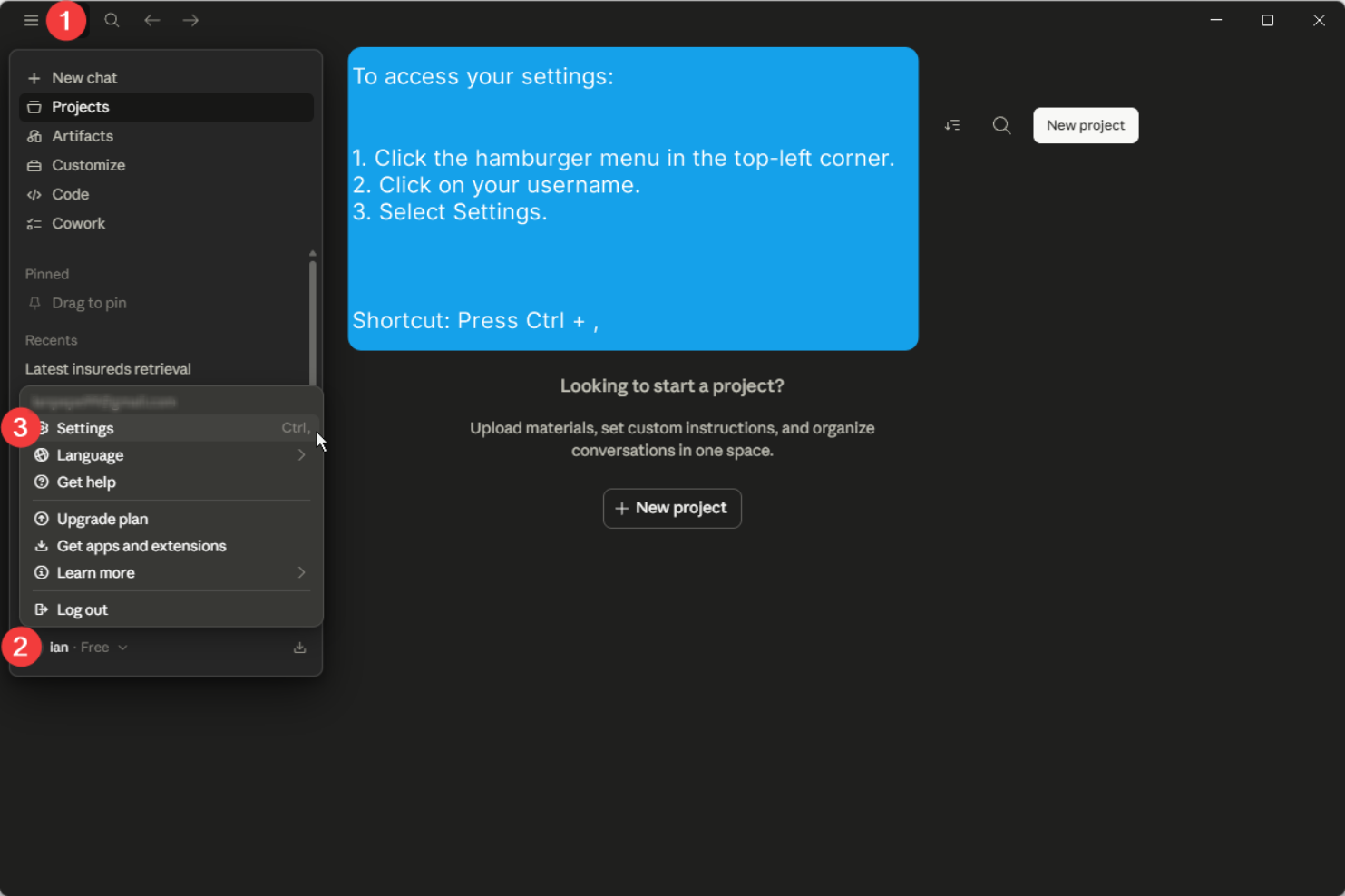
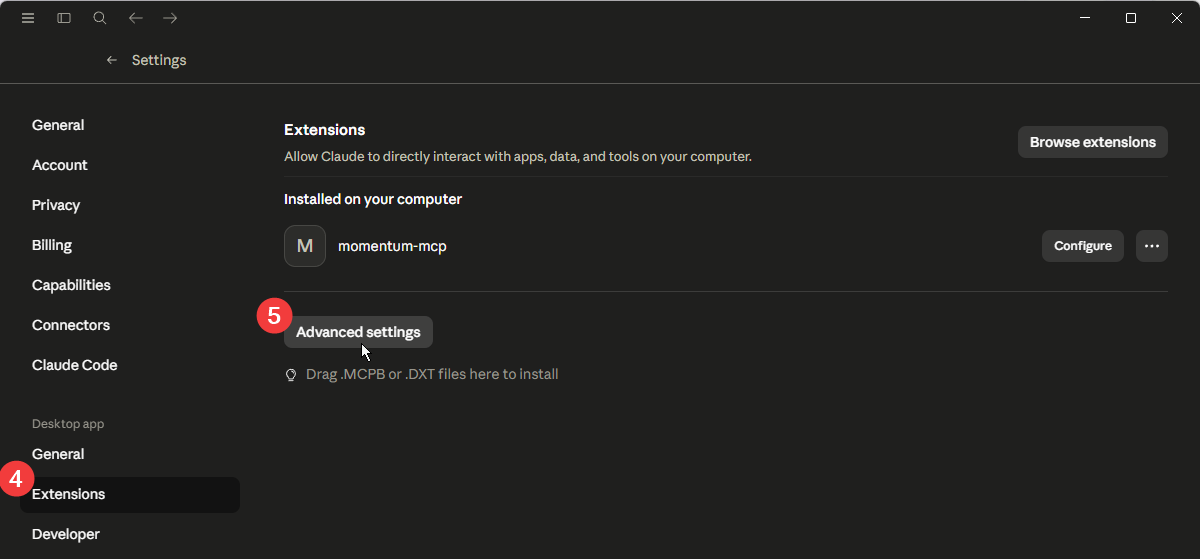
- Scroll down to the Extension Developer section and click Install Extension.
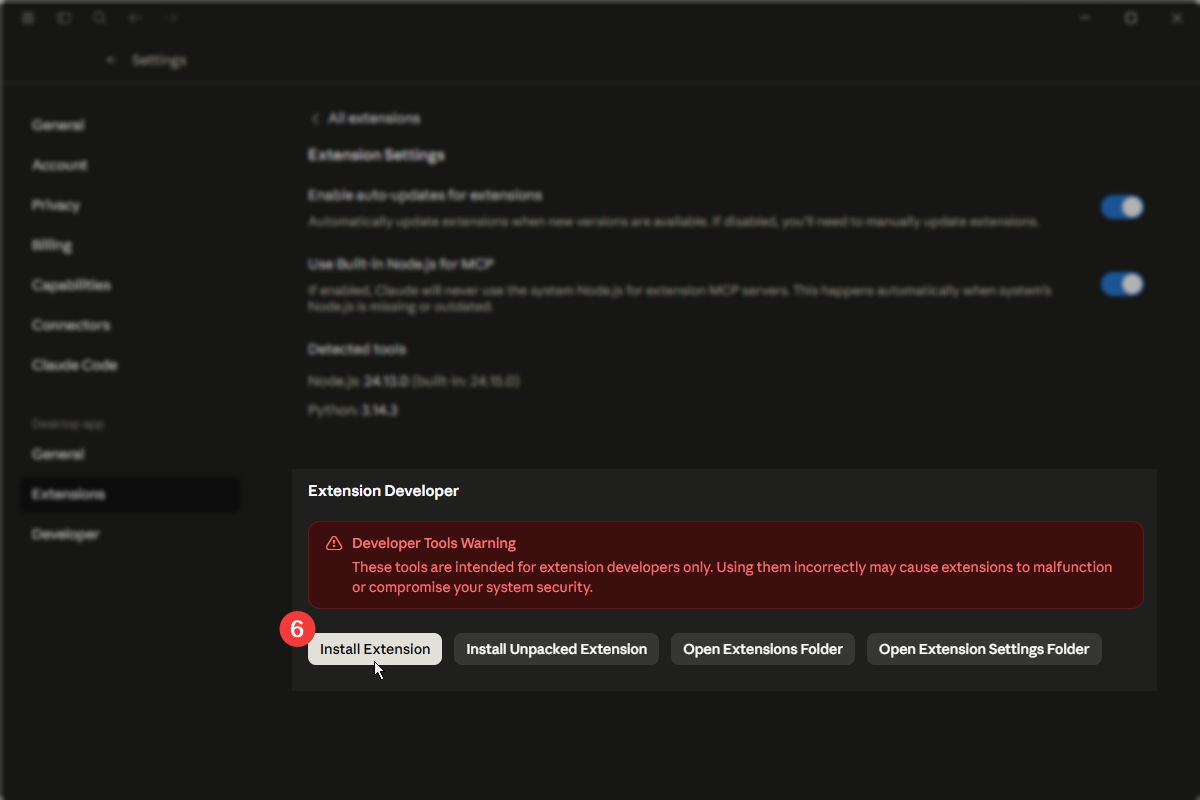
- Select the
.mcpbfile you downloaded and follow the installation prompts. - When prompted, enter the API key you generated.
- Enable the extension to start using Momentum AI in your Claude chat.
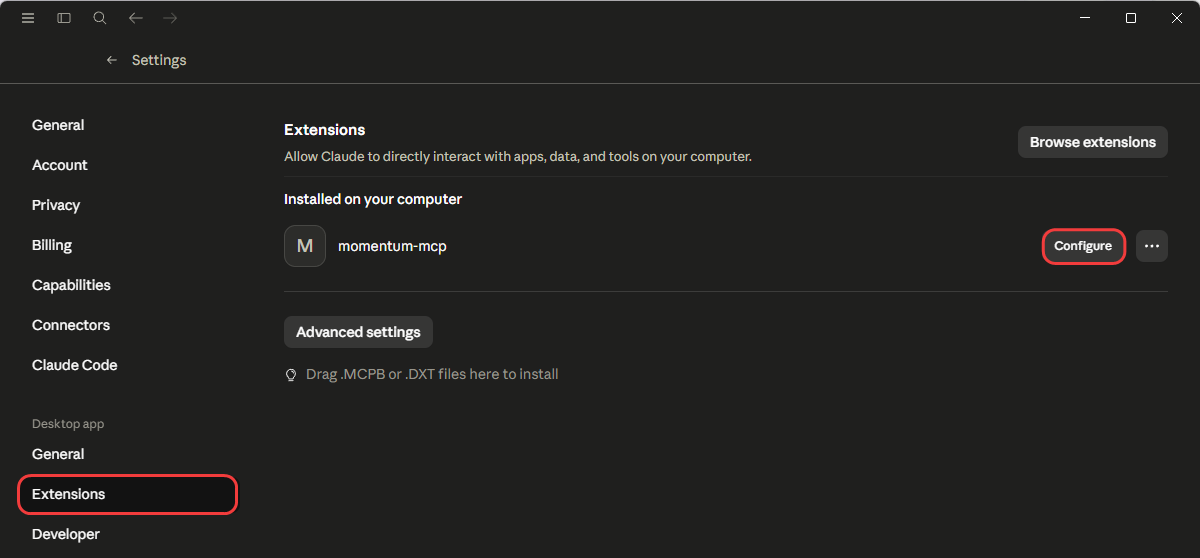
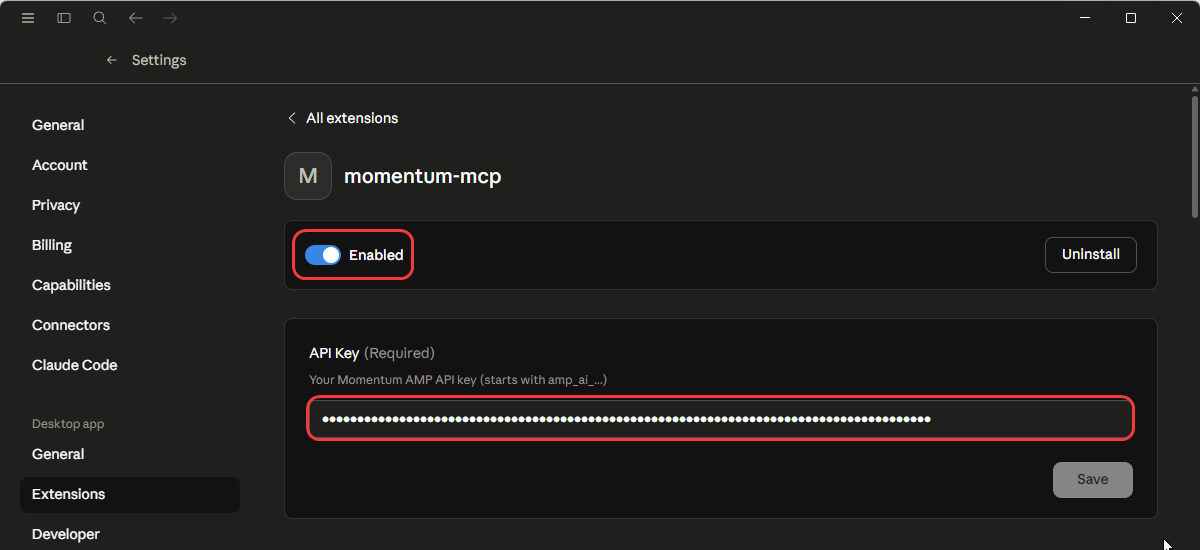
- To double check your configuration, go to Extensions and click Configure in momentum-mcp. Make sure it is enabled and the correct API key is entered.
Note: If the hyperlinks above do not work, please copy and paste these exact URLs directly into your browser:
- Extension Download File: https://drive.google.com/file/d/1sE2AkyJpT5ub06zx_pgByidqbytFzMl2/view?usp=sharing
- API Key Generator: https://www.toolbox.momentumamp.com/ai-scans/345?support=true
Was this article helpful?
That’s Great!
Thank you for your feedback
Sorry! We couldn't be helpful
Thank you for your feedback
Feedback sent
We appreciate your effort and will try to fix the article