Automation works best when it feels human. Customizing your profile ensures that your outgoing messages carry your personal brand, and setting your business days ensures you respect your clients' time.
1. Profile Picture & Contact Info
A profile picture helps your team identify you, while the correct Time Zone ensures your automations fire when you expect them to.
How to Edit:
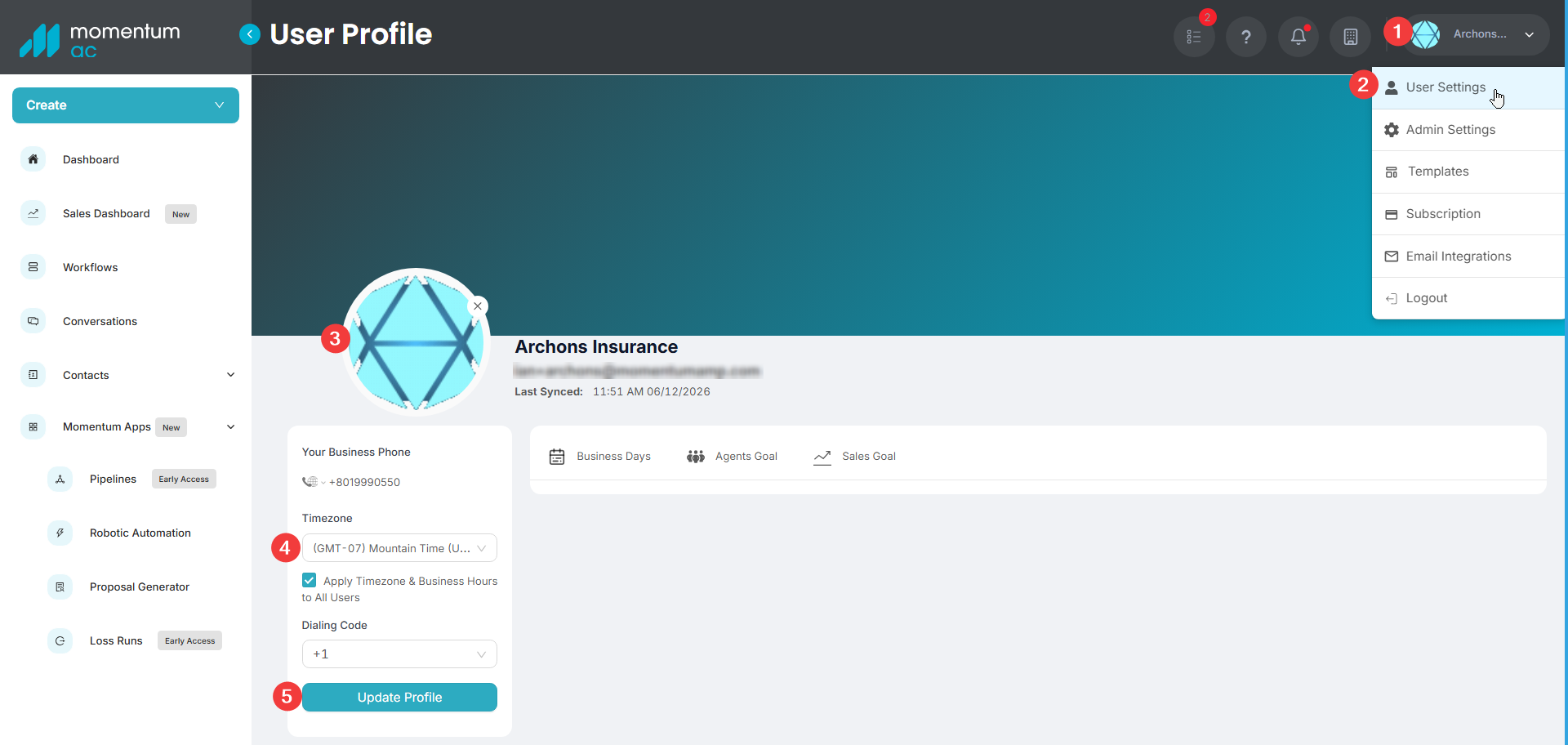
1. Click your Username on the top navigation bar and select User Settings.
2. You will land directly on your profile page.
3. Upload Photo: Click to upload a professional headshot or logo.
4. Update Details: You can update your Business Phone and Time Zone here.
(Note: Your First and Last Name are based on your AMS account and cannot be changed here.)
5. Click Update Profile for the changes to take effect.
1. Click your Username on the top navigation bar and select User Settings.
2. You will land directly on your profile page.
3. Upload Photo: Click to upload a professional headshot or logo.
4. Update Details: You can update your Business Phone and Time Zone here.
(Note: Your First and Last Name are based on your AMS account and cannot be changed here.)
5. Click Update Profile for the changes to take effect.
2. Email Signature Setup
Create a rich-text signature that automatically appends to every message mAC sends for you.
How to Configure:
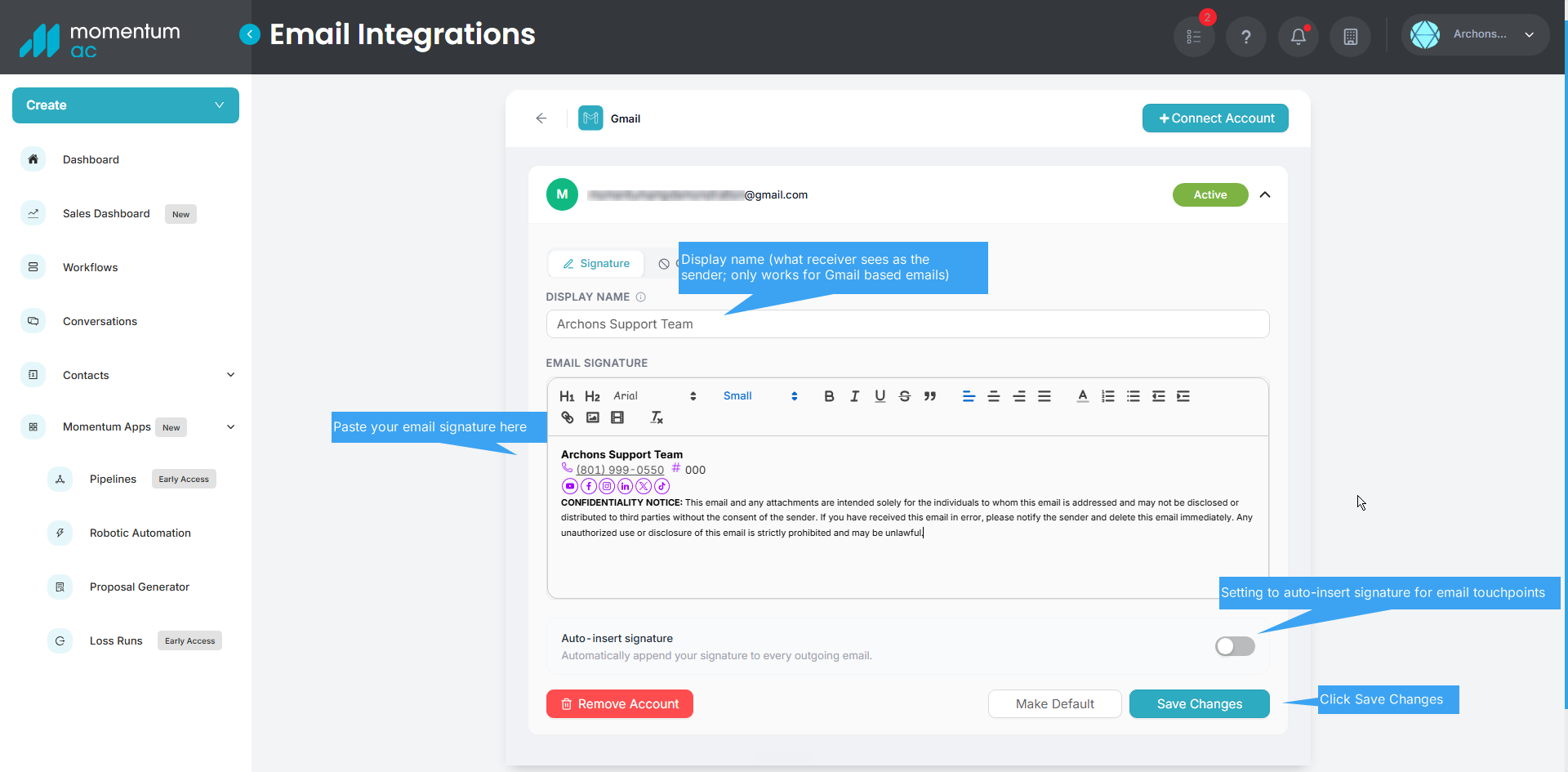
1. Click/Hover to your username at the top right, then click the Email Integrations tab. Select the email integration you wish to modify.
2. Display Name: Enter the name you want clients to see as the "Sender". (Only works for Gmail based emails)
3. Signature Editor: Paste your signature here (images and links supported).
4. Important: Locate the toggle right below the editor labeled "Auto-insert signature" and switch it to ON if you want this included in your emails.
1. Click/Hover to your username at the top right, then click the Email Integrations tab. Select the email integration you wish to modify.
2. Display Name: Enter the name you want clients to see as the "Sender". (Only works for Gmail based emails)
3. Signature Editor: Paste your signature here (images and links supported).
4. Important: Locate the toggle right below the editor labeled "Auto-insert signature" and switch it to ON if you want this included in your emails.
3. Set Your "Business Days"
Prevent awkward 3:00 AM text messages. This setting controls when the system is allowed to fire outgoing communications.
How to Configure:
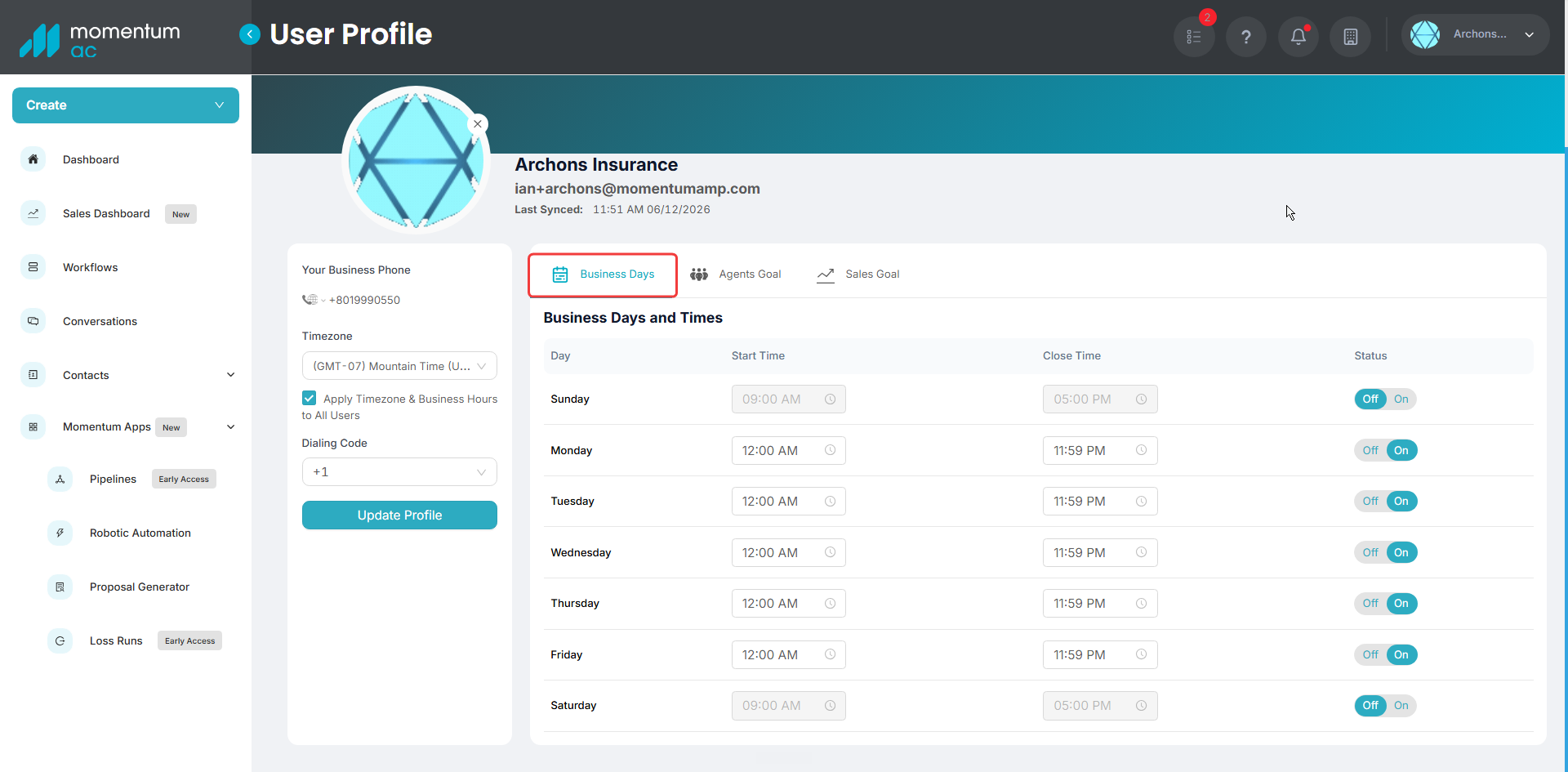
1. Go to User Settings > Business Days.
2. Weekdays: Toggle the switch ON for the days you want to send messages (e.g., Mon-Fri).
3. Time Windows: Define your "Safe Sending" hours (e.g., 9:00 AM – 5:00 PM).
4. Result: If a trigger fires on a Sunday, the system will hold the message and send it Monday morning.
1. Go to User Settings > Business Days.
2. Weekdays: Toggle the switch ON for the days you want to send messages (e.g., Mon-Fri).
3. Time Windows: Define your "Safe Sending" hours (e.g., 9:00 AM – 5:00 PM).
4. Result: If a trigger fires on a Sunday, the system will hold the message and send it Monday morning.
Pro Tip: Looking for the Unsubscribe settings? These are located in their own dedicated tab called "Unsubscribe" inside User Settings.
Was this article helpful?
That’s Great!
Thank you for your feedback
Sorry! We couldn't be helpful
Thank you for your feedback
Feedback sent
We appreciate your effort and will try to fix the article