Before Momentum Automation Center (mAC) can send messages on your behalf, you need to grant it permission. Follow these steps to connect your communication channels.
1. Connect Your Email
Integrating your actual email account ensures that automated messages look personal and that client replies go straight to your normal inbox.
How to Connect:
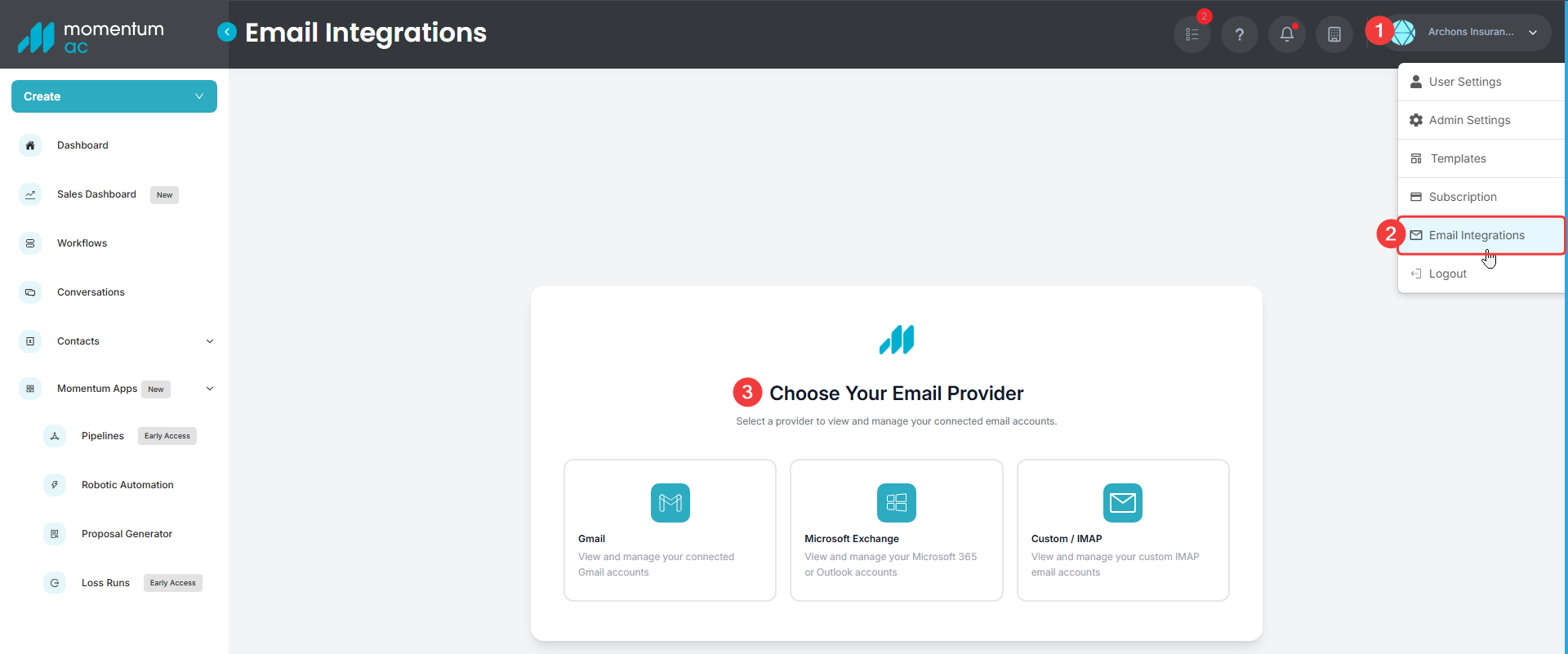
1. In mAC, navigate to Email Integrations (click/hover your username on the top nav bar).
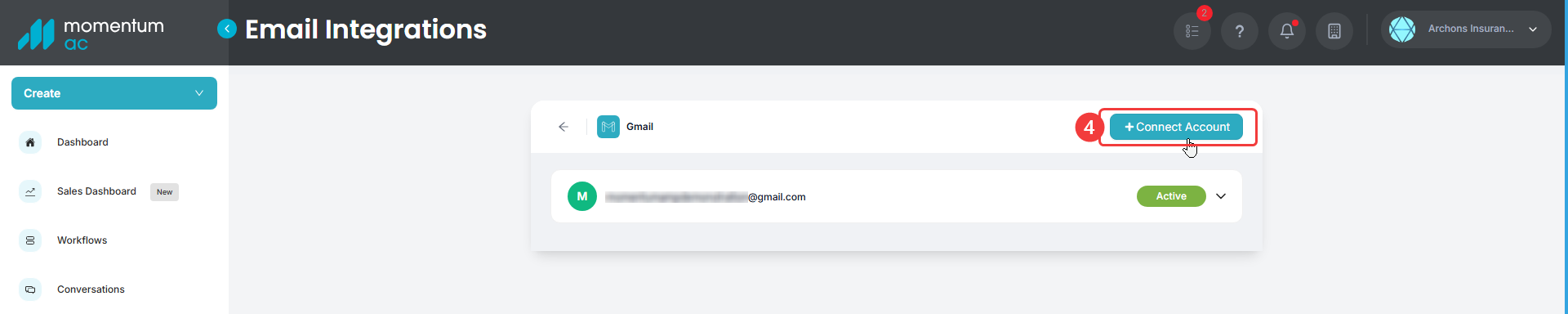
2. Select your email provider (Gmail, Outlook, or IMAP) and click Connect Account.
3. Follow the popup prompts to log in and authorize all permissions.
4. Verification: Once finished, your email should appear in the list with an "Active" label on the right side. If you don't see the email in the list after connecting, refresh the page.
1. In mAC, navigate to Email Integrations (click/hover your username on the top nav bar).
2. Select your email provider (Gmail, Outlook, or IMAP) and click Connect Account.
3. Follow the popup prompts to log in and authorize all permissions.
4. Verification: Once finished, your email should appear in the list with an "Active" label on the right side. If you don't see the email in the list after connecting, refresh the page.
2. Connect Your SMS
SMS connectivity is managed through your main Agency Management System (AMS) settings, which then syncs to the Automation Center.
How to Connect:
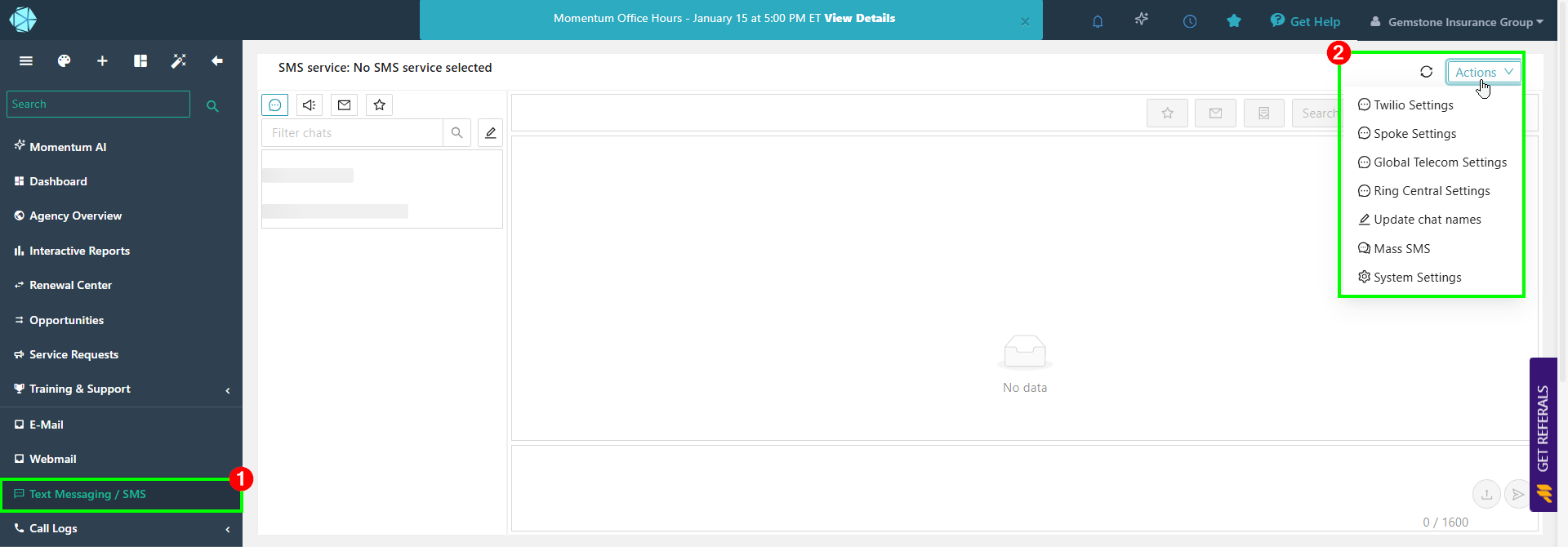
1. In the main Momentum AMS, find Text Messaging / SMS in the left navigation bar.
2. At the top right, click the 'Actions' dropdown menu and select your SMS provider.
3. Follow the prompts to authorize your account.
4. Done! Once authorized here, mAC will automatically detect and use this connection for your automated texts.
1. In the main Momentum AMS, find Text Messaging / SMS in the left navigation bar.
2. At the top right, click the 'Actions' dropdown menu and select your SMS provider.
3. Follow the prompts to authorize your account.
4. Done! Once authorized here, mAC will automatically detect and use this connection for your automated texts.
Pro Tip: Want to customize your email signature or set business hours? Check out our guide on Customizing Your User Profile.
Was this article helpful?
That’s Great!
Thank you for your feedback
Sorry! We couldn't be helpful
Thank you for your feedback
Feedback sent
We appreciate your effort and will try to fix the article