Two-Factor Authentication (2FA) adds a second layer of login security to your Momentum AMP account on top of your password. This article walks you through turning on 2FA using either an email verification code or an authenticator app (our preferred method), and explains how recovery codes keep you from getting locked out of your agency.
When to Use This
Turn on 2FA for every Momentum AMP user account to protect your agency's book of business from unauthorized access. This matters most for agency owner and admin accounts, and for any user who logs in to Momentum AMP from a shared or mobile device.
Step-by-Step Instructions
Step 1: Open Your 2FA Settings
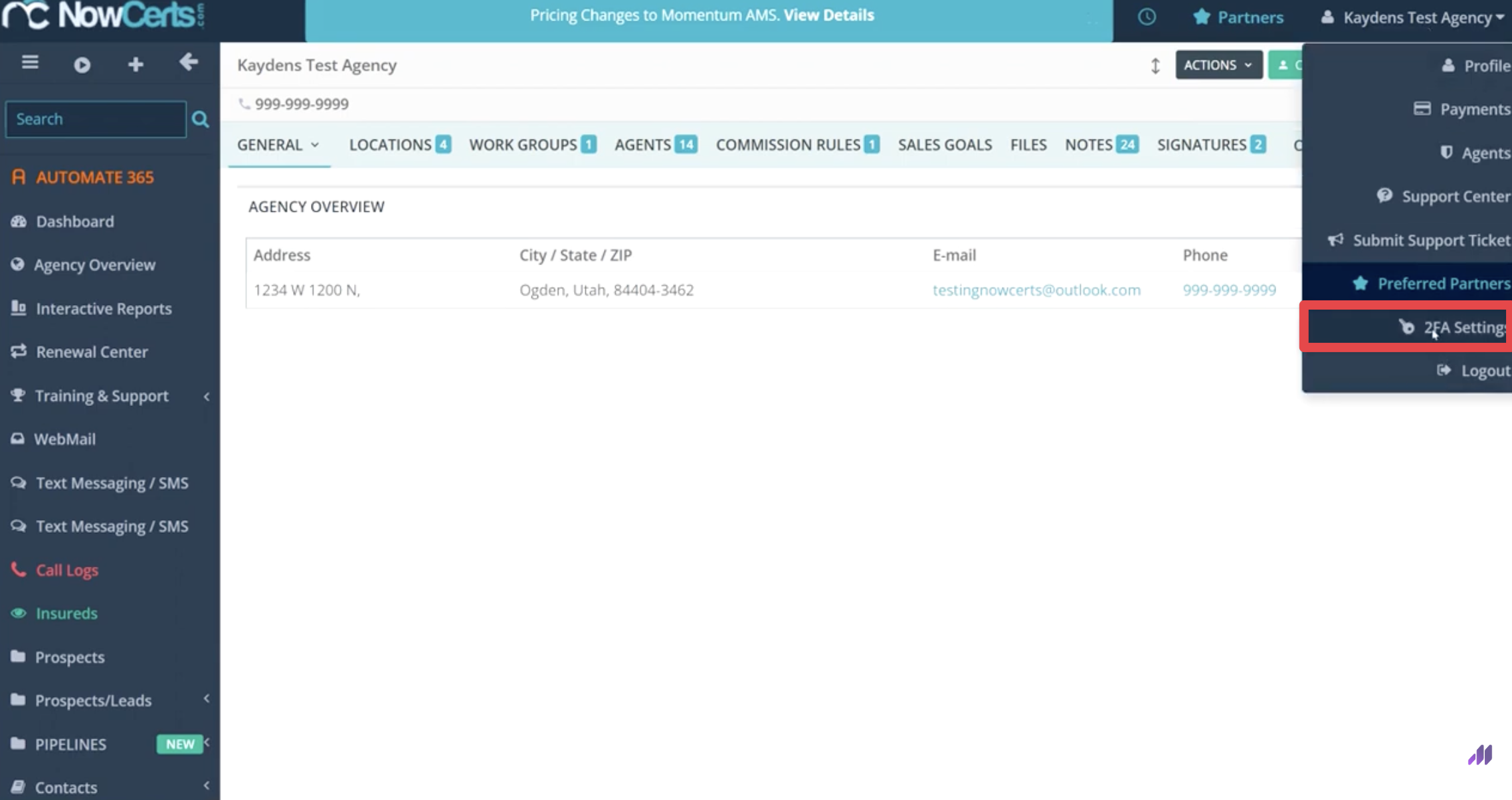
Hover over your name in the top-right corner of Momentum AMP and select 2FA Settings (Two-Factor Authentication Settings).
Step 2: Method 1 - Email Verification
Momentum AMP currently offers two 2FA methods. The first sends a verification code by email:
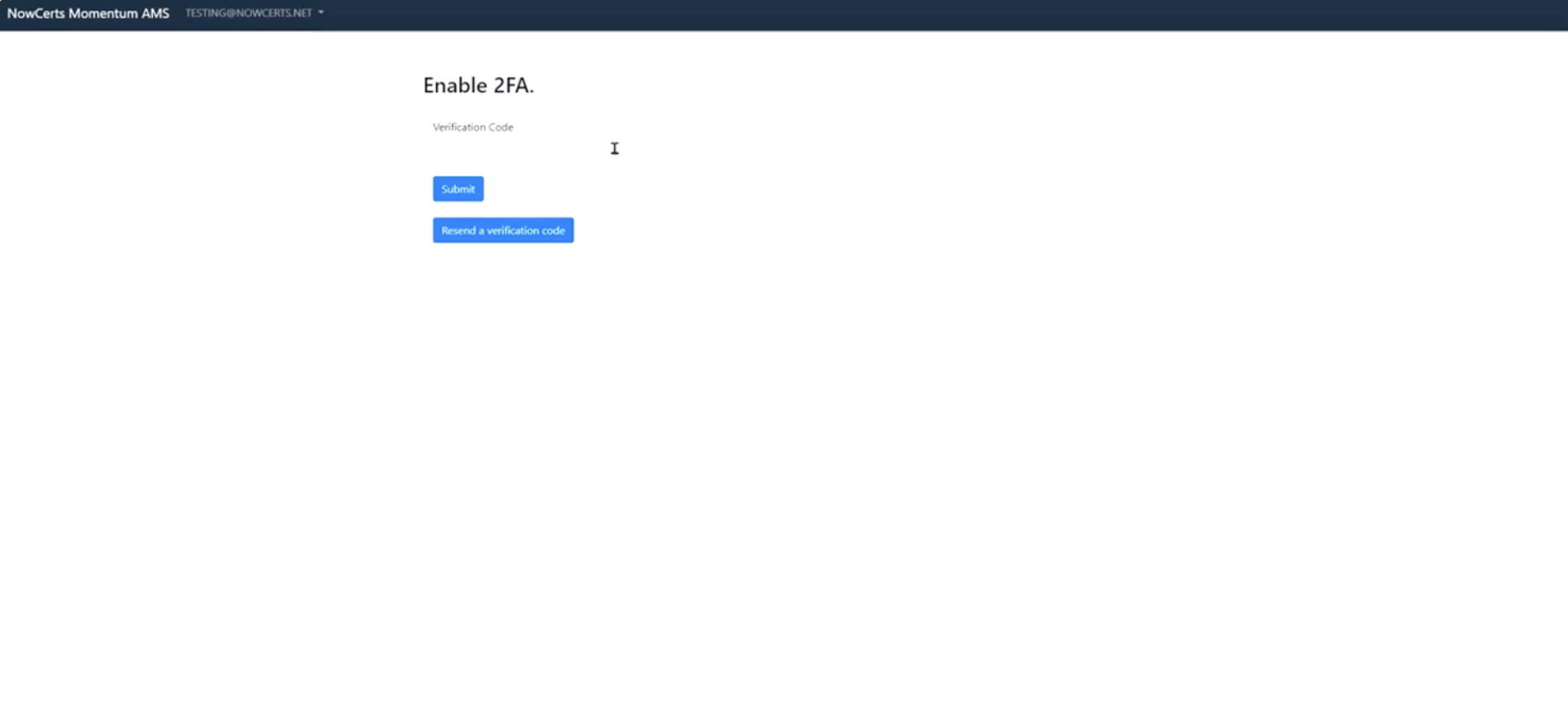
- Select the email verification option.
- The code is sent to the email on record - your agency profile email if you log in as the agency, or your individual profile email if you log in as an agent.
- Enter the code you receive and click Submit to turn on 2FA.
Once this is on, a code is emailed to you at every login, and you'll enter it to finish signing in.
Step 3: Method 2 - Authenticator App (Preferred)
The authenticator app is Momentum AMP's preferred 2FA method:
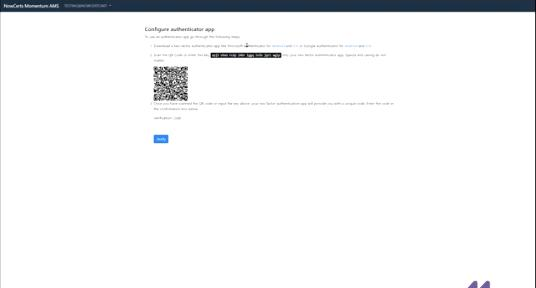
- Click Setup Authenticator App.
- Download an authenticator app on your phone - Microsoft Authenticator and Google Authenticator both work.
- In the app, scan the QR code shown on screen, or connect your account manually using the provided key if you can't scan a code.
- Enter the verification code the app generates to confirm setup.
Step 4: Save Your Recovery Codes
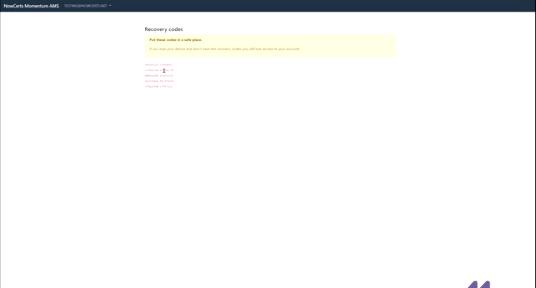
After setup, Momentum AMP gives you a set of recovery codes. Store these somewhere safe and separate from your device - if you ever lose the device your authenticator app is on, these codes are the only way back into your account.
Step 5: Sign In With 2FA Active
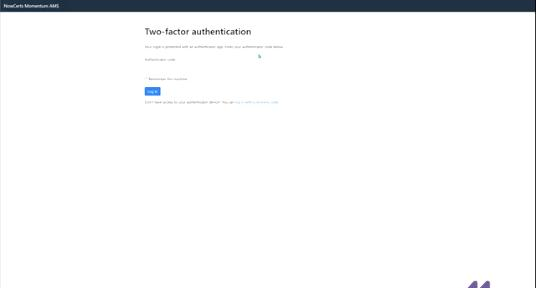
Once 2FA is active, signing in works like this:
- Enter your username and password as usual.
- You'll see a message confirming your login is protected by the authenticator app (or email).
- Open your authenticator app, find the current code, and enter it to finish signing in and enter the Momentum AMP platform.
Key Notes & Best Practices
- The authenticator app is the preferred method - it doesn't depend on email access and generates codes even offline.
- Store your recovery codes somewhere secure and separate from your device, such as a password manager, not just in your inbox.
- Getting a new phone? Set up the authenticator app on the new device before retiring the old one, or be ready to sign in with a recovery code.
Troubleshooting
Locked out because you lost your authenticator app or email access? Use one of your saved recovery codes to log in. If you've lost your recovery codes too, submit a support ticket so our team can verify your identity and restore access.
Was this article helpful?
That’s Great!
Thank you for your feedback
Sorry! We couldn't be helpful
Thank you for your feedback
Feedback sent
We appreciate your effort and will try to fix the article