Agents in Momentum AMS can be created as either a Person or a Company. An Agent does not need to be a Momentum AMS User and does not require login access. Agent records can be used for policy assignments, commissions, reporting, and other agency workflows.
Access the Agents Page
To add an Agent:
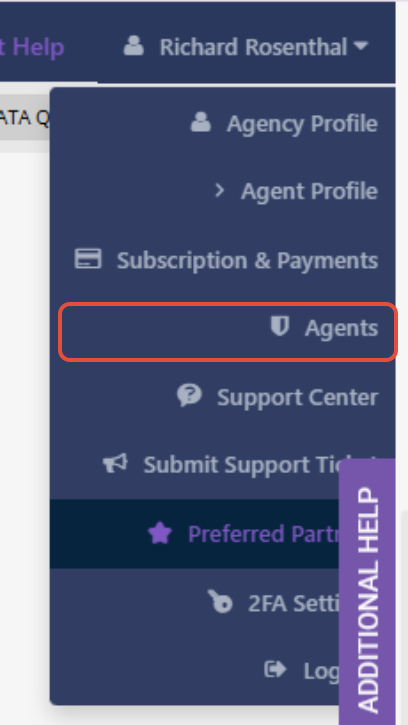
- Click your name in the upper-right corner of Momentum AMS.
- Select Agents.
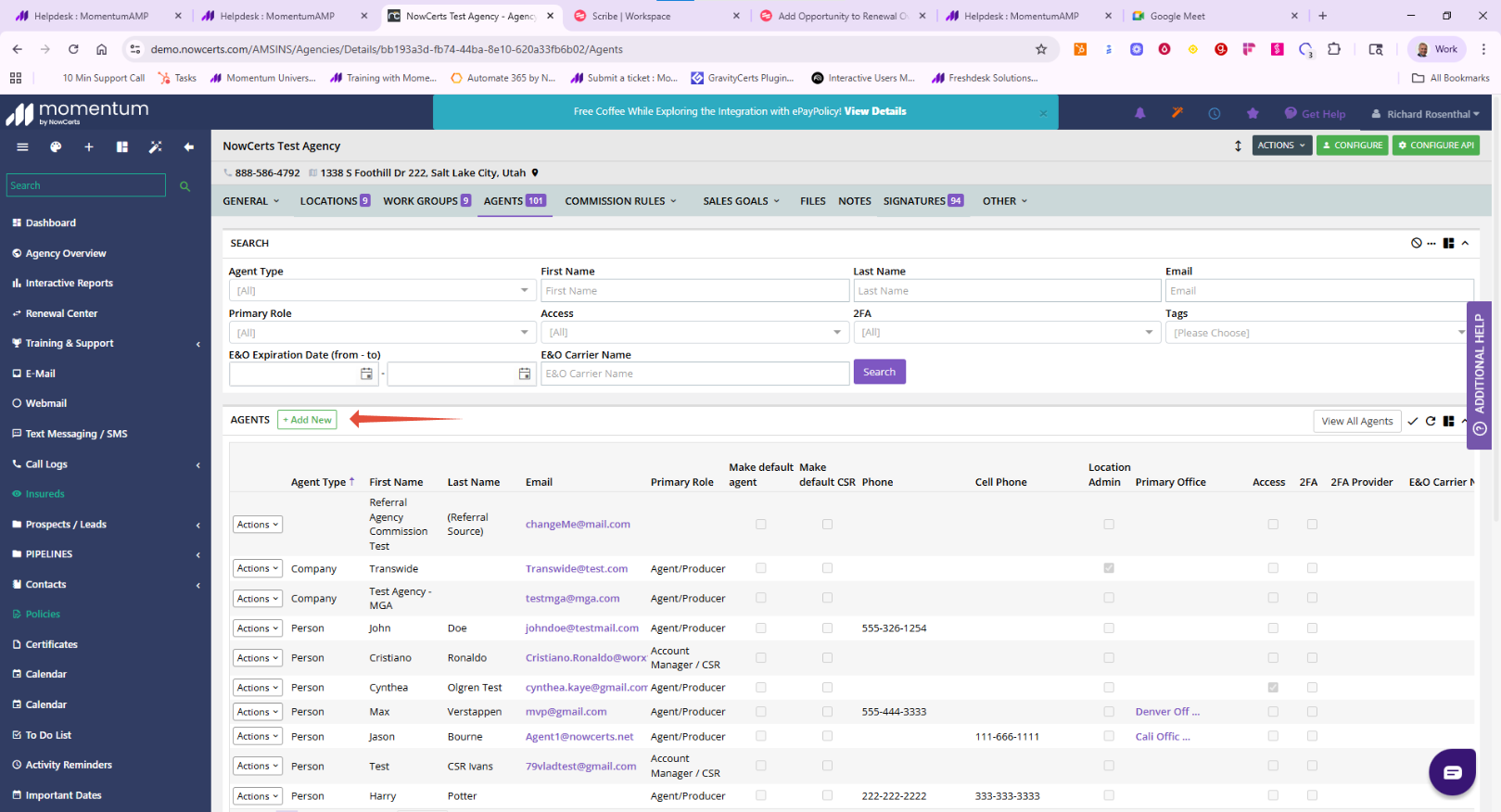
The Agents page displays the Agent records currently configured for your agency.
Click + Add New.
Choose Person or Company
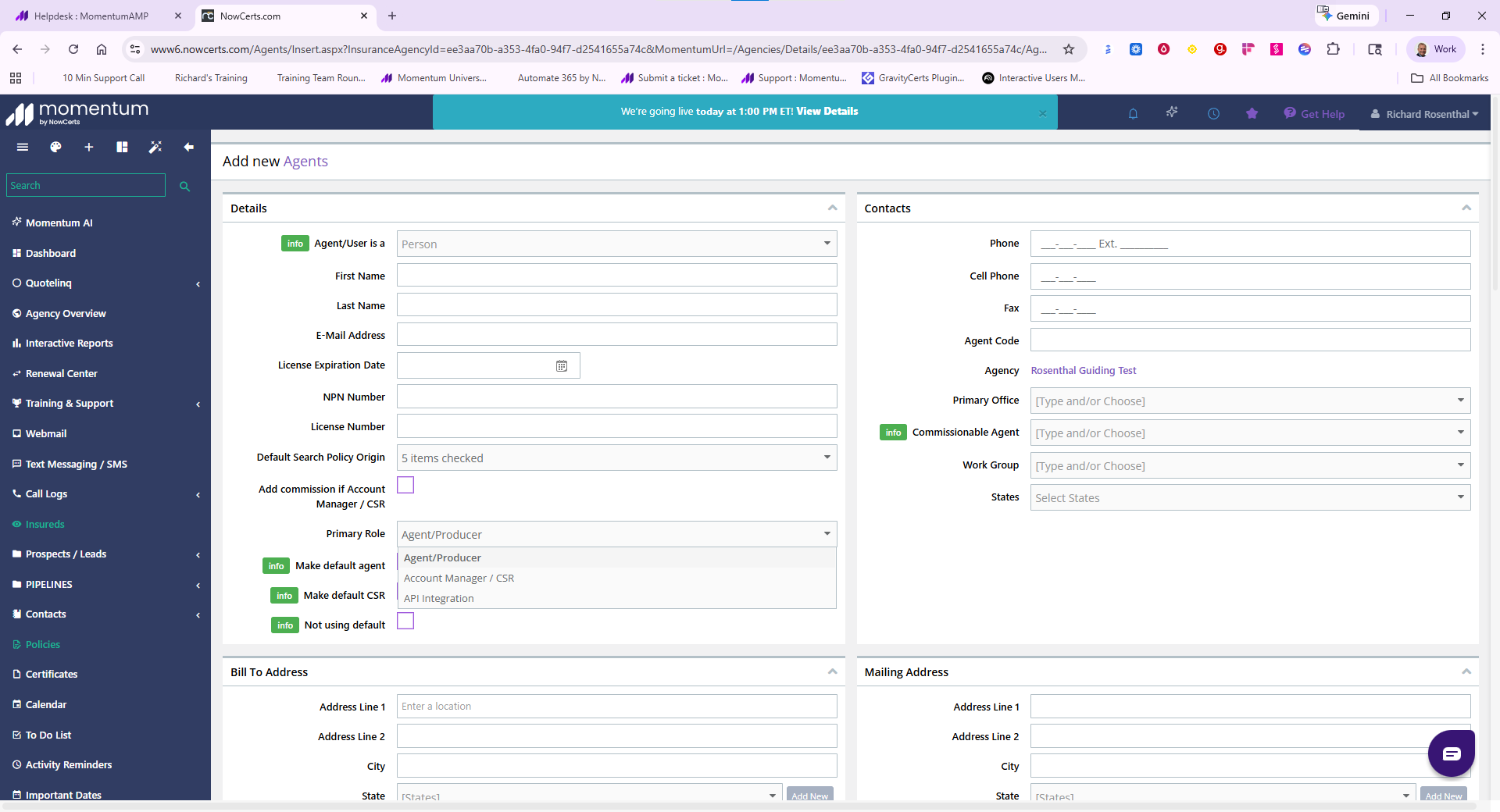
On the Add New Agent page, use the Agent/User is a field to determine the type of Agent you are creating.
Select:
- Person – Use when the Agent represents an individual producer or other individual.
- Company – Use when the Agent represents an agency, brokerage, or other company.
When Would I Use Company?
A Company Agent can be useful when your agency needs to associate business with another agency or brokerage rather than an individual producer.
For example, an MGA or wholesale agency may create the retail agency or broker as a Company Agent so policies and commissions can be associated with that organization.
Enter the Agent Information
Complete the applicable information for the Agent.
Depending on whether you selected Person or Company, the available fields may vary.
Enter the information your agency needs to maintain for the Agent, such as:
- Name
- Email Address
- Phone
- Agent Code
- Primary Office
- Address information
- Other applicable Agent details
Select the Primary Role
Select the appropriate Primary Role for the Agent.
Available roles include:
- Agent/Producer
- Account Manager/CSR
For a producer or outside retail agent, select Agent/Producer.
Agent vs. User
An Agent does not have to be a User.
Creating an Agent allows the record to be used within Momentum AMS without providing that person or company with login access.
If the individual also needs to log in to Momentum AMS, that requires creating/configuring them as a User and assigning the appropriate permissions.
Important: Do not create a User simply because someone needs to be listed as an Agent or Producer. User access is only necessary when the individual needs to log in to Momentum AMS.
Save the Agent
After entering the appropriate information, scroll to the bottom of the page and click Update to save the Agent.
The new Agent will then be available for applicable assignments and workflows throughout Momentum AMS.
Summary
When adding an Agent in Momentum AMS:
- Go to Your Name > Agents.
- Click + Add New.
- Choose whether the Agent is a Person or Company.
- Enter the Agent's information.
- Select the appropriate Primary Role.
- Leave the Agent as a non-user when login access is not required.
- Click Update to save.
Agents can be maintained independently of Momentum AMS Users, allowing your agency to track individual producers, account managers, outside agents, retail agencies, and other organizations without providing them access to your Momentum AMS account.
Was this article helpful?
That’s Great!
Thank you for your feedback
Sorry! We couldn't be helpful
Thank you for your feedback
Feedback sent
We appreciate your effort and will try to fix the article