When processing Direct Bill commission downloads in Momentum AMS, the recommended action is Merge and Create DB Statement. This merges the commission transactions and creates the agency commission statement in one process.
However, if you previously selected Merge Selected Items, the commission transactions were merged into Momentum AMS without creating the corresponding agency statement.
This article explains how to locate those existing commission payments and create the missing agency statement without merging the download again.
A download marked CONSUMED has already been merged into Momentum AMS.
Re-merging a consumed commission download can create duplicate commission transactions and payments.
The correct solution is to locate the existing commission payments and create an agency statement from those transactions.
Step 1: Locate the Previously Consumed Download
- Navigate to Downloads > List of Sessions.
- Filter the download sessions to display those marked Consumed.
- Filter the download type to Direct Bill.
- If necessary, use the date filters to narrow the results.
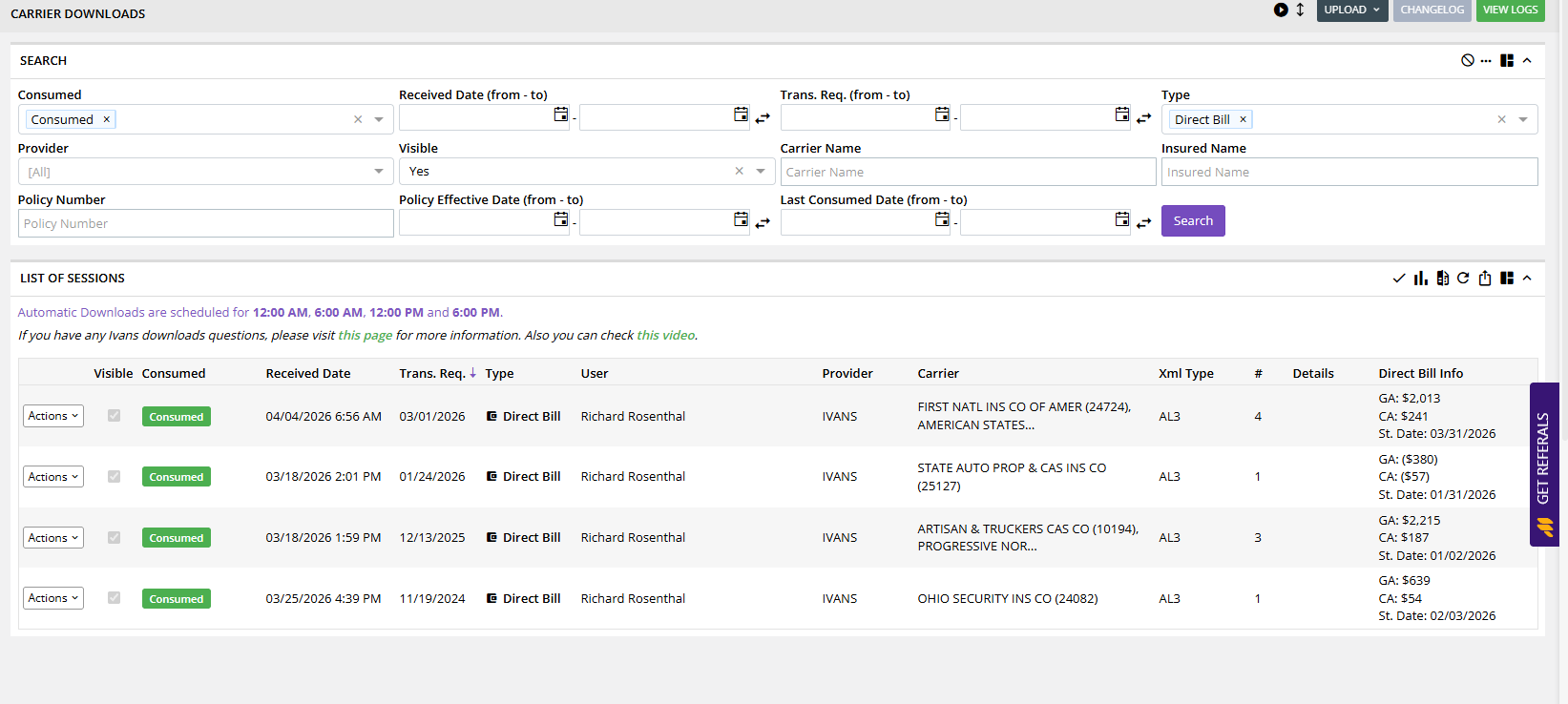
- Locate the Direct Bill commission download for which an agency statement was not created.
- Click Actions > View and Merge.
Although you are opening the View and Merge screen, you will not be merging the transactions again. You are opening the download to review its original statement information.
Confirm That the Download Was Consumed
On the View and Merge screen, look for the circled check mark to the left of the transactions.
Hover your mouse over the check mark. The system displays Consumed, indicating that the transaction has already been merged into Momentum AMS.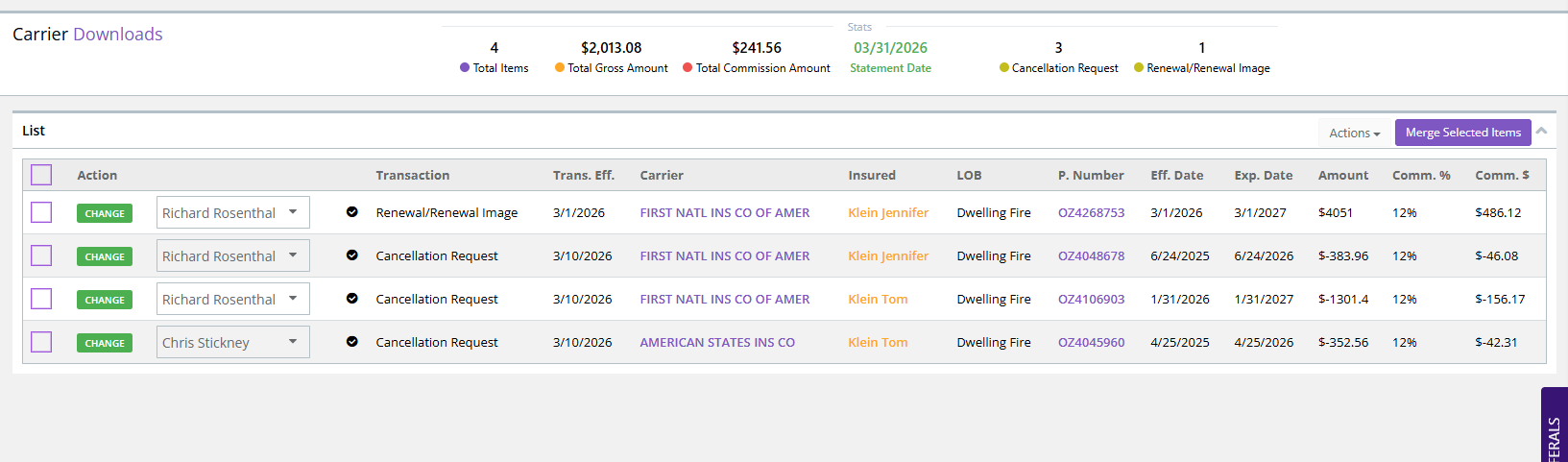
Do not select the transactions for another merge.
Step 2: Record the Original Statement Information
Before leaving the download, review the statement information displayed at the top of the screen.
Take note of the following:
- Statement Date: The date associated with the original commission statement.
- Statement Amount: The total commission amount shown on the download.
- Carrier or Carriers: The insurance carriers associated with the transactions.
Example
| Statement Date | 03/31/2026 |
| Statement Amount | $241.56 |
| Carriers | First National Insurance and American States |
You will use this information to locate the previously merged commission payments in the Reconciliations module.
Step 3: Open Agency Commission Reconciliations
- Navigate to Miscellaneous > Accounting Items > Reconciliations.
- Select Manually Select Agency Commissions.
This screen allows you to search for existing agency commission payments and create a statement using those transactions.
Step 4: Set the Reconciliation Search Filters
Before clicking Search, adjust the filters to locate the commission payments from the consumed download.
A. Receive Date
Set the Receive Date to match the original commission statement date.
For example, if the download shows a statement date of 03/31/2026, use that date in the Receive Date filter.
This helps narrow the search to commission payments associated with the original statement.
B. Carrier
Use the carrier filter to locate the appropriate transactions.
If the original download includes multiple carriers, make sure you account for each carrier included in the statement.
In our example, the download contains transactions for:
- First National Insurance
- American States
Filtering by carrier helps prevent unrelated commission payments received on the same date from being included in the statement.
C. Reconciliation Type
Change the reconciliation type to:
Show Reconciled Commission Payments
This is an important step because the commission transactions have already been merged and received.
Do not use the unreconciled commission payment filter for this process.
D. Endorsement Date
Review the Endorsement Date range before searching.
Commission payments received on a particular statement date may relate to policy transactions with earlier endorsement effective dates.
For example, a commission received on March 31, 2026, may be associated with an endorsement effective several months earlier.
If the Endorsement Date range is too narrow, some commission payments may not appear in the search results.
Recommendation: If expected transactions are missing, expand the Endorsement Date range. Depending on the statement, you may need to extend the date range back a year or more.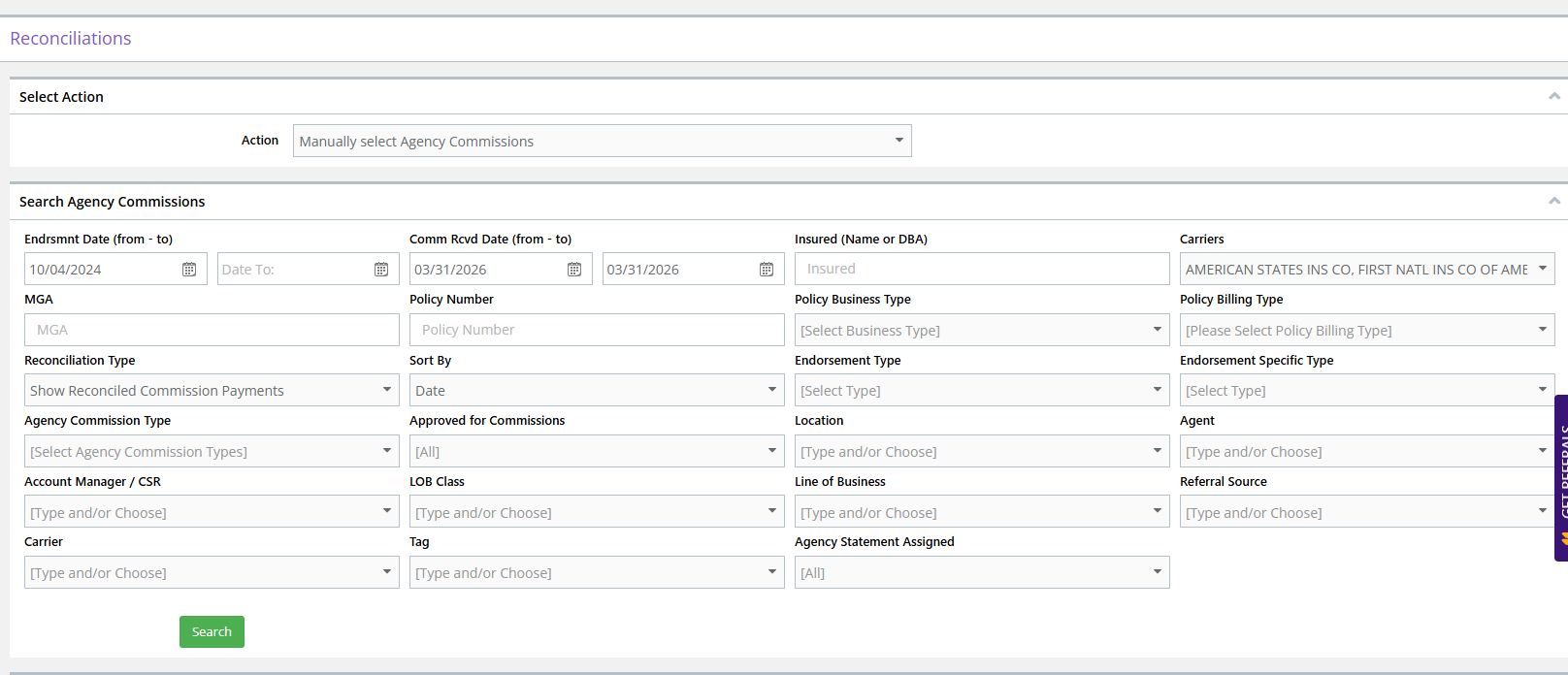
Step 5: Search and Verify the Commission Payments
- After setting the filters, click Search.
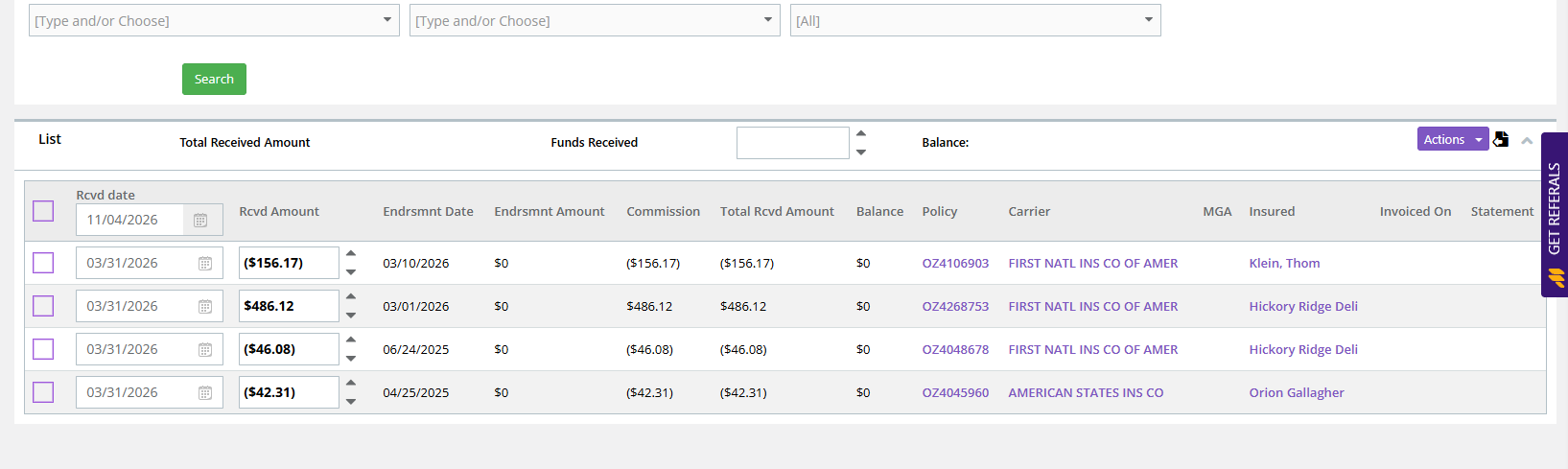
- Review the commission payment transactions returned by the system.
- Verify that the payments correspond with the original carrier download.
- Compare the total of the applicable transactions against the original statement amount.
Example
In our example, the original Direct Bill download showed a statement amount of $241.56.
After adjusting the Receive Date, Carrier, Reconciliation Type, and Endorsement Date filters, the search returned four commission transactions.
The combined total of those transactions matched the original download amount of $241.56.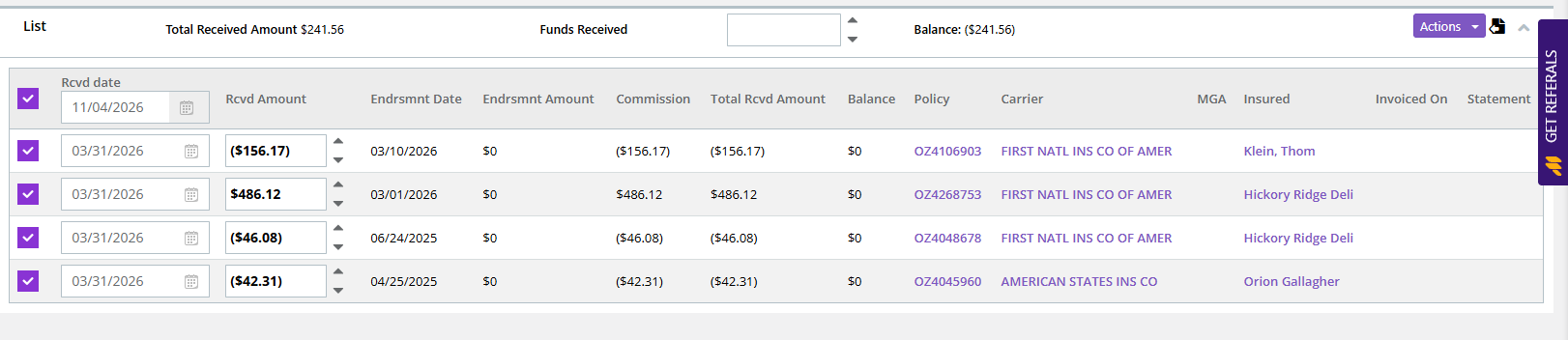
Before creating the agency statement, confirm that the selected commission transactions match the original Direct Bill download.
If the totals do not match, review the search filters before proceeding.
In particular, check the Endorsement Date range, as this can prevent older policy transactions from appearing in the results.
Step 6: Create the Agency Commission Statement
Once you have located the correct commission payments and verified that the total matches the original carrier download, you can create the agency statement.
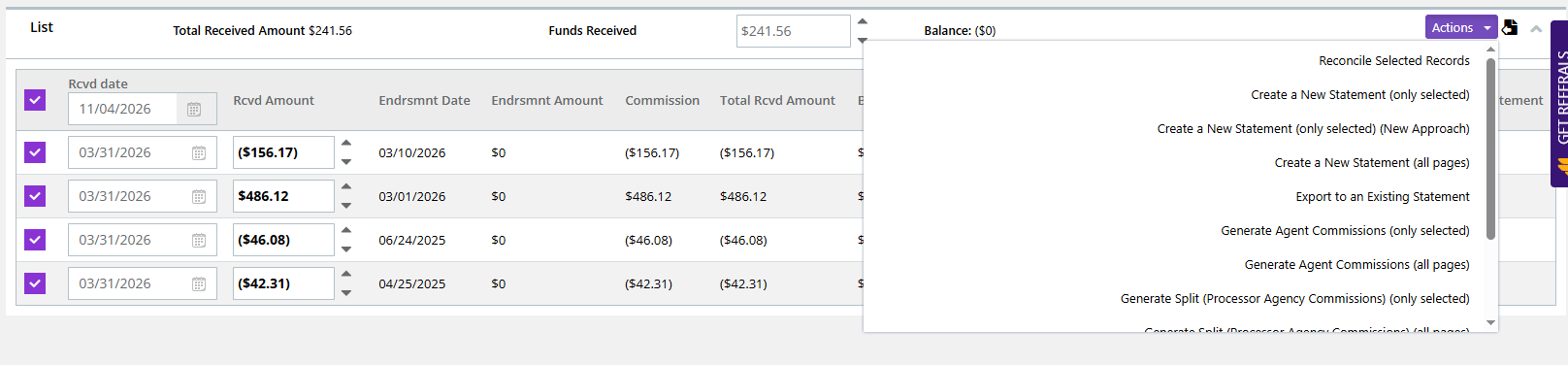
- Select the checkboxes next to the applicable commission payment transactions.
- Confirm that the selected total matches the original statement amount.
- Open the Actions menu.
- Select Create New Statement.
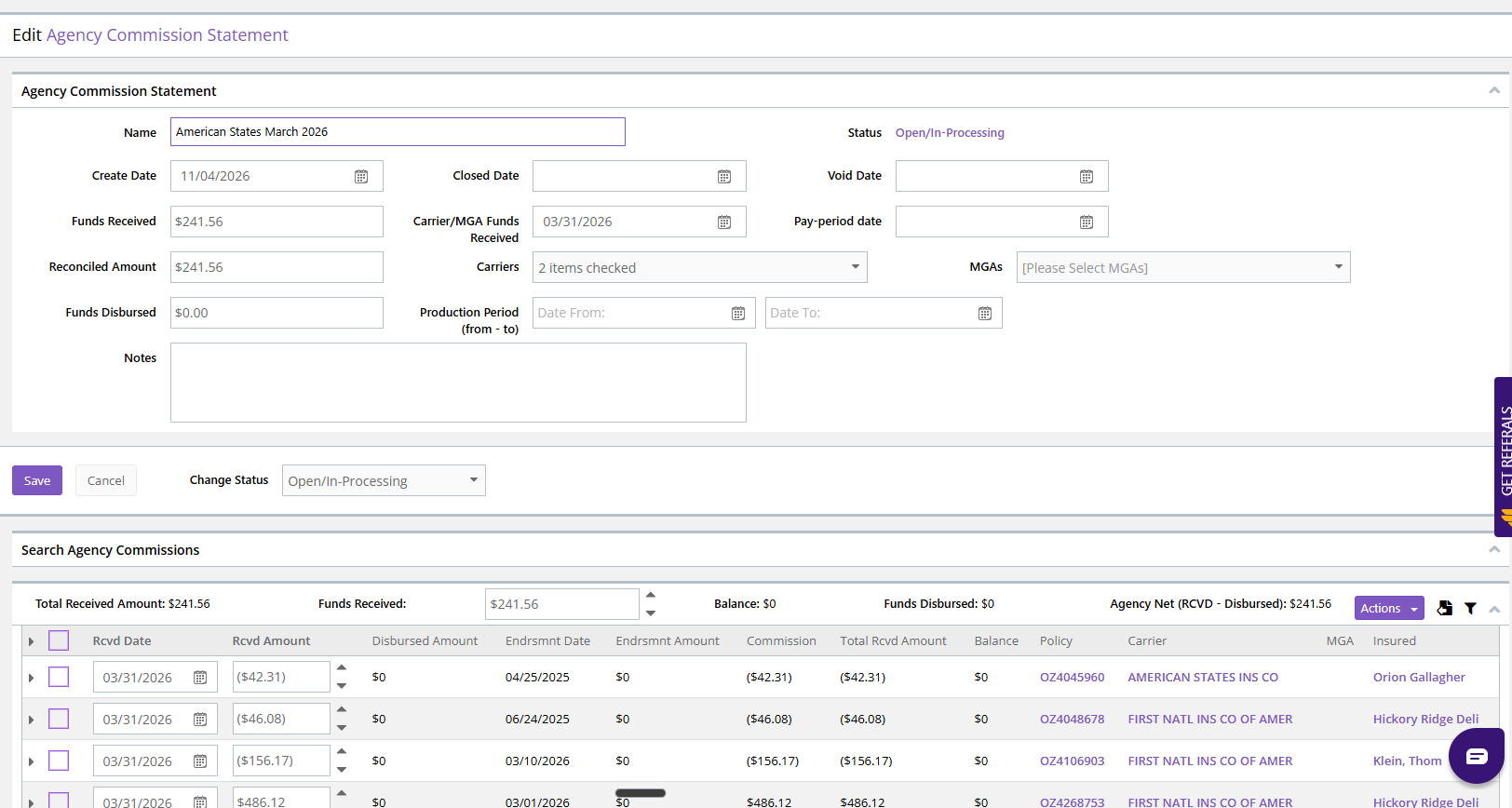
- Complete the statement creation process.
Momentum AMS creates an agency commission statement using the existing commission payment transactions.
No additional download merge is necessary.
Step 7: Review the Created Agency Statement
- Navigate to Miscellaneous > Accounting Items > Agency Statements.
- Locate the newly created agency commission statement.
- Open the statement and review the included commission payments.
- Verify that the statement total matches the original carrier download.
- Review any applicable agent commission information.
The statement has now been created using commission payments that were already merged into Momentum AMS.
Common Questions
Why can't I just merge the consumed download again?
Because the commission transactions have already been merged into Momentum AMS. Re-merging them can create duplicate commission payments and financial records.
What does the circled check mark mean?
The circled check mark indicates that the transaction has been consumed. Hovering over the check mark displays Consumed.
Why do I need to select Show Reconciled Commission Payments?
Because the transactions were already merged and received. You are locating existing commission payments rather than importing new ones.
Why aren't all my commission payments appearing?
Review the Receive Date, Carrier, and Endorsement Date filters. The Endorsement Date range may need to be expanded to include earlier policy transactions.
What if the transaction total doesn't match the original statement?
Do not create the statement until you have identified the correct transactions. Review the filters and compare the results against the original download.
Does this process import the commission payments again?
No. This process creates an agency commission statement using the existing commission payments that were previously merged into Momentum AMS.
Best Practices
- Always use Merge and Create DB Statement when processing new Direct Bill commission downloads.
- Never re-merge consumed commission downloads.
- Record the original statement date, amount, and carriers before searching for previously merged payments.
- Use Show Reconciled Commission Payments when locating transactions from an already consumed download.
- Expand the Endorsement Date range if expected commission payments are missing.
- Verify that the selected transaction total matches the original statement before creating the agency statement.
- Review the completed agency statement and applicable agent commissions.
Related Resources
- Processing Direct Bill Commission Statements – Instructions for processing new Direct Bill carrier downloads.
- Reconciling Agency Commissions – Overview of agency commission reconciliation.
- Troubleshooting Missing Commission Transactions in Momentum AMS
Video Demonstration
Watch the following demonstration to see how to locate an already consumed Direct Bill commission download, identify the existing commission payments, and create the missing agency statement.
Was this article helpful?
That’s Great!
Thank you for your feedback
Sorry! We couldn't be helpful
Thank you for your feedback
Feedback sent
We appreciate your effort and will try to fix the article