Momentum AMS allows agencies to create fillable PDF forms that can be shared with customers through their website. When a Reverse PDF Form is created, Momentum generates an integration script that can be embedded into your website, allowing visitors to complete and submit the form without logging into Momentum AMS. This article explains how to access Reverse PDF Forms, the difference between the Integrate and Fill in Form options, and the recommended method for sharing forms with customers.
Accessing Reverse PDF Forms
To access your Reverse PDF Forms:
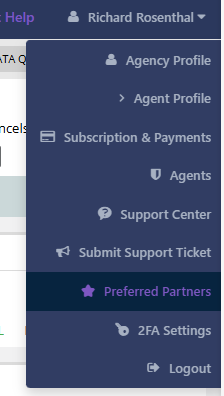
- Click your name in the upper-right corner of Momentum AMS.
- Select Agency Profile.
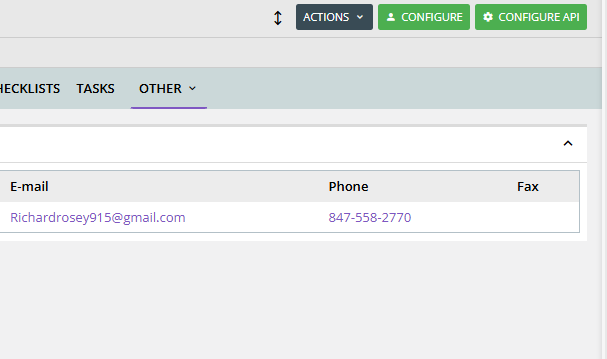
- Open the Other tab.
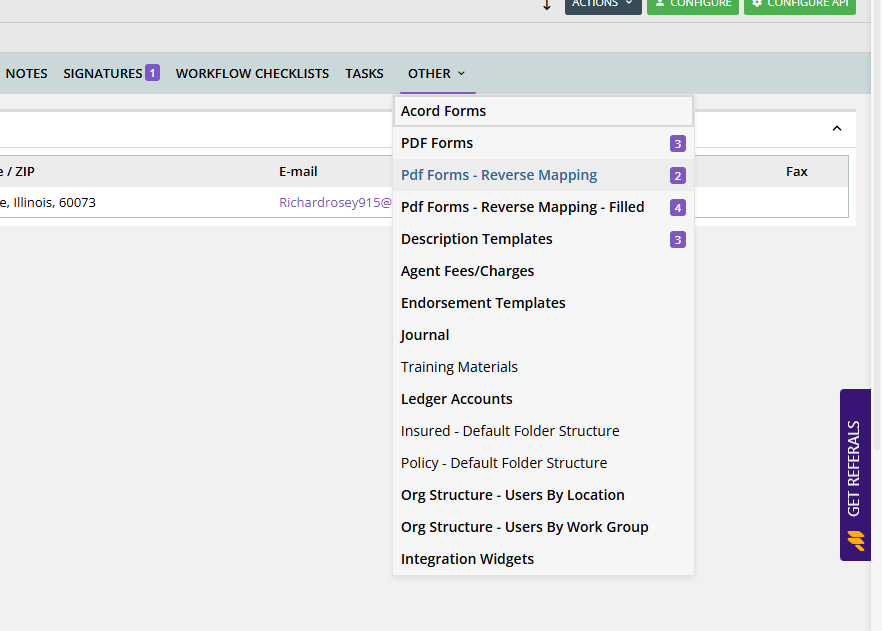
- Click PDF Forms - Reverse Mapping.
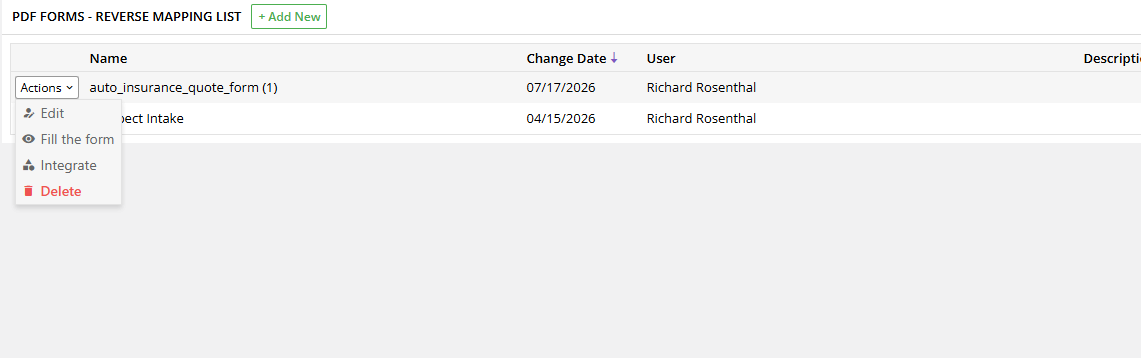
Tip: This area contains all of your Reverse PDF Forms and allows you to edit, integrate, or open each form.
Understanding the Actions Menu
Each Reverse PDF Form includes an Actions menu with the following options:
- Edit – Modify the Reverse PDF Form.
- Fill in Form – Opens the form inside Momentum AMS for internal users.
- Integrate – Generates the integration code used to display the form on your website.
- Delete – Removes the Reverse PDF Form.
Option 1: Integrate the Form on Your Website (Recommended)
The Integrate option is designed for agencies that want customers to complete forms from their website.
Step 1: Generate the Integration Code
- Locate the desired Reverse PDF Form.
- Click Actions.
- Select Integrate.
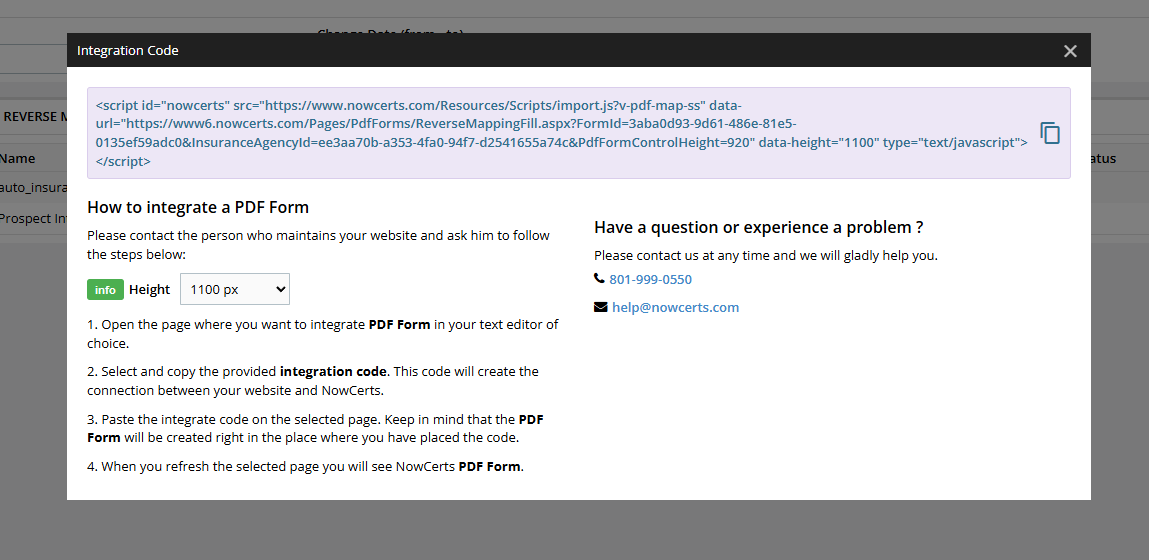
Momentum will display an integration window containing a script.
Step 2: Copy the Integration Script
Click the Copy button to copy the generated integration code.
The generated code is not a hyperlink—it is an embed script that must be added to a webpage.
Step 3: Add the Script to Your Website
Provide the integration script to the person who manages your website.
They can:
- Create a new webpage dedicated to the form, or
- Add the form to an existing page.
Once the script has been embedded, visitors simply browse to that webpage and complete the form.
Best Practice: Create a dedicated page for each customer-facing form (for example, Request a Quote, Policy Change Request, or New Client Application) and share that webpage URL with your customers.
Option 2: Fill in Form (Internal Users)
The Fill in Form option is intended for employees who already have a Momentum AMS login.
To open the form:
- Locate the desired Reverse PDF Form.
- Click Actions.
- Select Fill in Form.
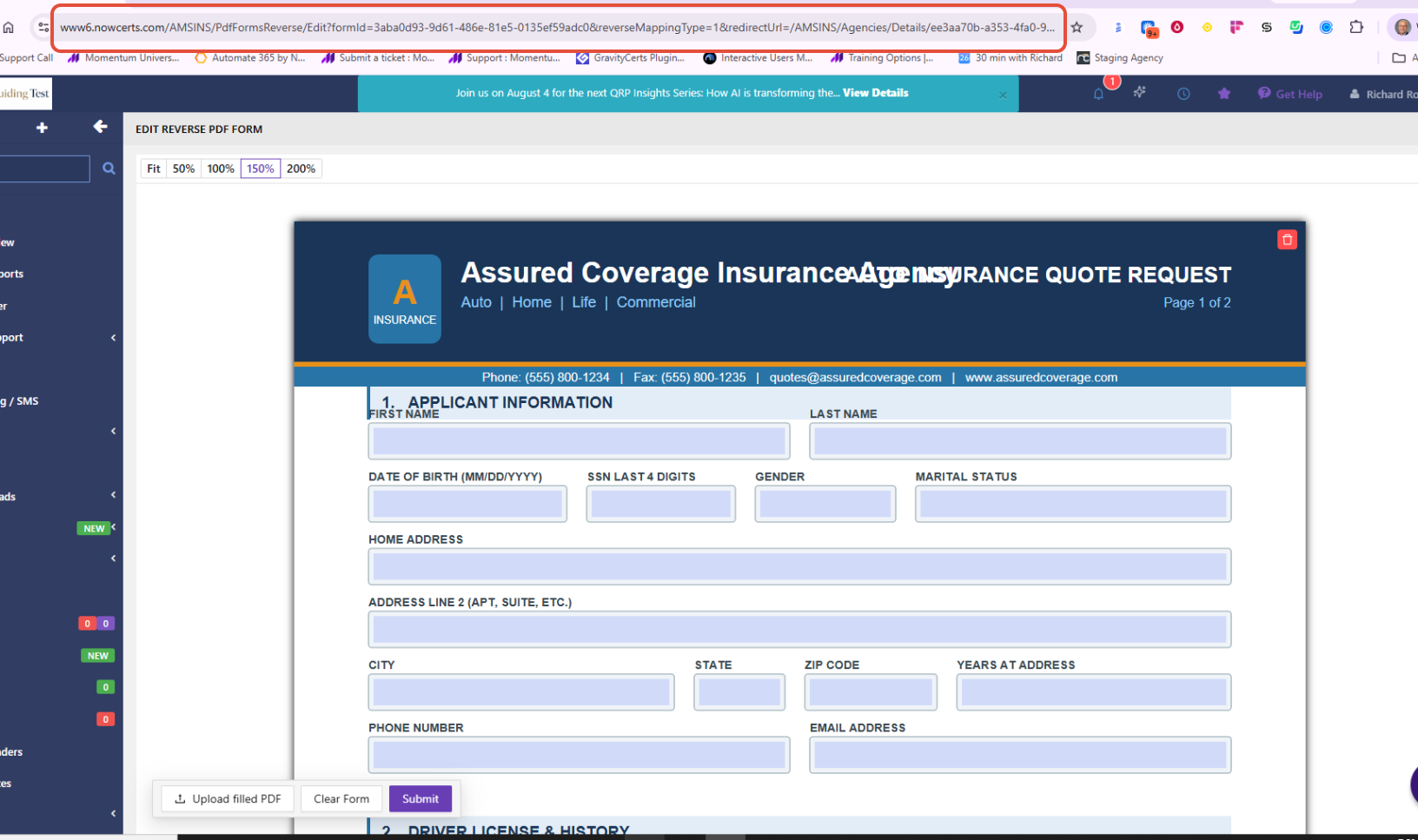
The form opens directly inside Momentum AMS.
Creating a Quick Link for Employees
If your staff frequently uses a particular form, you can create a shortcut.
- Open the form using Fill in Form.
- Copy the URL from your browser's address bar.
- Add that URL to:
- Your Momentum Dashboard
- Your company intranet
- An internal webpage
- Your browser bookmarks
Important: The Fill in Form URL only works for users who are logged into Momentum AMS. It should not be shared with customers or anyone who does not have a Momentum login.
Frequently Asked Questions
Can I send the "Fill in Form" link to my customers?
No.
The Fill in Form page is part of Momentum AMS and requires the user to be logged into the system.
Can I email the integration code to my customers?
No.
The integration code is intended for your website administrator or web developer to place on a webpage. Customers should receive the URL of the webpage, not the integration code itself.
Why doesn't the integration code work when I click it?
The generated code is an embed script, not a webpage or hyperlink.
It must be placed on a webpage before it can display the PDF form.
Which option should I use?
| If you want to... | Use |
|---|---|
| Allow customers to complete the form from your website | Integrate |
| Allow employees to complete the form inside Momentum AMS | Fill in Form |
Was this article helpful?
That’s Great!
Thank you for your feedback
Sorry! We couldn't be helpful
Thank you for your feedback
Feedback sent
We appreciate your effort and will try to fix the article