Momentum AMS allows you to work with both ACORD forms and custom PDF forms directly within an insured record. These forms can be edited, mapped to policies and exposures, and reused for efficient data entry and document generation.
Where to Find Forms
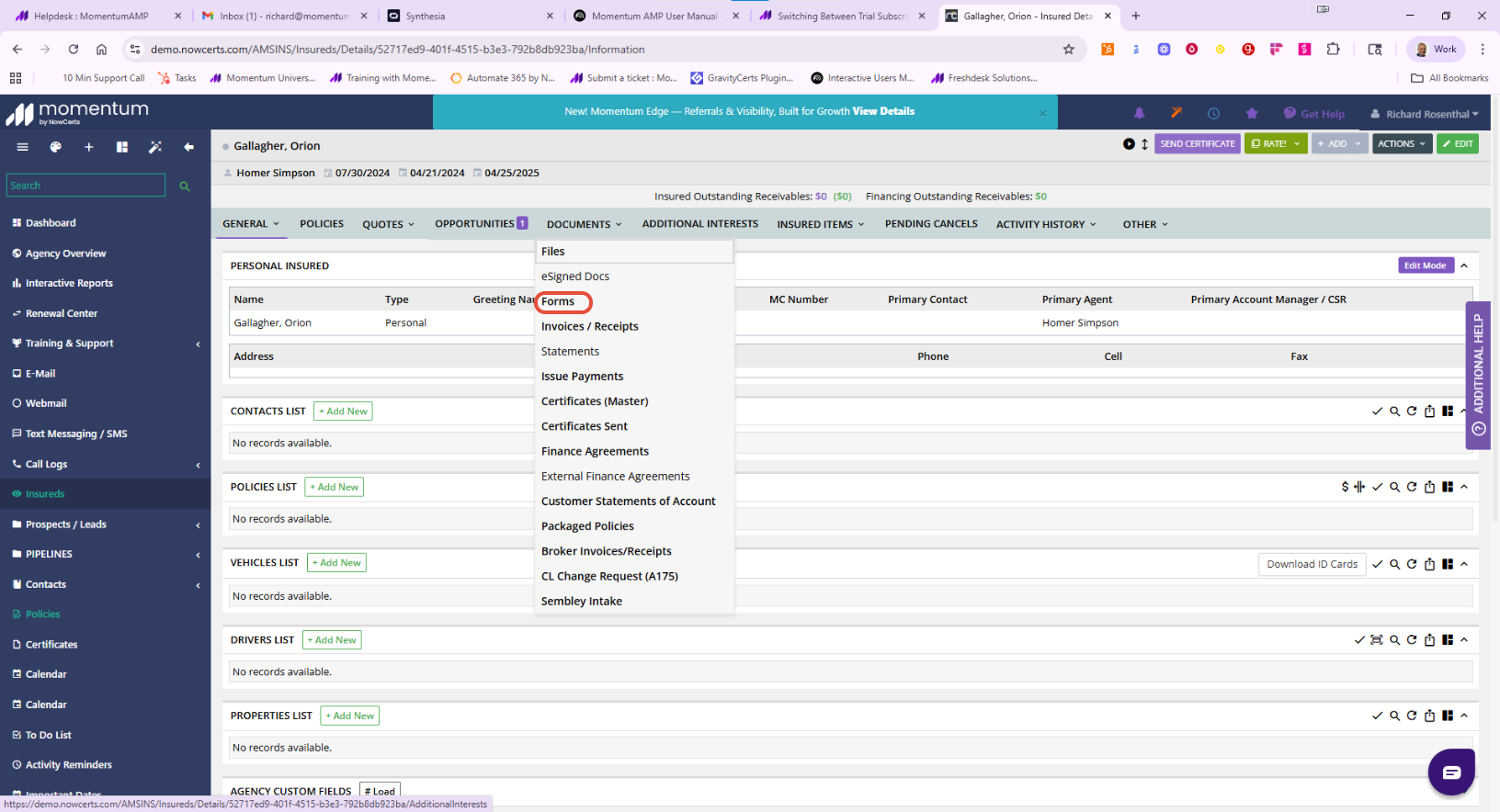
Navigate to the insured record:
Open an Insured
Click on the Documents tab
Select Forms
➕ Adding & Selecting Forms
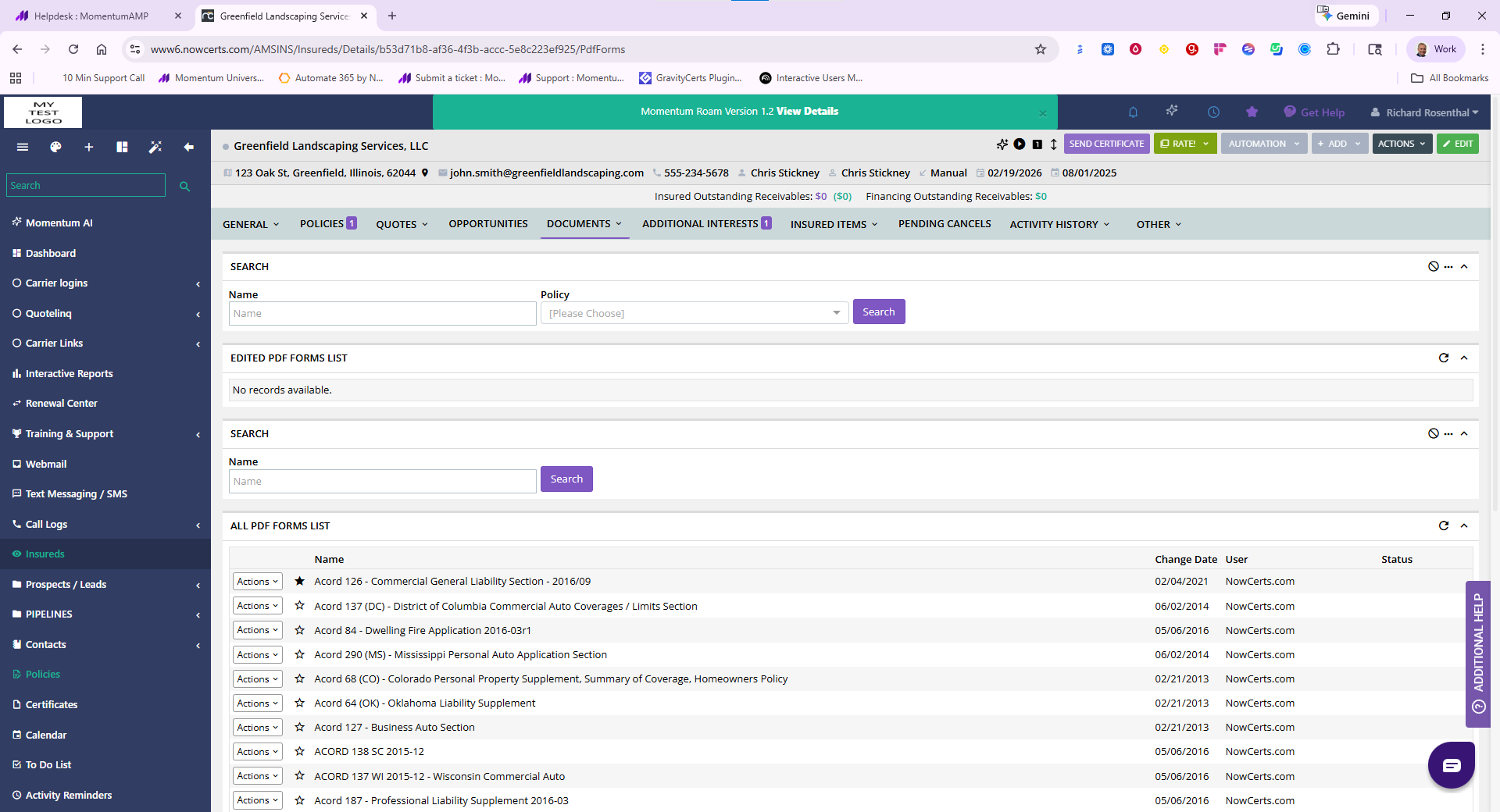
Within the forms list:
View all available ACORD and Custom PDF Forms
Use Search to quickly locate a form
Select a form from the list to begin working with it
✔ Forms are available at the insured level
✔ Can be reused across policies and workflows
⭐ Favoriting Forms
You can prioritize frequently used forms:
Click the ⭐ star icon next to a form
Favorited forms will automatically move to the top of the list
This is especially useful for commonly used ACORD forms.
✏️ Editing a Form
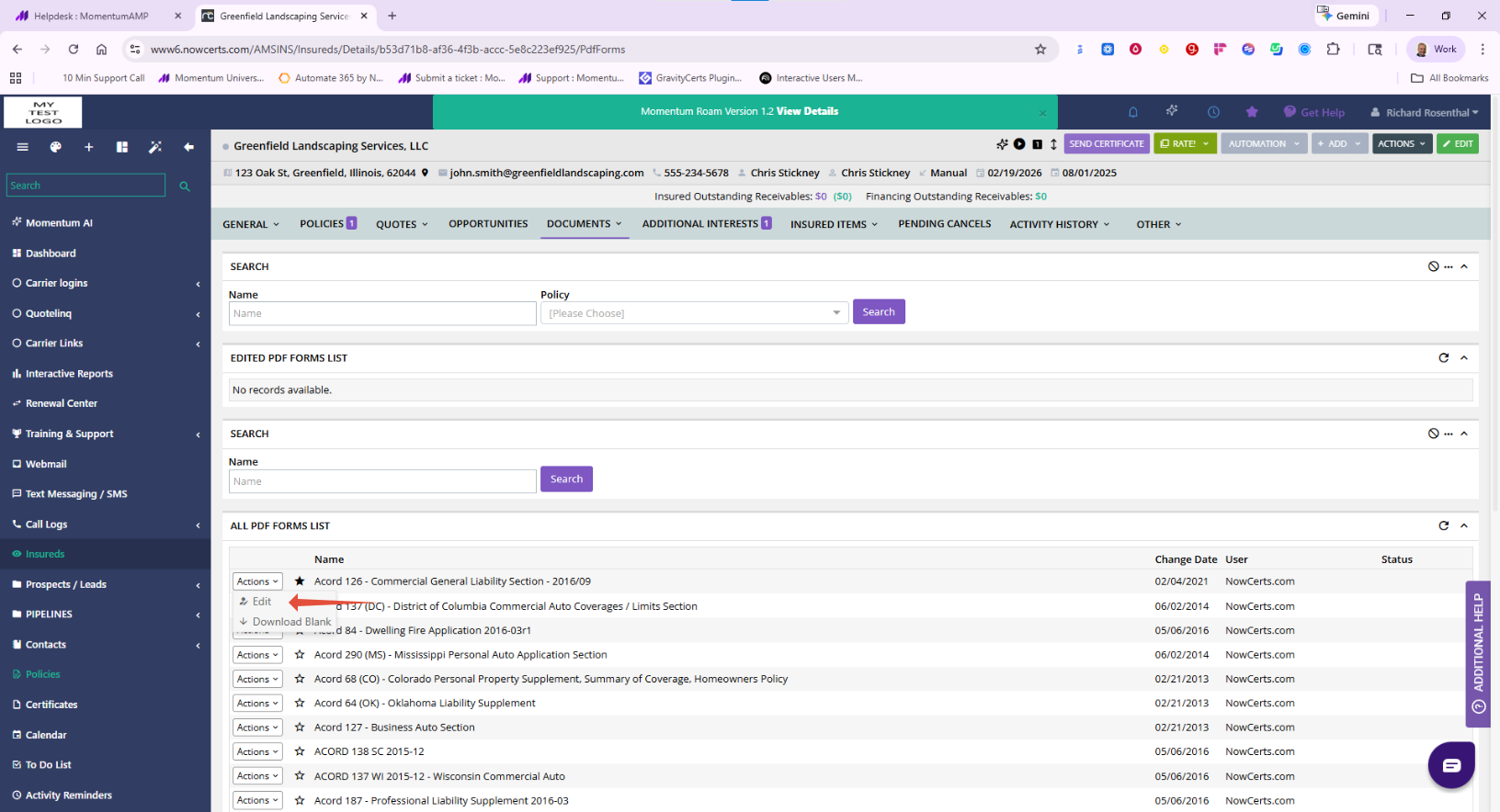
To begin editing:
Locate the desired form
Click Actions → Edit
Mapping Data to Forms
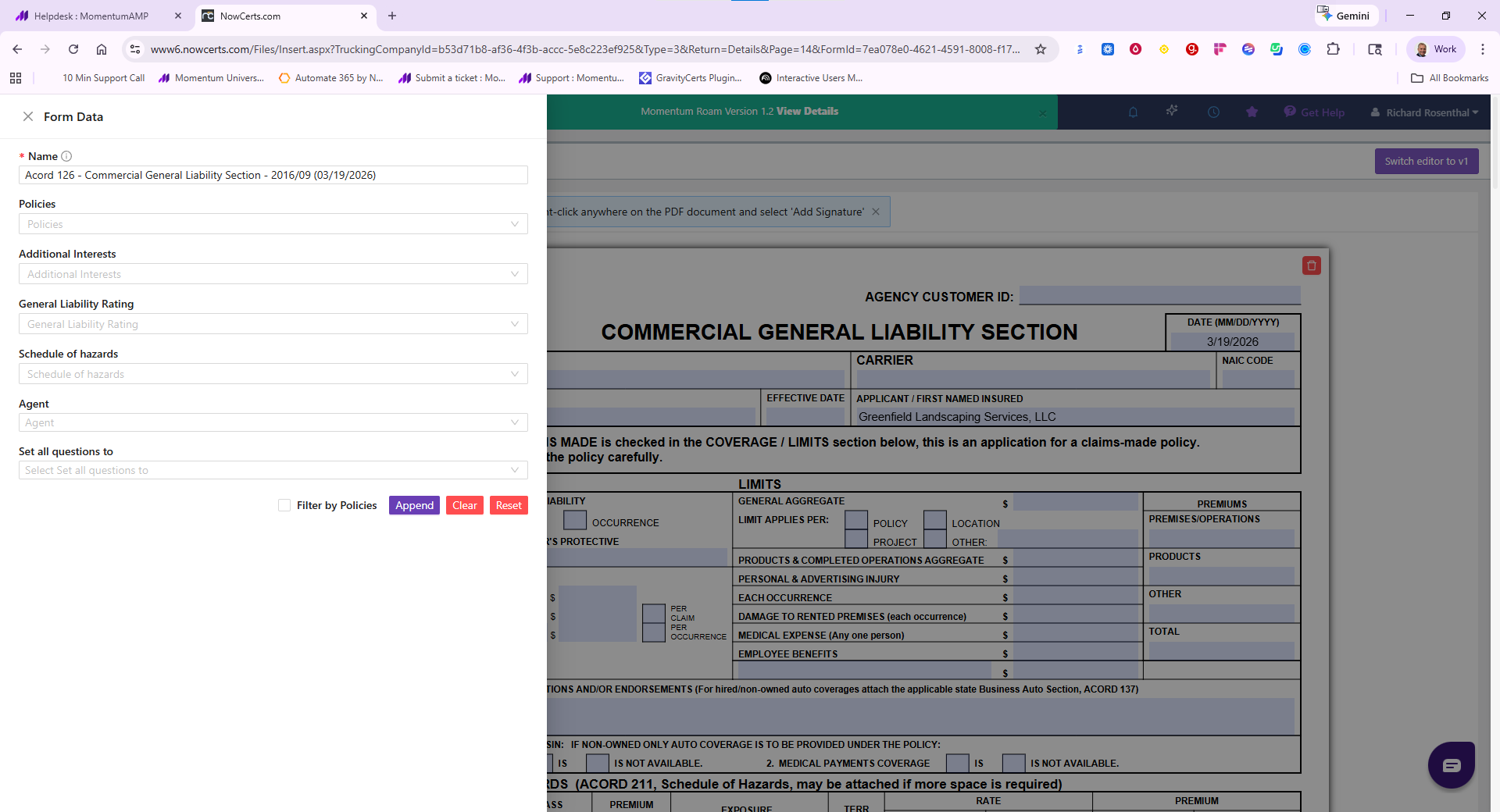
Once inside the form editor, you can map the form to various data sources within Momentum:
Policies
Properties
General Liability Exposures
Workers Compensation Exposures
Why This Matters
Automatically populates form data
Reduces manual entry
Ensures consistency across documents
Speeds up quoting and submission workflows
Best Practices
⭐ Favorite frequently used forms to save time
Always map forms correctly before using them in workflows
Double-check that exposures and policies are selected properly
Use consistent naming when saving edited forms
Summary
Momentum AMS makes it easy to:
Access ACORD and custom PDF forms
Quickly edit and populate forms
Map forms to policies and exposures
Streamline document workflows
Was this article helpful?
That’s Great!
Thank you for your feedback
Sorry! We couldn't be helpful
Thank you for your feedback
Feedback sent
We appreciate your effort and will try to fix the article