The Commission Scan feature in Momentum Toolbox allows agencies to upload carrier or MGA commission statements and import commission transactions directly into Momentum AMS.
Commission Scan supports PDF, Excel (XLS and XLSX), and CSV files. Once the statement has been processed, agencies can choose between two import methods: Import Commissions or Import XML.
Import Commissions uses a field-mapping process to apply commission transactions to existing policies. Import XML uses a workflow similar to Carrier Downloads, automatically matching existing insureds and policies and creating missing records when necessary.
This article explains both methods and how to create the corresponding agency commission statement.
1. Access Commission Scan in Momentum Toolbox
- Log in to Momentum AMS.
- From the left navigation menu, expand Momentum AMP.
- Select Toolbox.
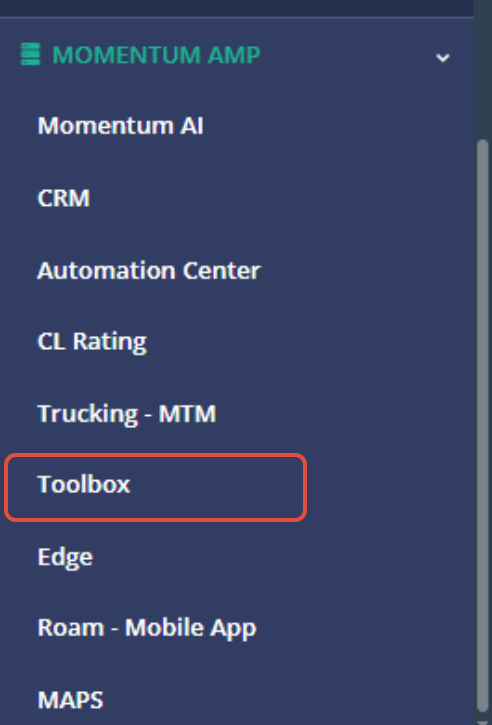
- Momentum Toolbox will open in a separate browser tab.
- Locate and select Commission Scan.
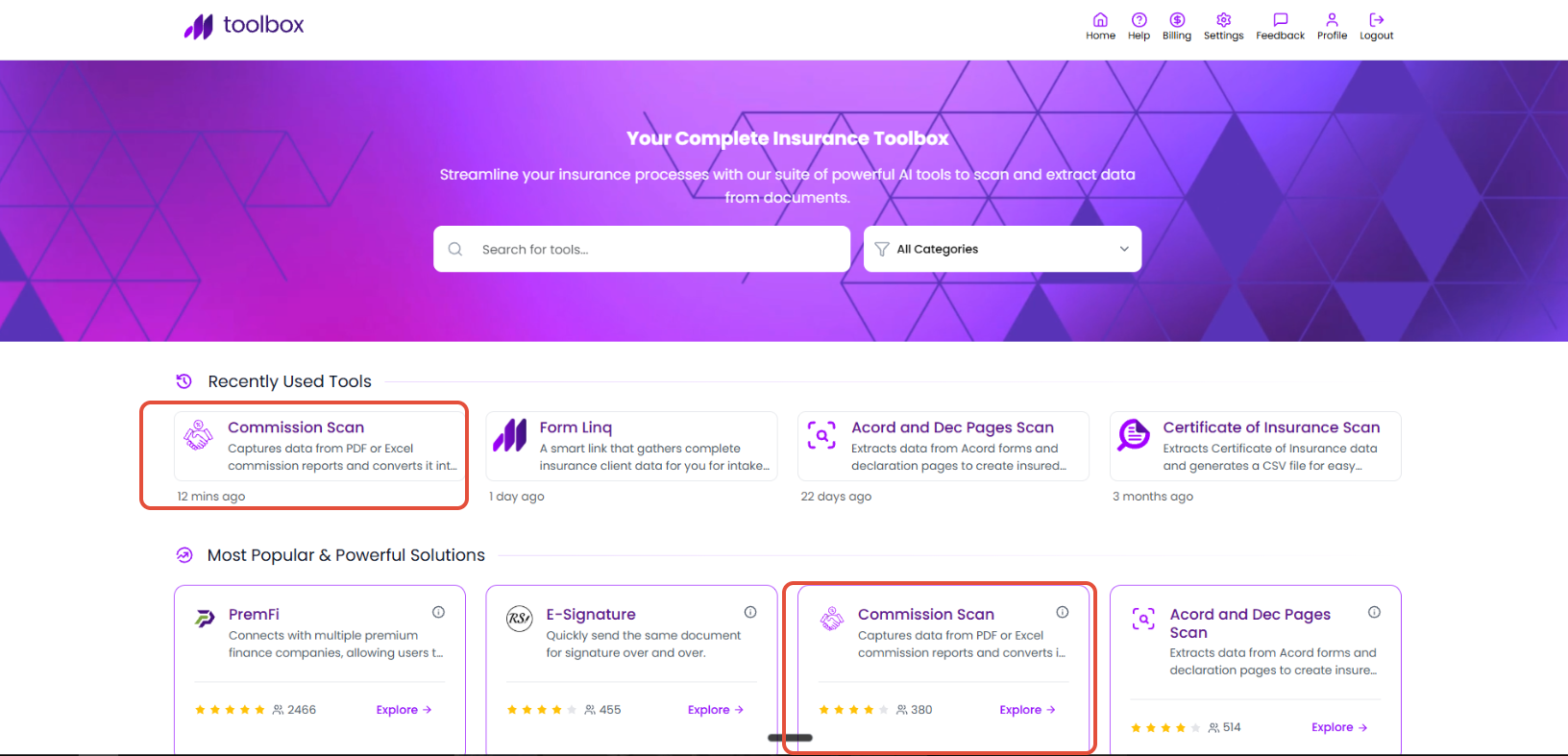
Depending on your previous activity, Commission Scan may appear under Recently Used Tools, Popular Tools, or AI Extract Data.
2. Upload the Commission Statement
Commission Scan accepts the following file formats:
- PDF (.pdf)
- Excel (.xls or .xlsx)
- CSV (.csv)
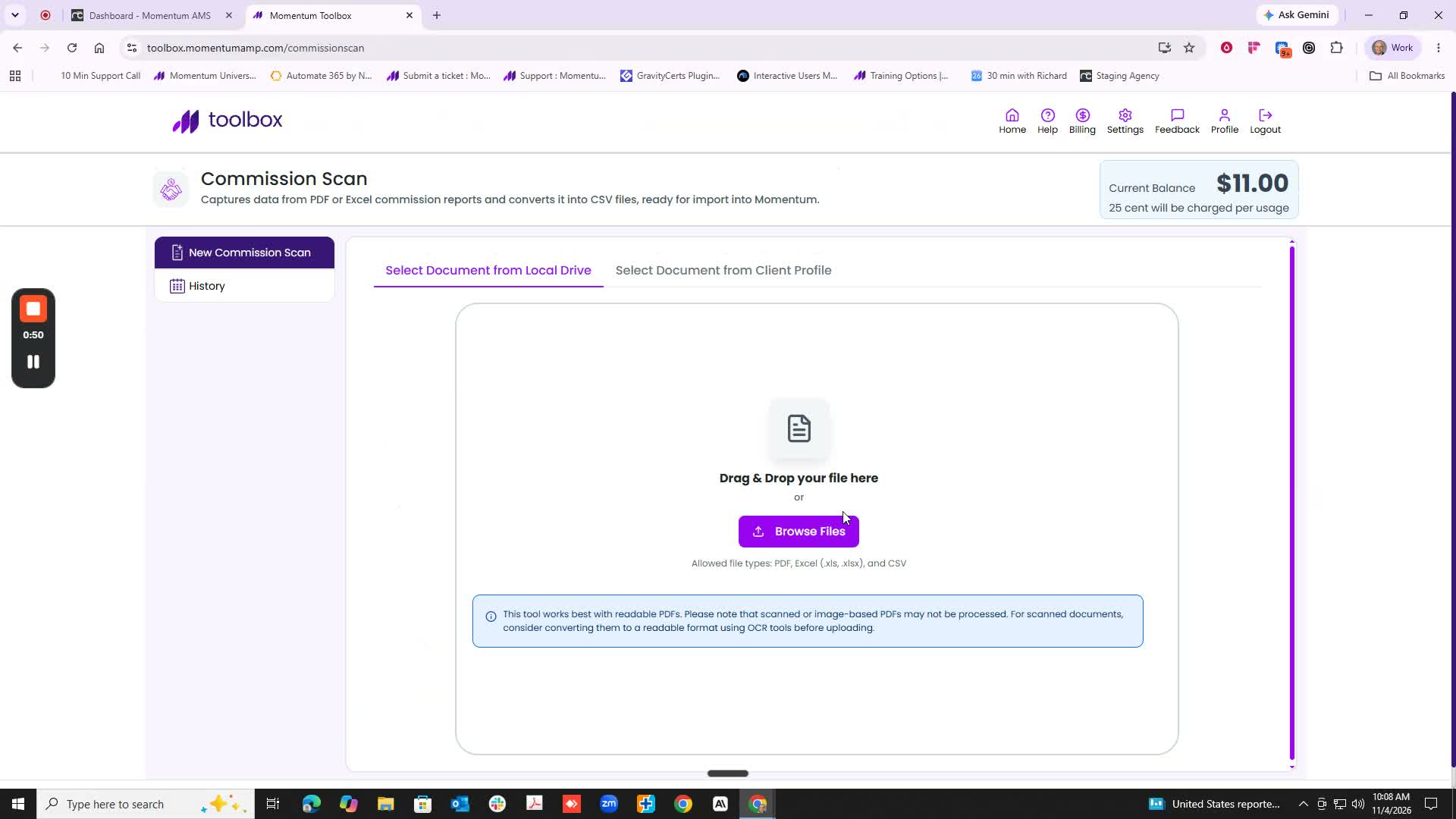
- Drag and drop the commission statement into the upload area, or click Browse Files.
- Select the file from your computer.
- Click Upload.
- Wait for the confirmation that the file was uploaded successfully and is being processed.
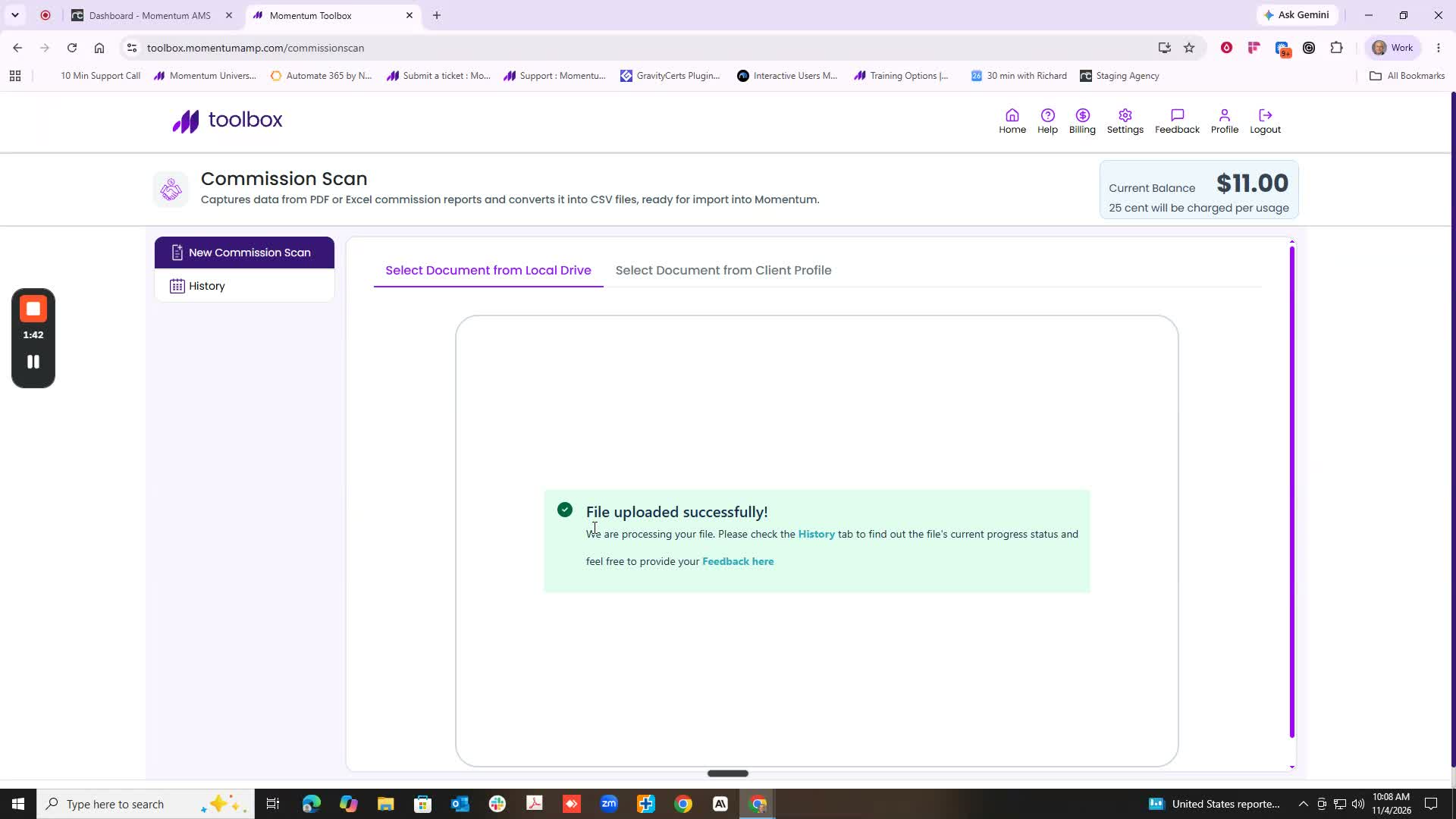
Momentum Toolbox will process the statement and prepare the commission information for import.
3. Check the Processing Status
- Click the Historytab.
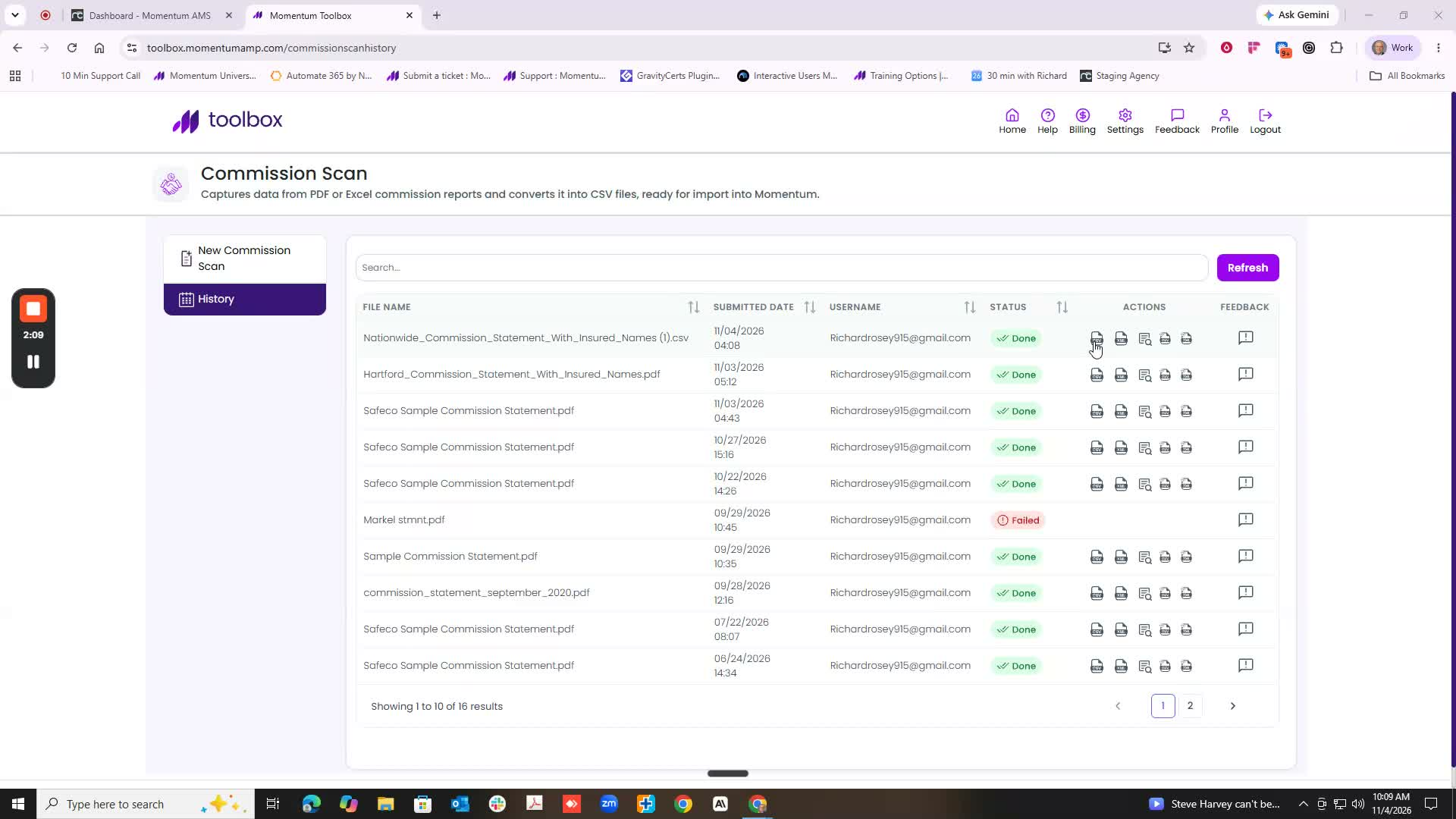
- Locate the uploaded statement.
- Review the processing status.
The status may initially display In Progress. When processing is complete, the status will change to Done.
If necessary, refresh the page to check for an updated status.
4. Review the Available Actions
Once the statement has finished processing, several actions become available on the right side of the History screen.
| Action | Purpose |
|---|---|
| Download CSV | Downloads the processed commission information in CSV format. |
| Download XML | Downloads the processed commission information in XML format. |
| Preview | Opens the statement preview and allows you to review or change the Statement Date. |
| Import Commissions | Opens the commission import and field-mapping workflow in Momentum AMS. |
| Import XML | Opens the Carrier Downloads merge workflow to match existing records, create missing records when necessary, and import commission transactions. |
Recommended: Click Preview before selecting an import method.

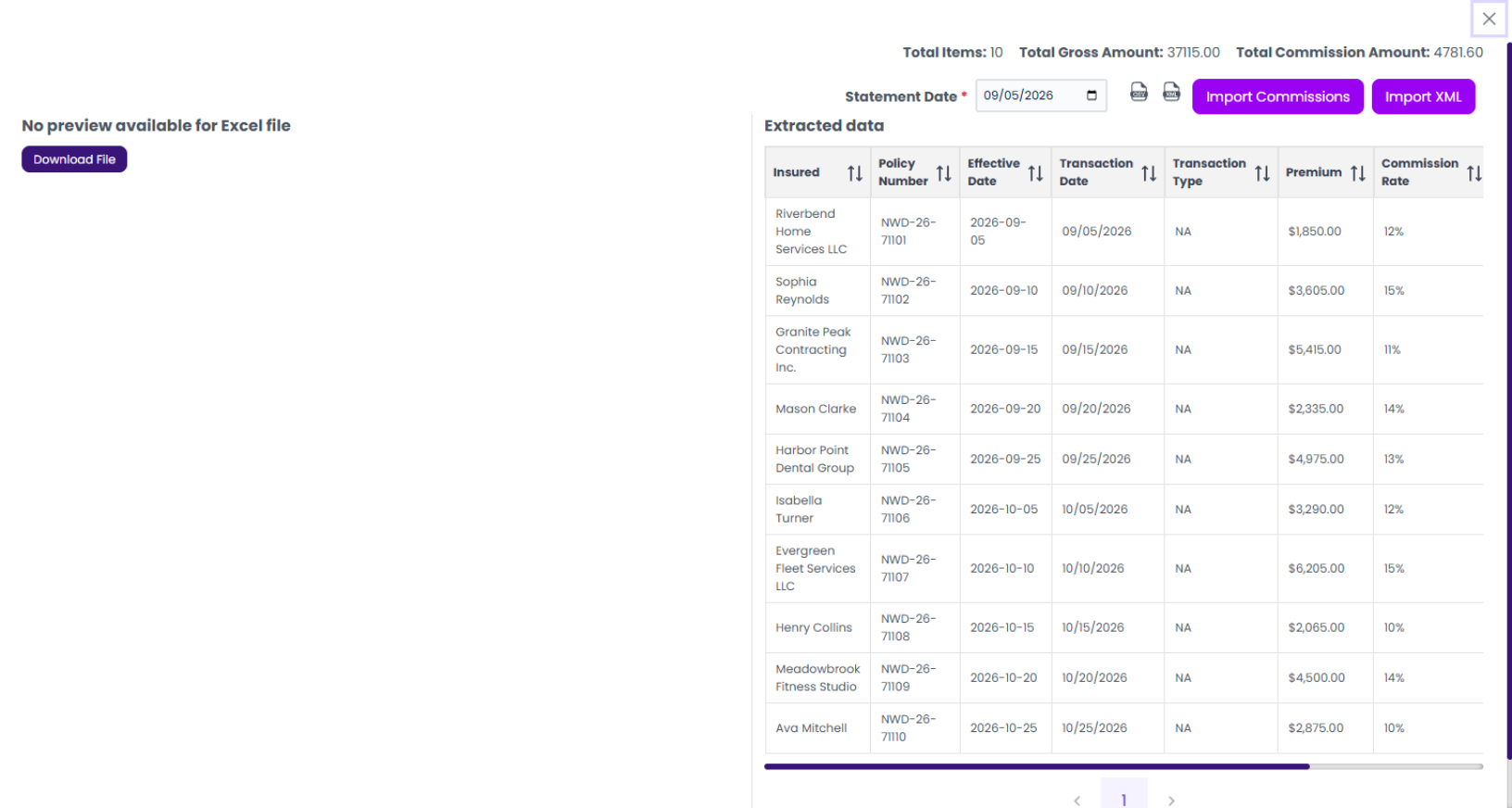
5. Preview the Statement
- Locate the processed statement in the History section.
- Click Preview.
- Review the available statement information.
- Locate the Statement Date on the right side of the preview.
- Adjust the Statement Date if necessary.
Two options are available for continuing:
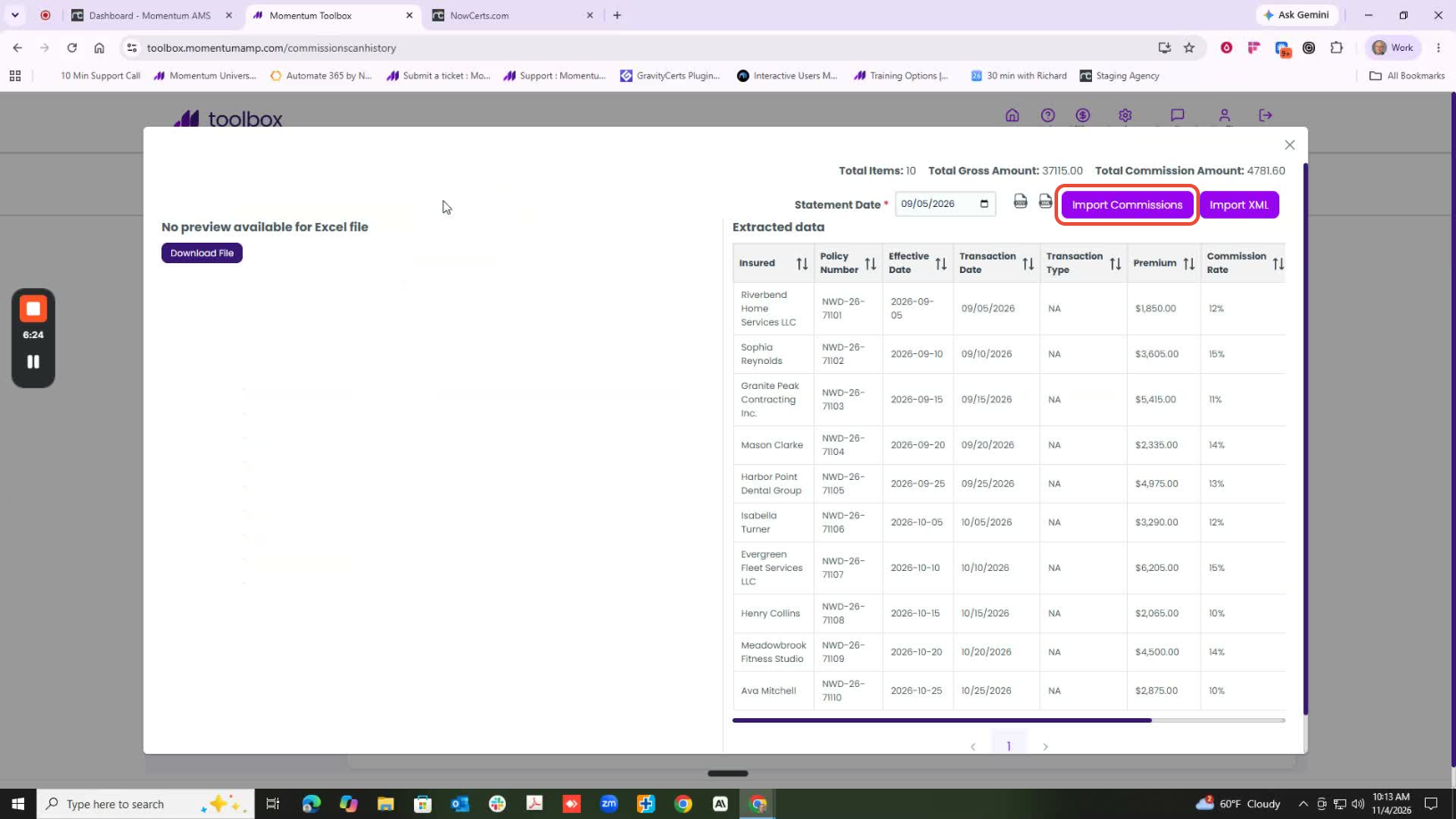
- Import Commissions
- Import XML
Note: Some file formats, including Excel files, may not display a visual preview of the original file in the left panel.
6. Understanding the Two Import Methods
Both methods import commission information into Momentum AMS, but they follow different processes.
| Import Commissions | Import XML |
|---|---|
| Uses a CSV-style field-mapping process. | Uses a merge process similar to Carrier Downloads. |
| Matches transactions to policies already in Momentum AMS. | Automatically attempts to match existing insureds and policies. |
| Requires existing policy records for matching. | Can create missing insured and policy records during the merge. |
| Requires mapping commission fields. | Does not require manual field mapping or manually adding missing insureds and policies. |
Import XML is generally the preferred method because it reduces manual work and can process commission information whether the insureds and policies already exist in Momentum AMS or need to be created.
7. Method One: Import Commissions
The Import Commissions method uses the same general workflow as importing a commission CSV directly through the Reconciliations section of Momentum AMS.
Step 1: Open the Commission Import
- From the statement Preview screen, click Import Commissions.
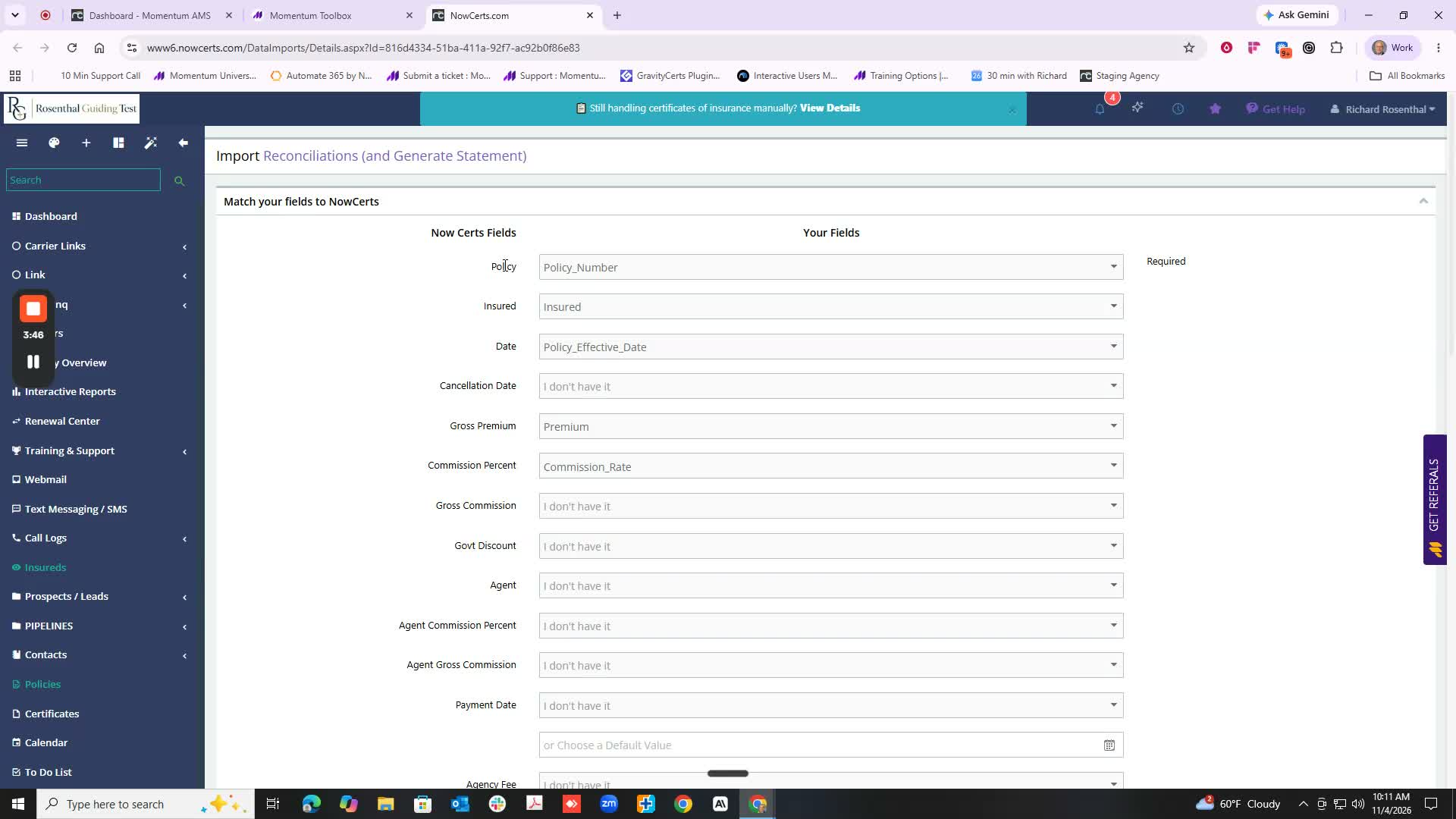
- Momentum AMS opens Import Reconciliations and Generate Statement.
- Review the field-mapping options.
Step 2: Map the Required Fields
For this workflow, map only four fields:
| Field | Instructions |
|---|---|
| Policy Number | Required to match the commission transaction to an existing policy. |
| Effective Date of Endorsement | Use the transaction's endorsement effective date when available. This may also be the policy effective date, depending on the transaction. |
| Gross Commission | Map the commission amount from the statement. |
| Payment Date | Use the applicable commission payment date. This can be entered or adjusted during the import process. |
Step 3: Remove Unnecessary Field Mappings
Some fields may be mapped automatically. Remove mappings that are not needed for this commission import.
Leave the following fields unmapped:
- Insured
- Gross Premium
- Commission Rate
- Other unnecessary statement columns
Unmapped fields should display I don't have it.
When premium information is already recorded in Momentum AMS, mapping Gross Premium during commission import can duplicate the premium.
For this workflow, leave Gross Premium unmapped and import only the required commission information.
Step 4: Generate the Import Preview
- Verify that the four required fields are mapped correctly.
- Click Generate Import Preview.
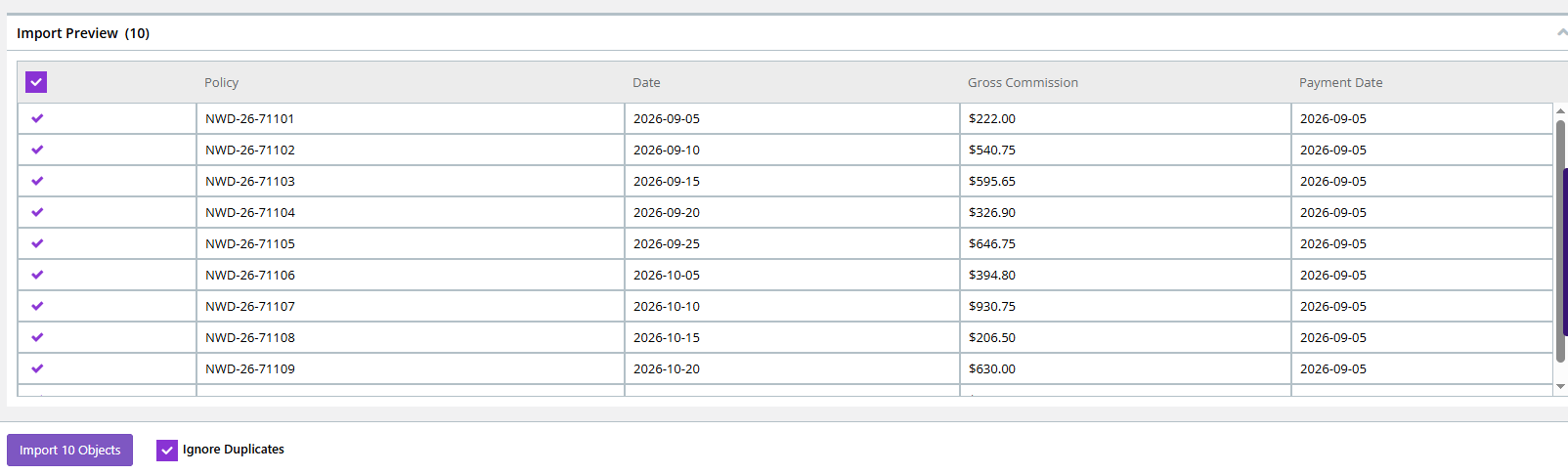
- Review the resulting transactions.
Confirm that the policy numbers, endorsement dates, commission amounts, and payment dates correspond with the original statement.
Step 5: Import the Transactions
- Locate Ignore Duplicates.
- Make sure the option is unchecked.
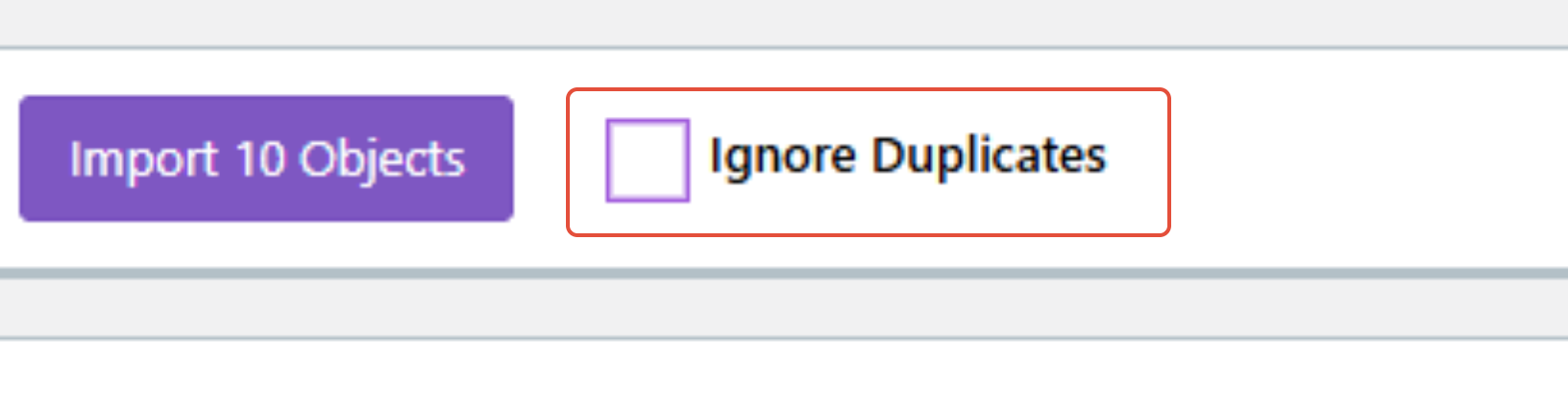
- Click the import button displaying the number of objects to be imported.
- Review the import results for any errors.
Leaving Ignore Duplicates unchecked allows multiple commission transactions associated with the same policy to be included.
Important: This method requires matching existing policy records. If the policy numbers cannot be matched, the corresponding transactions may fail to import.
If policies are missing, consider using Import XML instead.
8. Method Two: Import XML
The Import XML method uses the Carrier Downloads merge workflow to process commission transactions.
Momentum AMS automatically attempts to match incoming information to existing insureds and policies. If the records do not exist, the merge process can create them.
There is no need to manually add insureds or policies during this workflow.
Step 1: Select Import XML
- Return to the processed statement in Momentum Toolbox.
- Click Import XMLfrom the available actions or statement Preview.
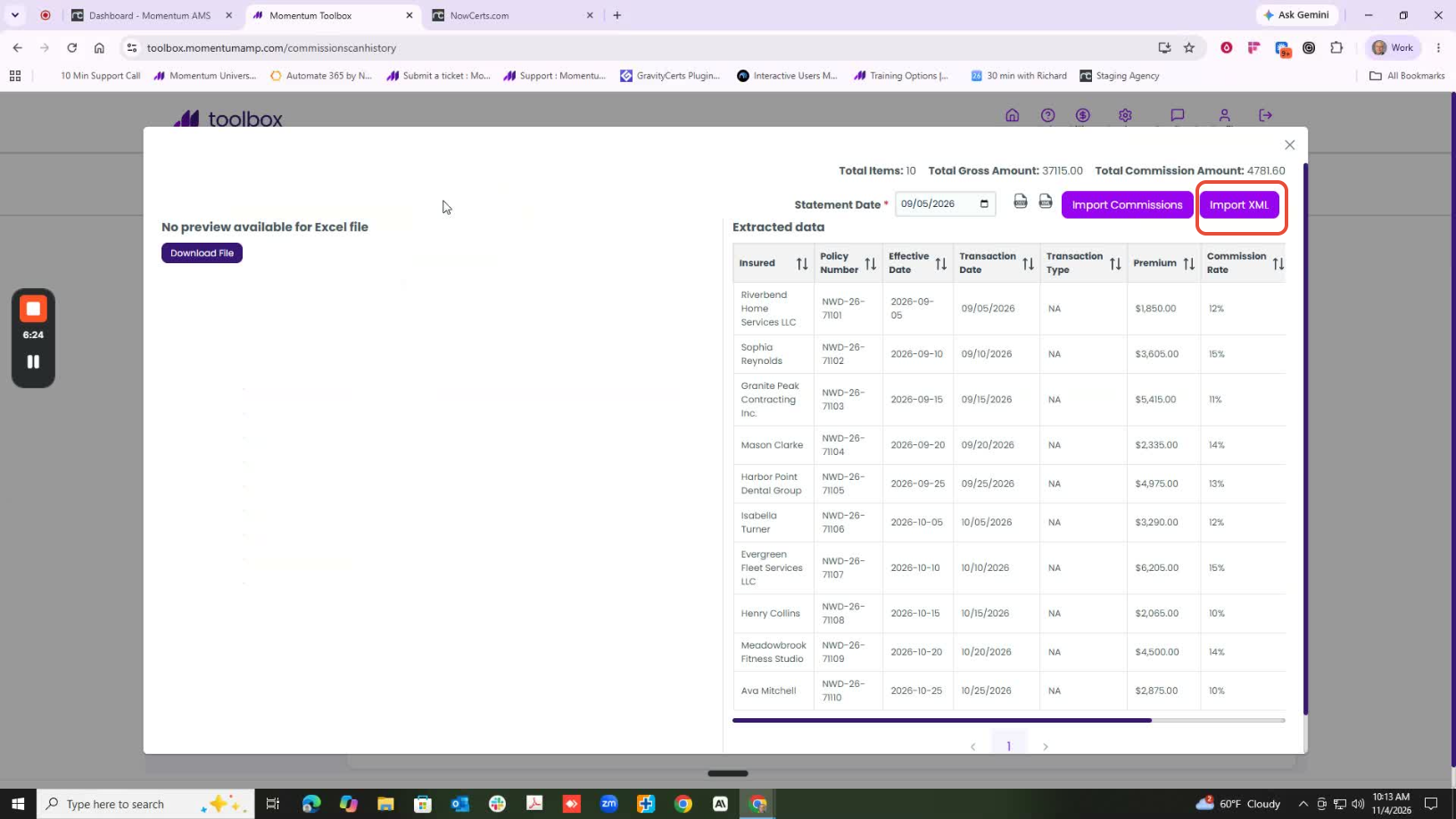
- Momentum AMS opens the XML merge screen in the Carrier Downloads section.
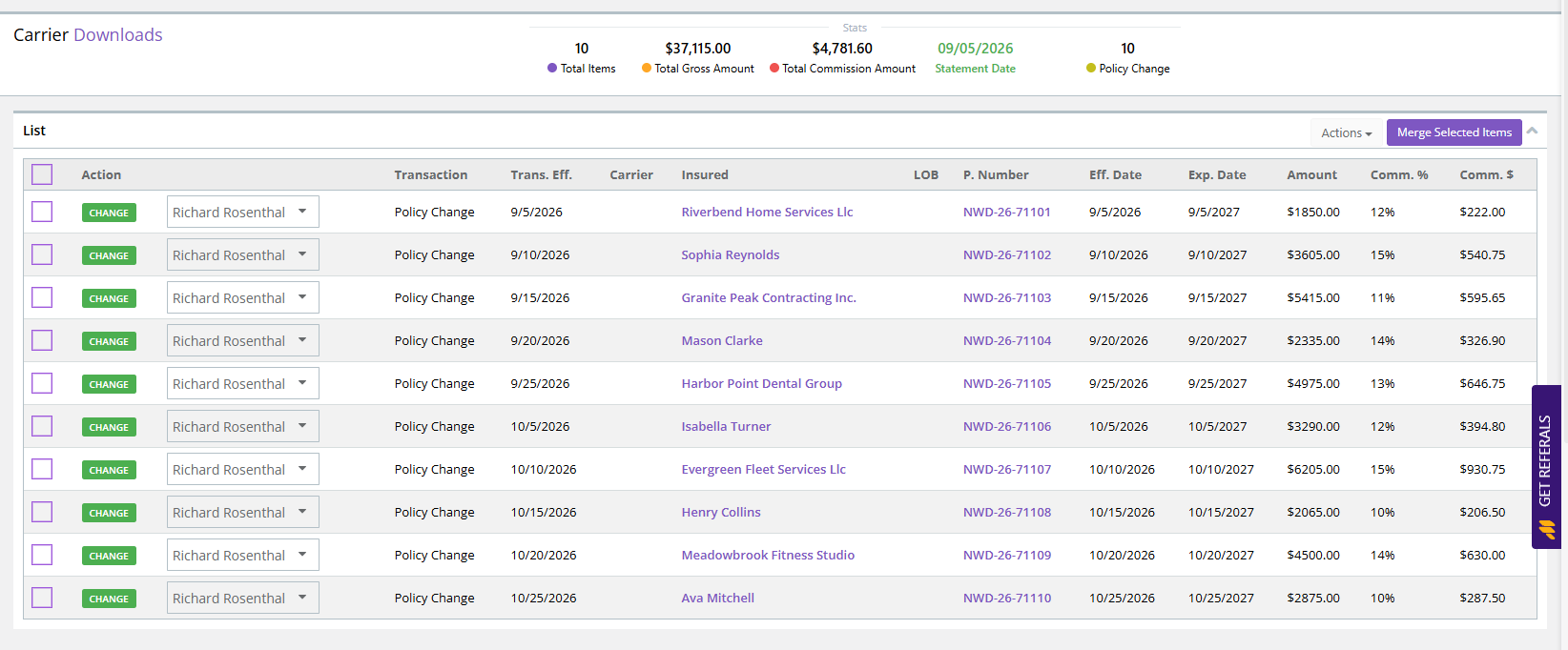
Step 2: Review the Merge Screen
The XML merge screen displays the incoming commission transactions and indicates which insureds and policies can be matched to existing records and which records will be created during the merge.
The system handles the matching and creation process automatically. Agencies do not need to manually add insureds, create policies, or individually merge each transaction.
Review the displayed information, including the commission amounts and statement date, before continuing.
Step 3: Select the Transactions and Create the Statement
- Select the commission transactions you want to process. To process the entire statement, select all applicable transactions.
- Click Actions in the upper-right area of the screen.
- Select Merge and Create DB Statement.
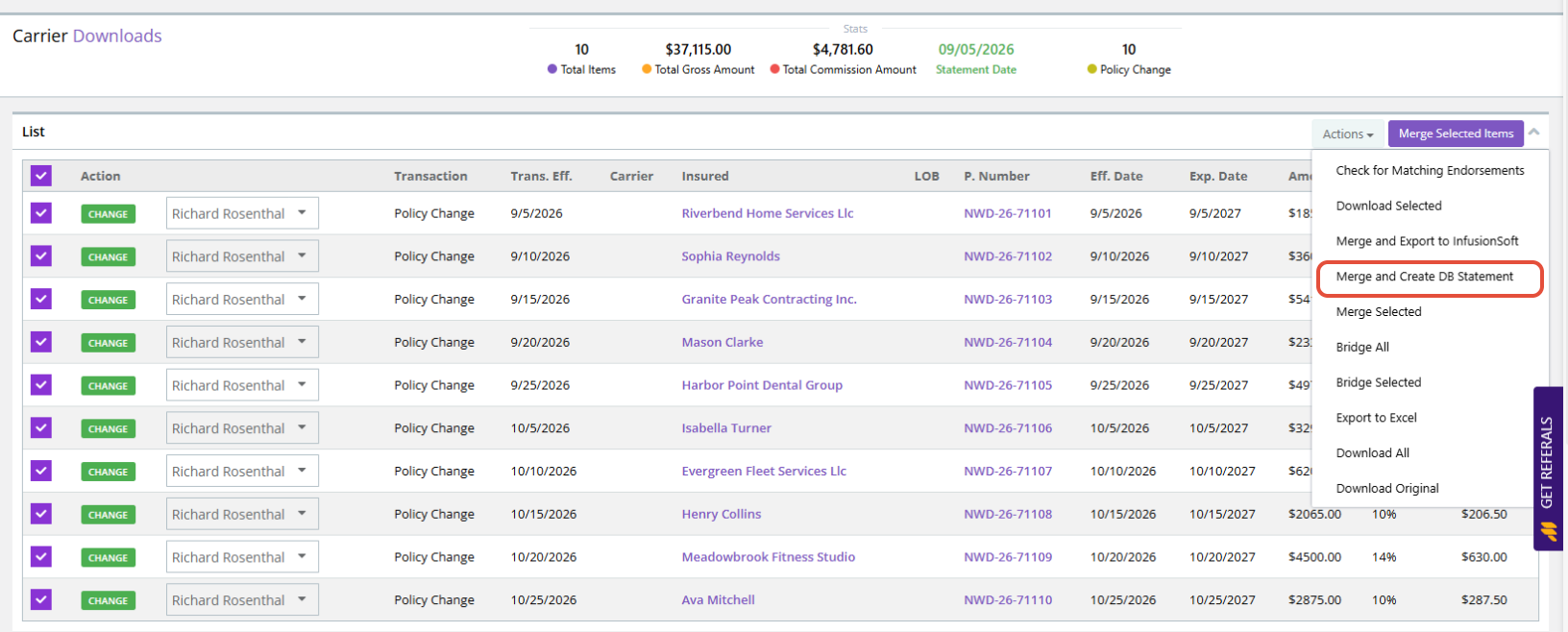
Momentum AMS will complete the merge, match existing insureds and policies where possible, create missing records when necessary, apply the commission transactions, and generate the corresponding direct bill agency commission statement.
Why Use Merge and Create DB Statement?
The merge screen also provides a Merge Selected Items action.
Although this action merges the selected commission transactions, it does not perform the additional statement-creation action.
For commission statement processing, the recommended option is Actions > Merge and Create DB Statement.
This allows the agency to retain the commission statement in Momentum AMS for review and subsequent agent commission processing.
9. Review the Agency Commission Statement
After completing the import and reconciliation, review the resulting agency commission statement.
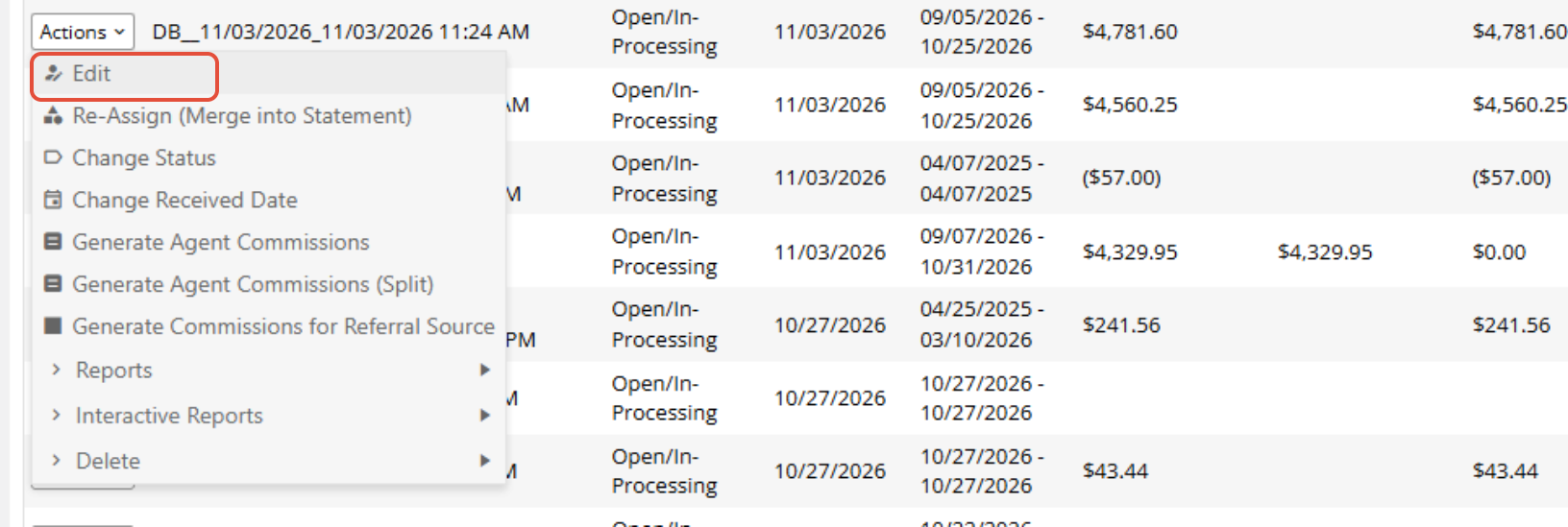
- Navigate to Miscellaneous > Accounting Items > Agency Statements.
- Locate the statement created during the import.

- Click Actions > Edit
- Review the commission transactions and totals.
- Compare the information against the original carrier or MGA statement.
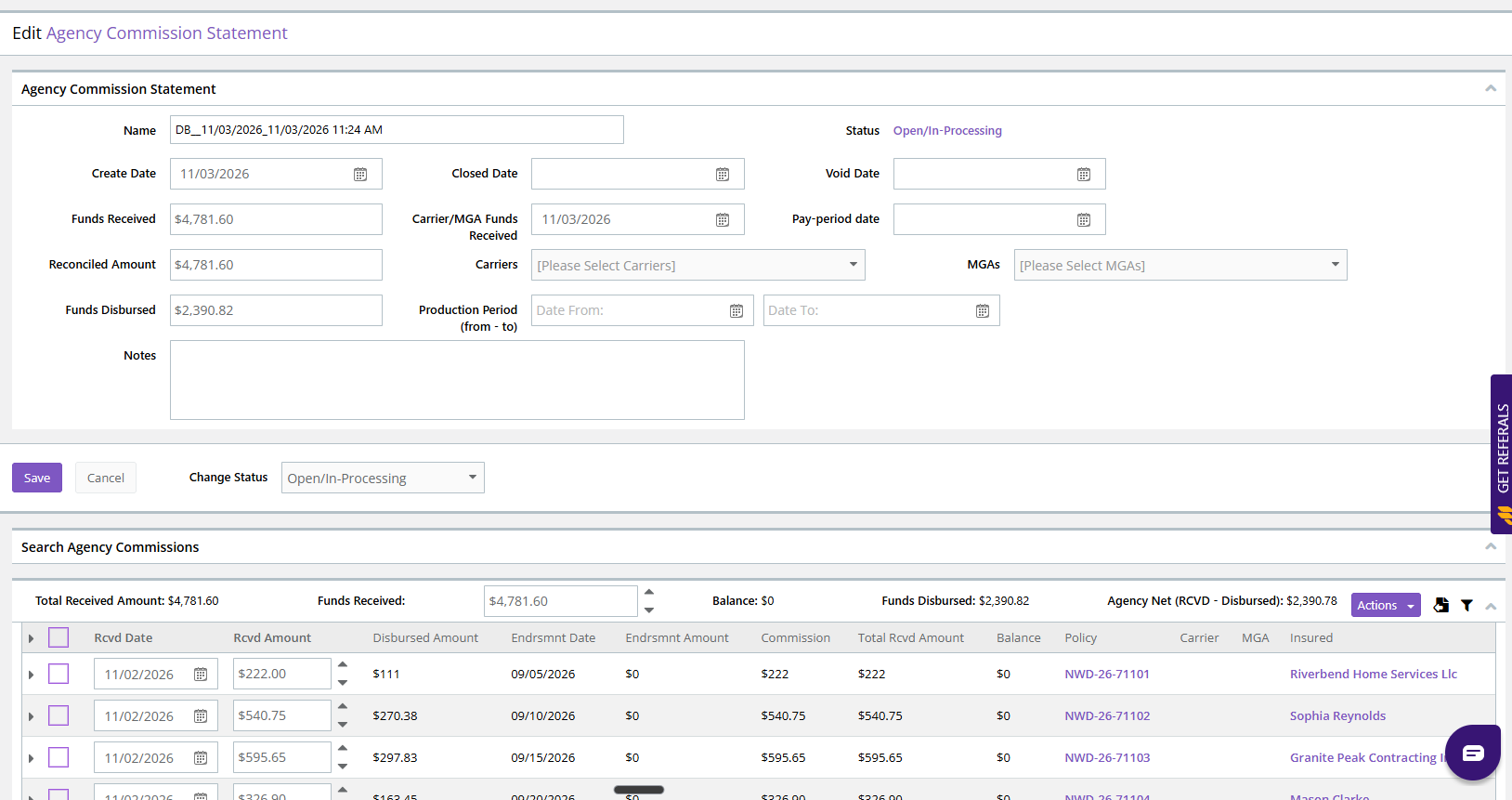
The agency statement provides a record of the reconciled commission activity.
10. Verify Agent Commissions
Agency commission reconciliation and agent commission reconciliation are separate processes.
After creating the agency statement, agencies that pay commissions to agents or producers should verify that the corresponding agent commission transactions have been generated. 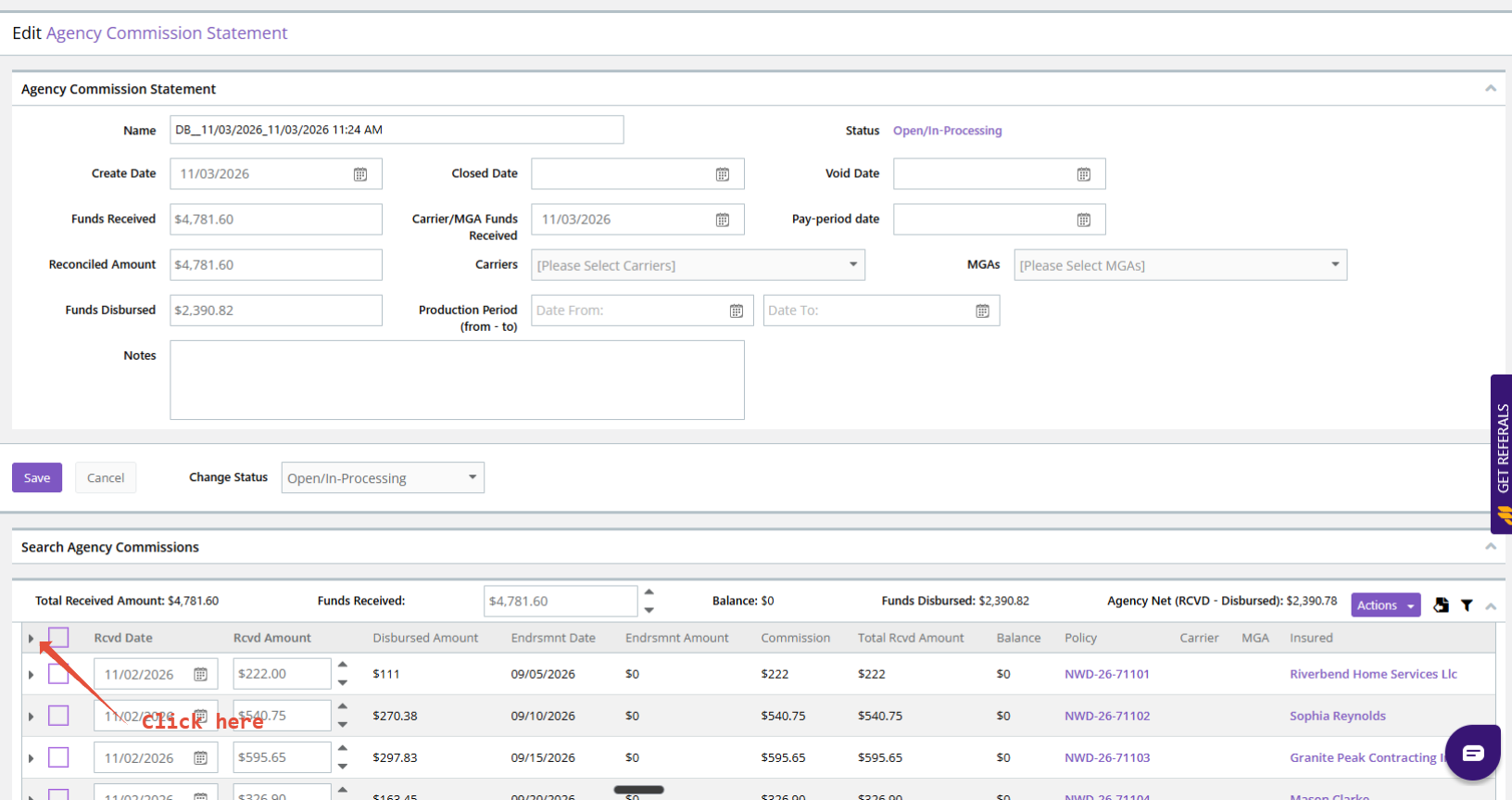
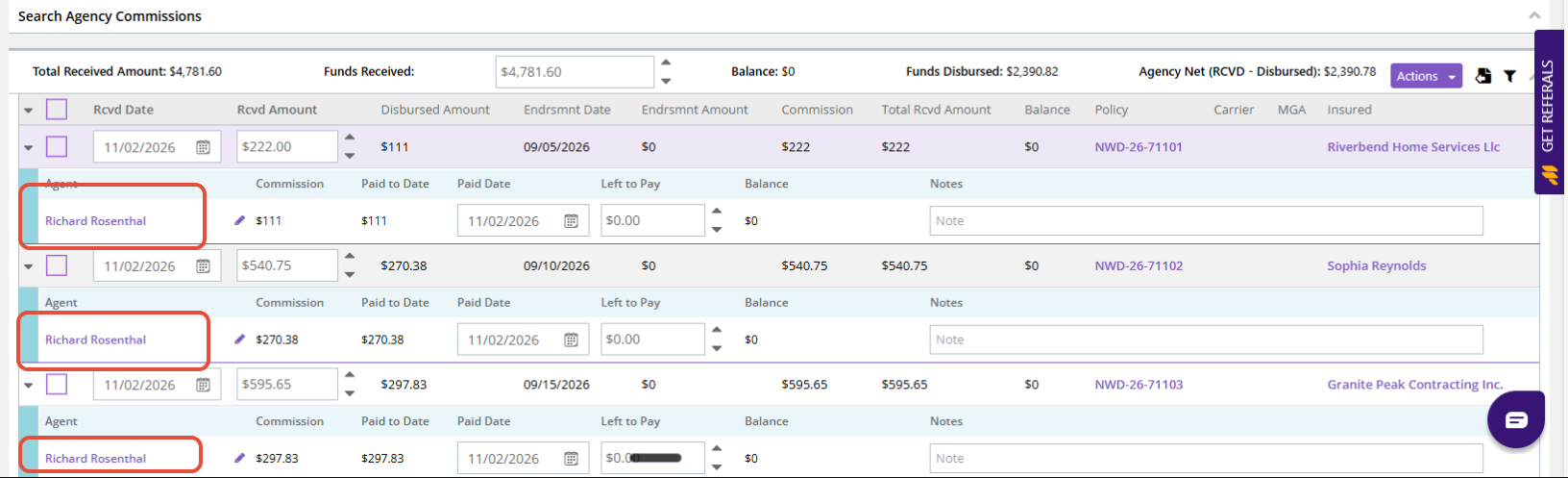
If agent commissions are missing, verify that:
- The appropriate agent is assigned to the policy.
- An applicable agent commission rule exists.
To generate agent commissions from reconciled agency commission transactions when necessary:
- Navigate to Miscellaneous > Accounting Items > Agency Statements
- Click Actions > Generate Agent Commissions.
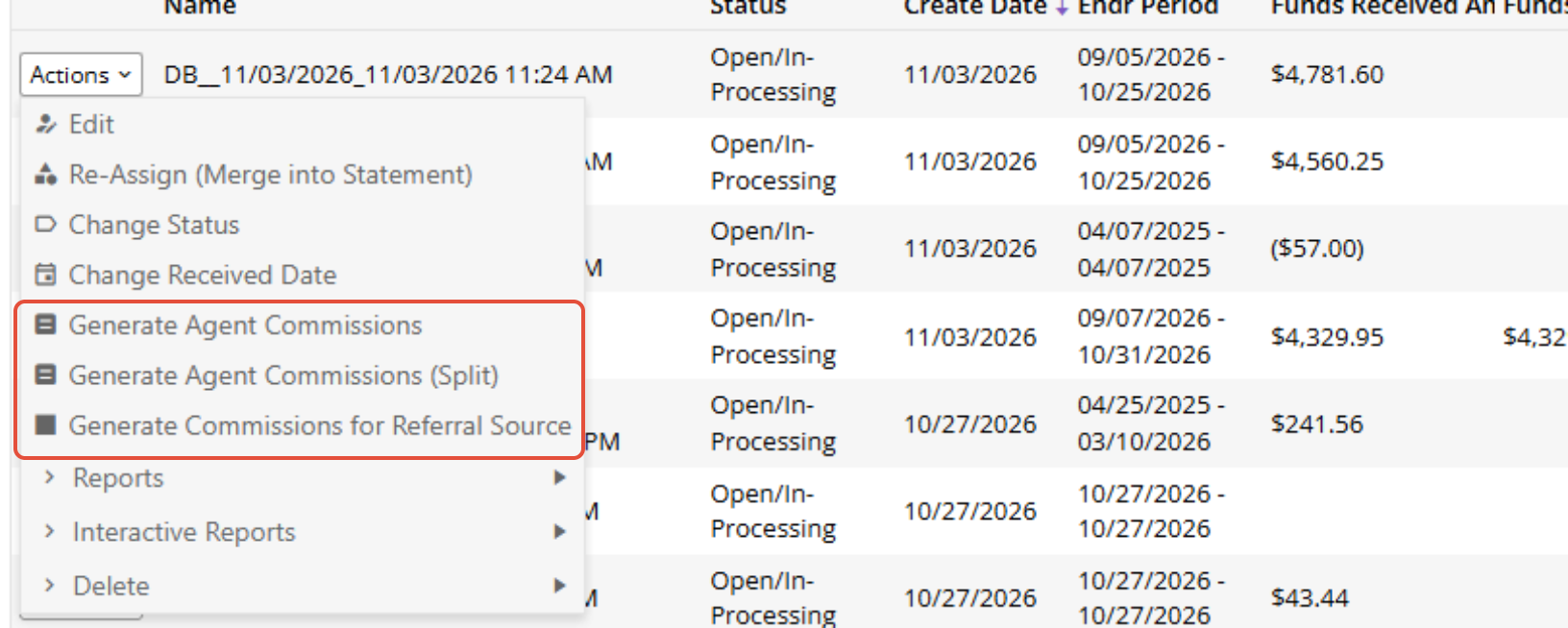
- Review the resulting agent commission transactions.
Once the agent commissions have been verified, the agency can continue with agent commission reconciliation.
11. Common Issues and Troubleshooting
The Statement Is Still Processing
If the status displays In Progress, allow additional processing time and refresh the History section periodically.
The Uploaded File Does Not Display in Preview
Some file formats, including Excel files, may not display a visual preview in the left panel. Check the History status to confirm that processing has completed.
Import Commissions Cannot Match a Policy
Verify that the policy number on the statement matches an existing policy in Momentum AMS. If the policy does not exist, the CSV-style import may fail for that transaction.
The Import XML method can match existing policies and create missing records when necessary.
Gross Premium Was Automatically Mapped
Remove the Gross Premium mapping before generating the import preview to avoid duplicating premium information already recorded in Momentum AMS.
The XML Merge Screen Shows Records That Will Be Added
This is expected when Momentum AMS does not identify an existing insured or policy match. The merge process will create the missing records automatically.
There is no need to manually click ADD or create the records individually. Select the applicable transactions and use Actions > Merge and Create DB Statement.
Agent Commissions Are Missing
Review the agent assignment and applicable agent commission rule. Generate agent commissions from reconciled agency commission transactions when necessary.
12. Video Walkthrough
The accompanying training video demonstrates both commission import methods through Momentum Toolbox, including uploading statements, mapping commission fields, using the XML merge process, and creating agency commission statements.
13. Best Practices
- Use Commission Scan to reduce manual commission entry.
- Review the statement in Preview before choosing an import method.
- Verify the Statement Date and commission amounts before importing.
- When using Import Commissions, map only Policy Number, Effective Date of Endorsement, Gross Commission, and Payment Date.
- Do not map Gross Premium when it is already recorded in Momentum AMS.
- Leave Ignore Duplicates unchecked for the demonstrated commission import workflow.
- Consider Import XML to reduce manual work and allow Momentum AMS to match existing records or create missing records automatically.
- When using Import XML, select Actions > Merge and Create DB Statement to create the agency commission statement.
- Review the resulting agency statement and verify agent commissions separately.
- Retain the original carrier or MGA statement for future reference.
Related Resources
- Reconciling Agency Commissions – Overview of agency commission reconciliation and related workflows.
- Momentum AMS AI Commission Scan (Import XML Method) – Instructions for accessing the XML import workflow through Momentum AI.
- Importing and Matching Commission Statements – Additional information about importing and matching commission transactions.
- Troubleshooting Missing Commission Transactions in Momentum AMS – Guidance for investigating missing commission transactions.
Was this article helpful?
That’s Great!
Thank you for your feedback
Sorry! We couldn't be helpful
Thank you for your feedback
Feedback sent
We appreciate your effort and will try to fix the article