Reconciling agency commissions in Momentum AMS allows agencies to compare commission transactions against payments received from insurance carriers or MGAs. This helps maintain accurate commission records, identify discrepancies, and track commission revenue.
The recommended approach is to process carrier and MGA commission statements using Momentum AI or Momentum Toolbox. Both tools support PDF, Excel, and CSV statements and provide two import methods: Import Commissions and Import XML.
Manual reconciliation is also available when a statement cannot be processed through Commission Scan or when individual transactions require manual attention.
This article explains the available reconciliation methods, how to review agency commission statements, and how to verify and generate agent commissions.
1. Understanding Agency Commission Reconciliation
Agency commission reconciliation involves matching commission transactions recorded in Momentum AMS against commission payments reported by an insurance carrier or MGA.
The typical workflow includes:
- Receive a commission statement from the carrier or MGA.
- Process the statement using Momentum AI or Momentum Toolbox.
- Import and reconcile the commission transactions.
- Review the resulting agency commission statement.
- Verify that the appropriate agent commissions have been generated.
- Continue with agent commission reconciliation and payment processing, when applicable.
Important: Agency commission reconciliation and agent commission reconciliation are separate processes. Reconciling commissions received by the agency does not automatically confirm that all agent commissions have been generated or are ready for payment.
2. Recommended Methods: Momentum AI and Momentum Toolbox
Momentum AMS provides two ways to access the Commission Scan feature:
Option 1: Momentum AI Commission Scan
Momentum AI allows agencies to upload commission statements, review the extracted commission information, and import the transactions into Momentum AMS.
To access Commission Scan:
- From Momentum AMS, expand Momentum AMP.
- Select Momentum AI.
- In the new browser tab, select AI Scans.
- Click Commission Scan.
Momentum AI uses a paperclip attachment and Send workflow to process the uploaded statement. Once processing is complete, Advanced Options provides the available import methods.
For complete instructions, refer to:
How to Use the Commission Scan Feature in Momentum AI
Option 2: Momentum Toolbox Commission Scan
Momentum Toolbox provides another way to process carrier or MGA commission statements using the same import capabilities.
To access Commission Scan:
- From Momentum AMS, expand Momentum AMP.
- Select Toolbox.
- Locate Commission Scan under Recently Used Tools, Popular Tools, or AI Extract Data.
- Upload the commission statement.
- Once processing is complete, open History to preview and import the statement.
For complete instructions, refer to:
How to Use the Commission Scan Feature in the Momentum Toolbox
Do Both Tools Offer the Same Capabilities?
Yes. Momentum AI and Momentum Toolbox provide the same two commission import methods. The primary difference is how users access Commission Scan and upload their statements.
Both tools support:
- PDF commission statements.
- Excel commission statements.
- CSV commission statements.
- Import Commissions using field mapping.
- Import XML using the Carrier Downloads merge workflow.
3. Understanding the Two Commission Import Methods
After a commission statement has been processed, agencies can choose between two import methods.
| Import Commissions | Import XML |
|---|---|
| Uses a CSV-style field-mapping workflow. | Uses a merge workflow similar to Carrier Downloads. |
| Matches commission transactions to existing policies. | Automatically attempts to match existing insureds and policies. |
| Requires the appropriate policy records to exist in Momentum AMS. | Can create missing insured and policy records during the merge. |
| Requires field mapping and an import preview. | Does not require manual field mapping or manually creating missing insureds and policies. |
Import XML is generally the preferred method because it reduces manual work and can process transactions whether the insureds and policies already exist or need to be created.
Creating the Agency Statement Using Import XML
When using Import XML, Momentum AMS opens the Carrier Downloads merge screen.
The system displays which incoming records match existing insureds and policies and which records will be created during the merge.
Agencies do not need to manually add insureds or policies.
To complete the process:
- Select the applicable commission transactions.
- Click Actions.
- Select Merge and Create DB Statement.
This applies the commission transactions and creates the corresponding direct bill agency commission statement.
When importing commission statements through XML, use Actions > Merge and Create DB Statement rather than Merge Selected Items.
Merge and Create DB Statement creates the agency commission statement record in addition to applying the commission transactions.
For complete step-by-step instructions for either import method, refer to the corresponding Momentum AI or Momentum Toolbox Commission Scan article.
4. Reviewing Agency Commission Statements
After commission transactions have been imported and reconciled, review the resulting agency commission statement.
Accessing Agency Statements
- Navigate to Miscellaneous.
- Select Accounting Items.
- Open Agency Statements.
- Locate the statement you want to review.
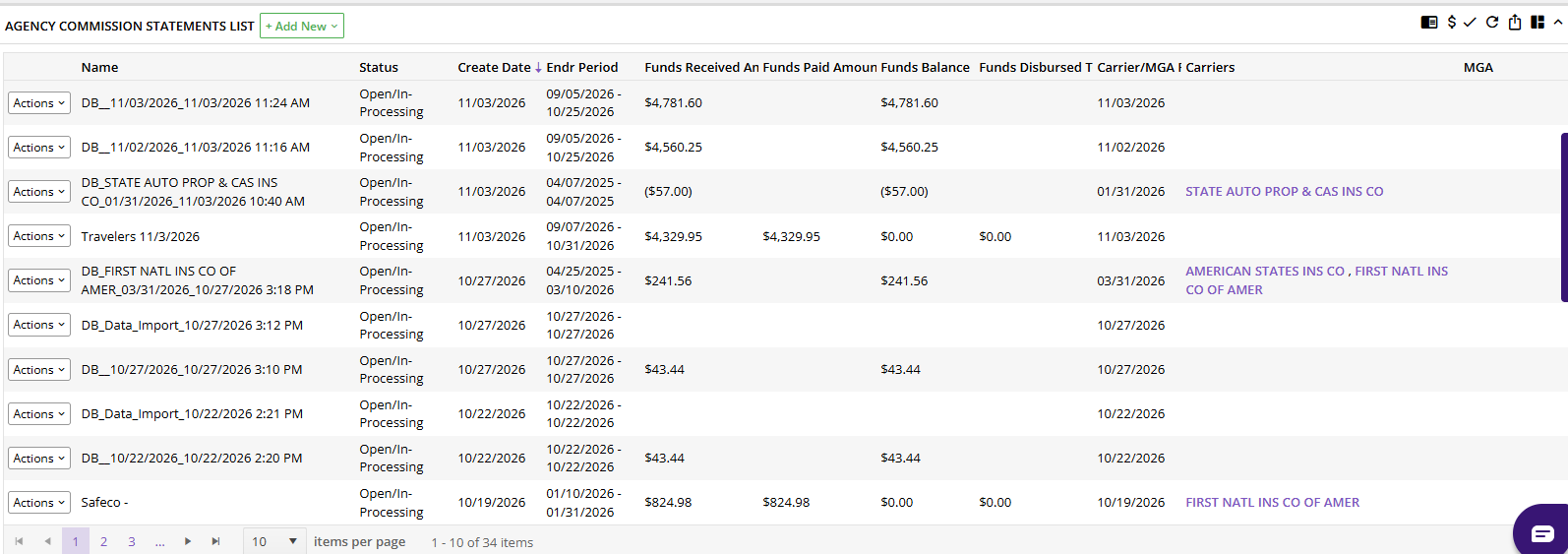
Viewing and Editing the Statement
- Locate the appropriate agency statement.
- Click Actions > Edit.
- Review the statement information and commission transactions.
- If necessary, update the statement name to make it easier to identify.
Compare the statement against the original carrier or MGA statement and verify:
- The correct commission transactions are included.
- The commission amounts are accurate.
- The statement totals correspond with the carrier or MGA statement.
- Any missing or unexpected transactions have been investigated.
Reviewing Agent Commissions on the Statement
When viewing an agency commission statement, the system provides an expandable section for reviewing the associated agent commissions.
- Open the agency commission statement.
- Locate the small triangle at the top of the statement.
- Click the triangle to expand the agent commission information.
- Review the commissions associated with the agents.
This provides a way to verify whether agent commission transactions have been generated for the reconciled agency commissions.
5. Verifying and Generating Agent Commissions
After agency commissions have been reconciled, agencies that pay commissions to agents or producers should verify that the corresponding agent commission transactions exist.
Agency commission reconciliation and agent commission reconciliation are separate accounting processes.
Agent Commission Requirements
Before generating agent commissions, verify:
- Agent Assignment: The appropriate agent is assigned to the policy.
- Agent Commission Rule: An applicable commission rule has been established.
If either requirement is missing, the expected agent commission transactions may not be generated.
Generating Agent Commissions from an Agency Statement
If agent commissions were not generated, or if the applicable rules have been updated, commissions can be generated from the agency statement.
- Navigate to Miscellaneous > Accounting Items > Agency Statements.
- Locate the applicable statement.
- Click Actions.
- Select the appropriate option to generate Agent Commissions, Splits, or Referral Sources.
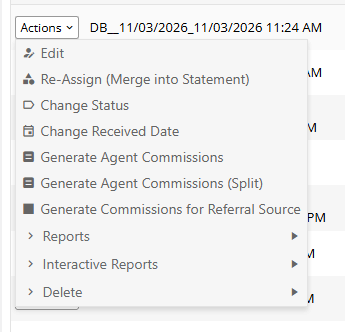
- Review the resulting commission transactions.
After the agent commission transactions have been generated and verified, continue with the separate agent commission reconciliation process.
Alternative: Generate from Reconciled Commission Payments
Agent commissions can also be generated from reconciled agency commission transactions.
- Navigate to Miscellaneous > Accounting Items > Reconciliations.
- Select Show Reconciled Commission Payments.
- Locate and select the applicable reconciled transactions.
- Click Actions > Generate Agent Commissions.
- Review the resulting agent commission transactions.
Note: Agency commission rules and agent commission rules serve different purposes. Imported carrier commission information can establish agency commission amounts, while generating commissions payable to agents depends on the applicable agent assignments and agent commission rules.
6. Alternative Method: Manual Agency Commission Reconciliation
Manual reconciliation is available when a carrier or MGA statement cannot be successfully processed using Momentum AI or Momentum Toolbox, or when individual transactions require manual reconciliation.
Whenever possible, use Commission Scan to reduce manual transaction entry and reconciliation work.
Step 1: Access Manual Reconciliation
- Navigate to Miscellaneous.
- Select Accounting Items.
- Open Reconciliations.
- Select Manually Reconcile Agency Commissions.
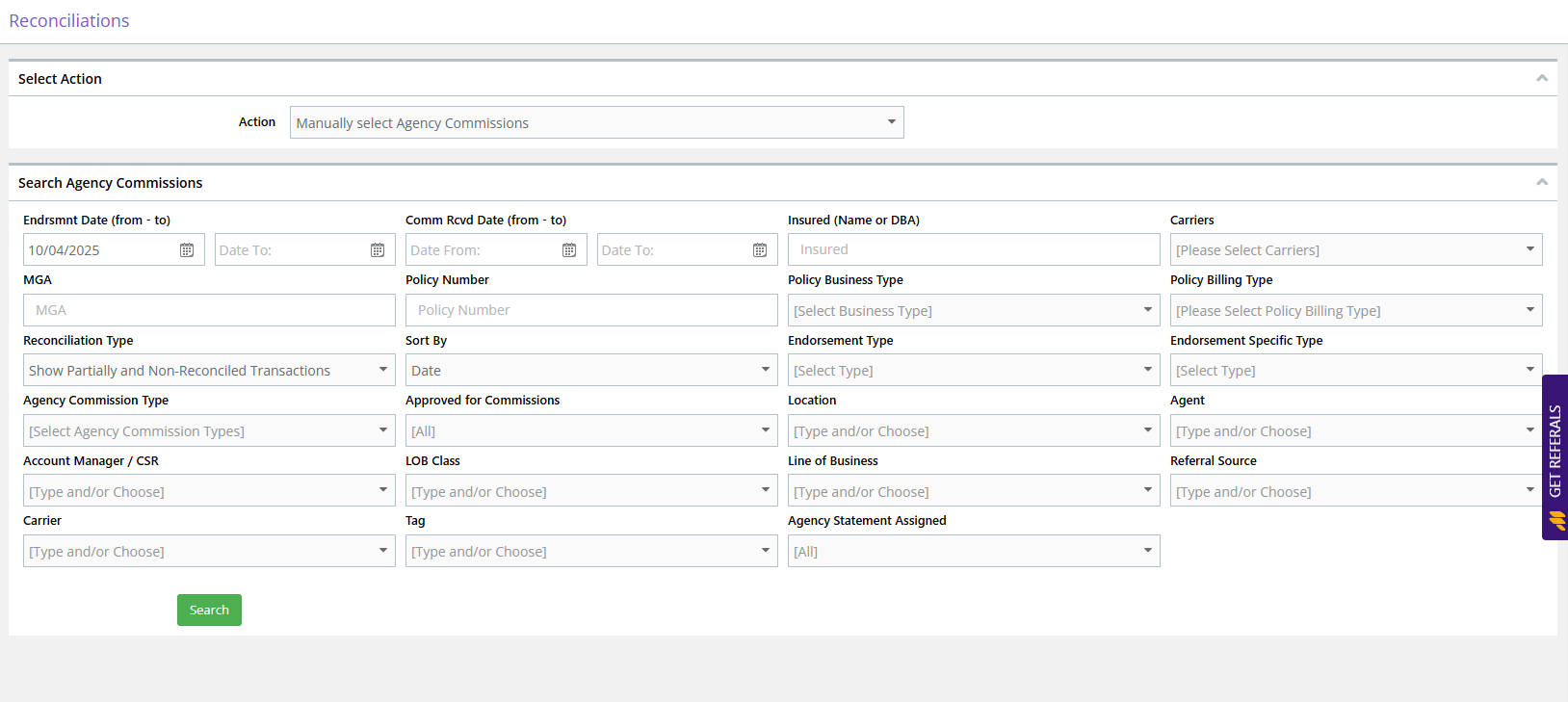
Step 2: Filter the Transactions
Use the available filters to locate transactions associated with the carrier or MGA statement.
- Endorsement Dates: Select the appropriate date range.
- Carrier or MGA: Select the company associated with the statement.
Step 3: Review and Select Transactions
- Compare the available commission transactions against the carrier or MGA statement.
- Verify the commission amounts and applicable dates.
- Investigate any missing or incorrect transactions.
- Select the checkboxes next to the transactions to reconcile.
Step 4: Create the Agency Statement
- With the appropriate transactions selected, click Actions.
- Select Create New Statement.
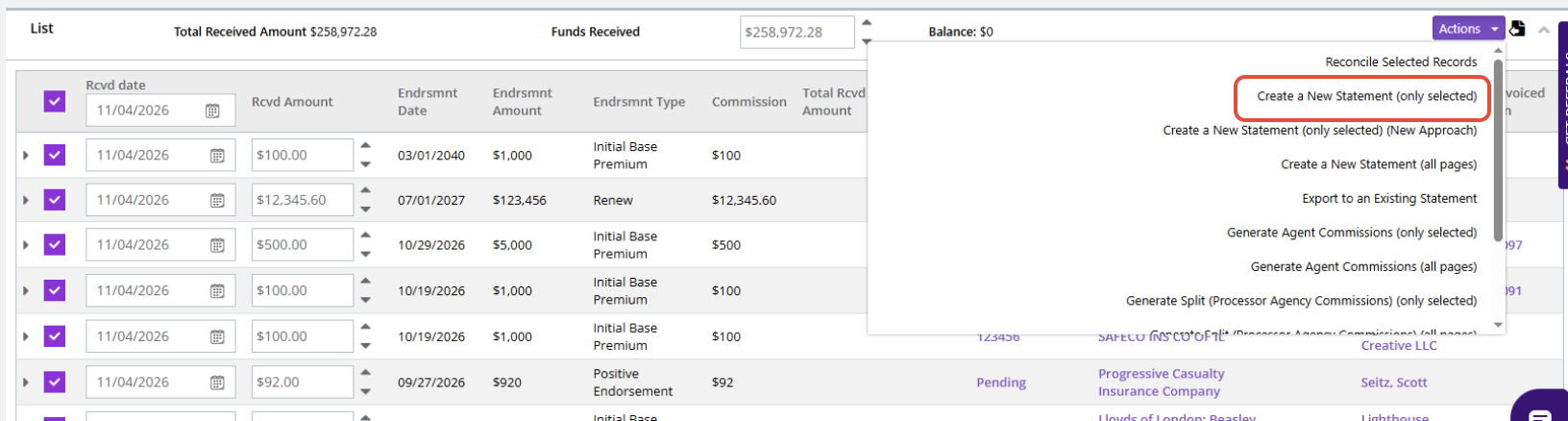
- Enter a recognizable statement name, such as the carrier and statement period.
- Review and save the statement.
This reconciles the selected transactions and creates the agency commission statement.
Step 5: Verify the Statement
Navigate to Miscellaneous > Accounting Items > Agency Statements to review the completed reconciliation.
Verify the statement transactions and amounts, then review agent commissions when applicable.
7. Handling Discrepancies and Adjustments
Commission discrepancies may occur when the amount reported by a carrier or MGA does not match the commission information recorded in Momentum AMS.
Common causes include:
- Missing commission transactions.
- Incorrect commission amounts.
- Policy number mismatches.
- Endorsements, cancellations, or policy adjustments.
- Carrier payment adjustments not associated with an existing commission transaction.
Review the original statement and affected policy transactions before making corrections.
Do not automatically delete an entire reconciliation or agency statement because of a discrepancy. The appropriate correction depends on the transaction and the current status of the statement.
For unusual adjustments or corrections that cannot be associated with existing commission transactions, contact Momentum AMP Support before modifying financial records.
8. Common Reconciliation Questions
Which Commission Scan tool should I use?
Either Momentum AI or Momentum Toolbox. Both provide the same Import Commissions and Import XML methods. Choose the interface that works best for your workflow.
Can I process a PDF commission statement?
Yes. Both Commission Scan tools support PDF statements, as well as Excel and CSV files.
What happens if a policy does not exist in Momentum AMS?
The Import Commissions method requires existing policy records. If a policy cannot be matched, the transaction may fail to import.
Import XML can automatically create missing insured and policy records during the merge.
Do I need to manually create insureds or policies during an XML import?
No. The XML merge screen displays existing matches and records that will be created. Momentum AMS handles the matching and record creation process during the merge.
Does reconciling agency commissions automatically generate agent commissions?
Not necessarily. Review the agency statement to verify that the expected agent commissions exist. If they are missing, check the agent assignments and commission rules, then generate the applicable agent commissions.
Should I delete a statement if I discover a discrepancy?
Not automatically. Investigate the discrepancy and determine the appropriate correction before modifying or deleting financial records.
9. Best Practices
- Use Commission Scan first: Process carrier and MGA statements through Momentum AI or Momentum Toolbox whenever possible.
- Consider Import XML: This method can match existing insureds and policies or create missing records automatically.
- Verify commission information: Review policy numbers, commission amounts, transaction dates, and statement totals.
- Create an agency statement: When using Import XML, select Merge and Create DB Statement.
- Keep statements organized: Use recognizable statement names and retain the original carrier or MGA statements.
- Verify agent commissions: Review agent commission transactions before proceeding with agent commission reconciliation.
- Investigate discrepancies: Resolve unexpected differences before making changes to reconciled financial records.
- Reconcile regularly: Process commission statements promptly to maintain accurate accounting information.
10. Additional Resources
- How to Use the Commission Scan Feature in Momentum AI – Complete instructions for uploading and reconciling commissions using Momentum AI.
- How to Use the Commission Scan Feature in the Momentum Toolbox – Complete instructions for uploading and reconciling commissions using Momentum Toolbox.
- Importing and Matching Commission Statements
- Troubleshooting Missing Commission Transactions in Momentum AMS
If you need assistance with commission reconciliation, statement corrections, or unusual carrier adjustments, contact Momentum AMP Support.
Was this article helpful?
That’s Great!
Thank you for your feedback
Sorry! We couldn't be helpful
Thank you for your feedback
Feedback sent
We appreciate your effort and will try to fix the article